
Flooring Visualizer for Your Own Room
This flooring visualizer lays hardwood, vinyl plank or tile into a photo of your room, under the furniture.
Visualize My Floor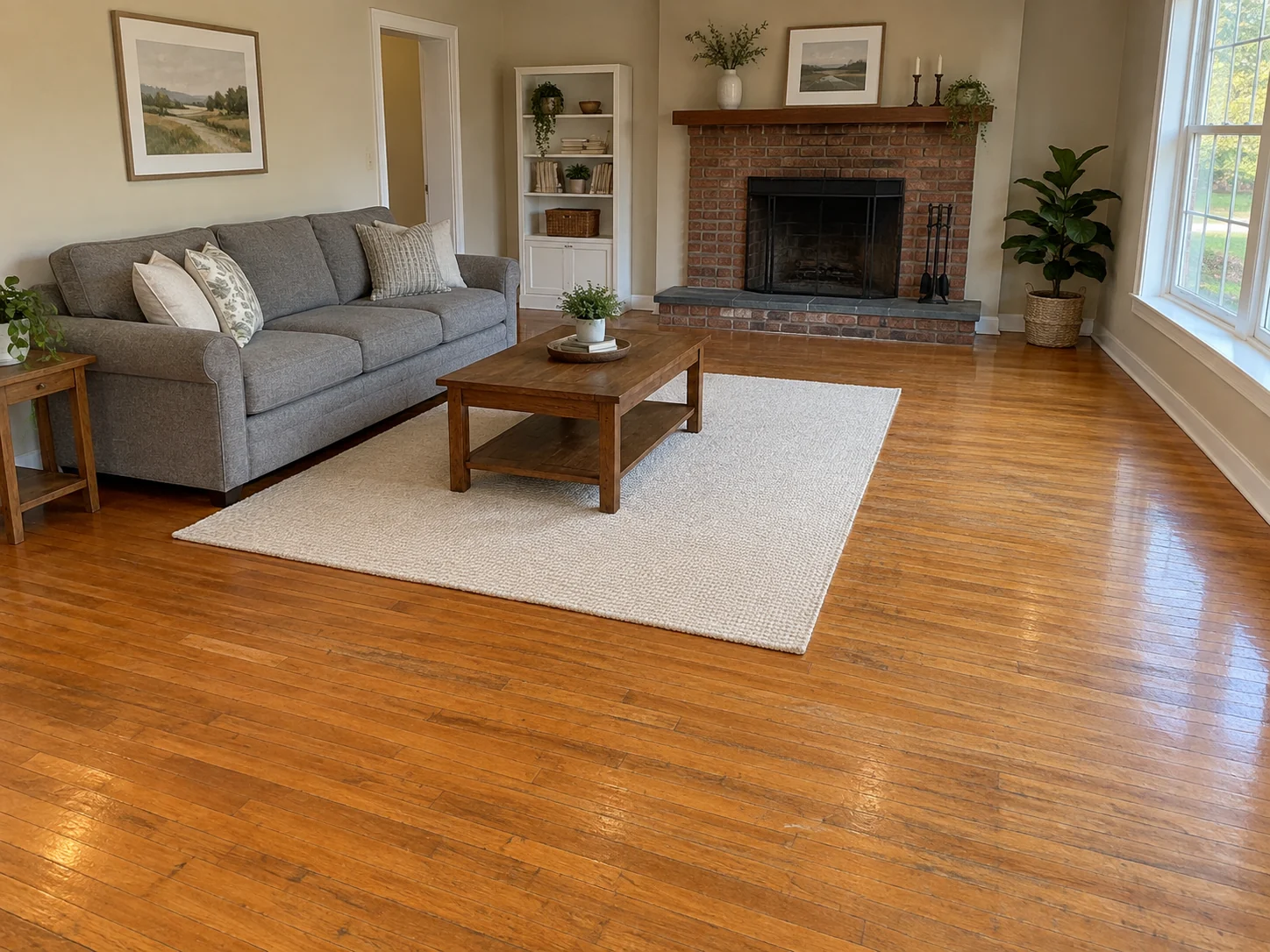
 AfterBefore
Floor Visualizer: Upload a Photo of Your Room
Upload a room photo, choose one flooring material and, if you like, note which parts of the floor to include.
AfterBeforeHerringbone Oak Living Room
Illustrative flooring preview
Flooring Simulator Examples: Before & After
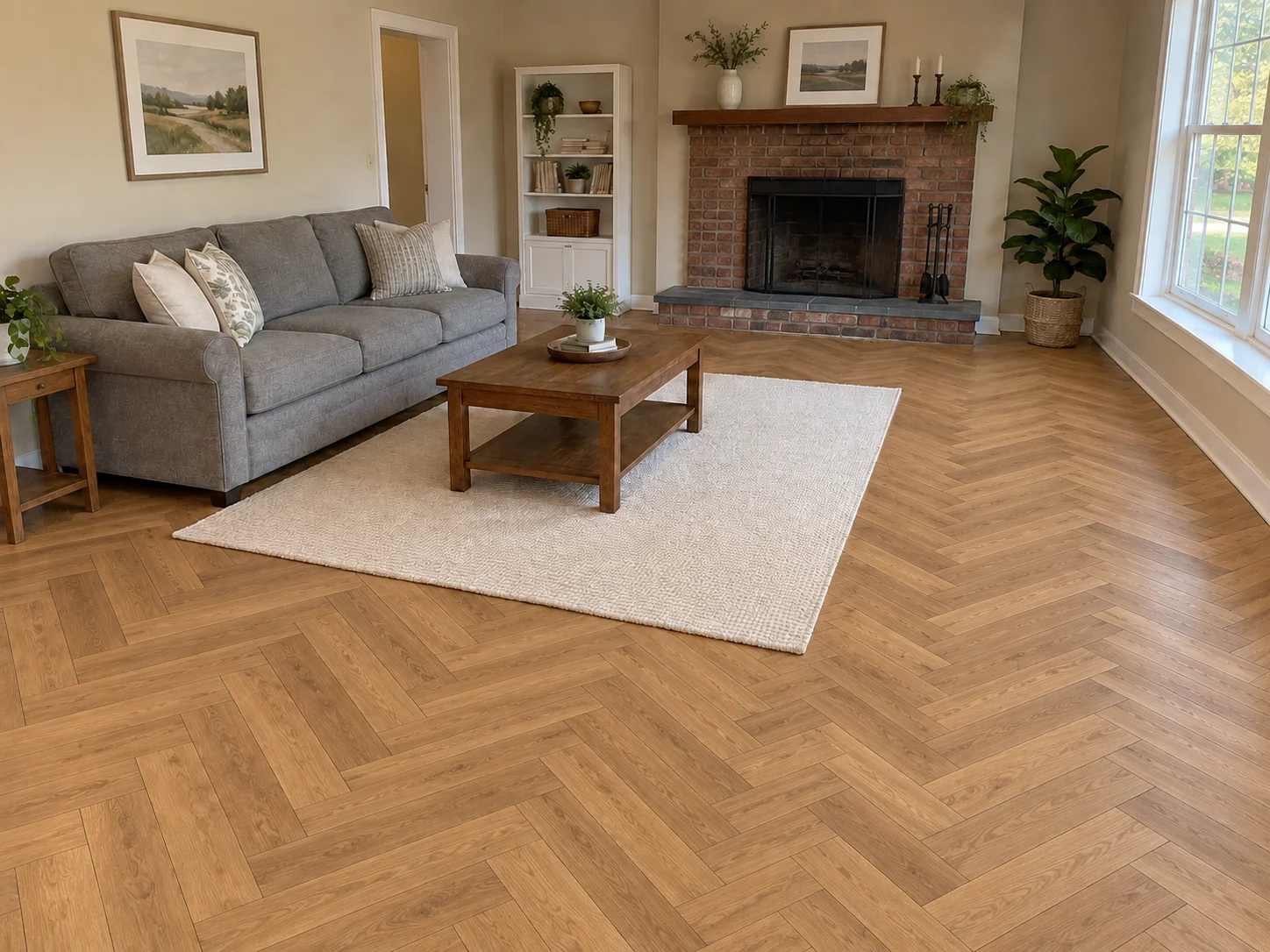
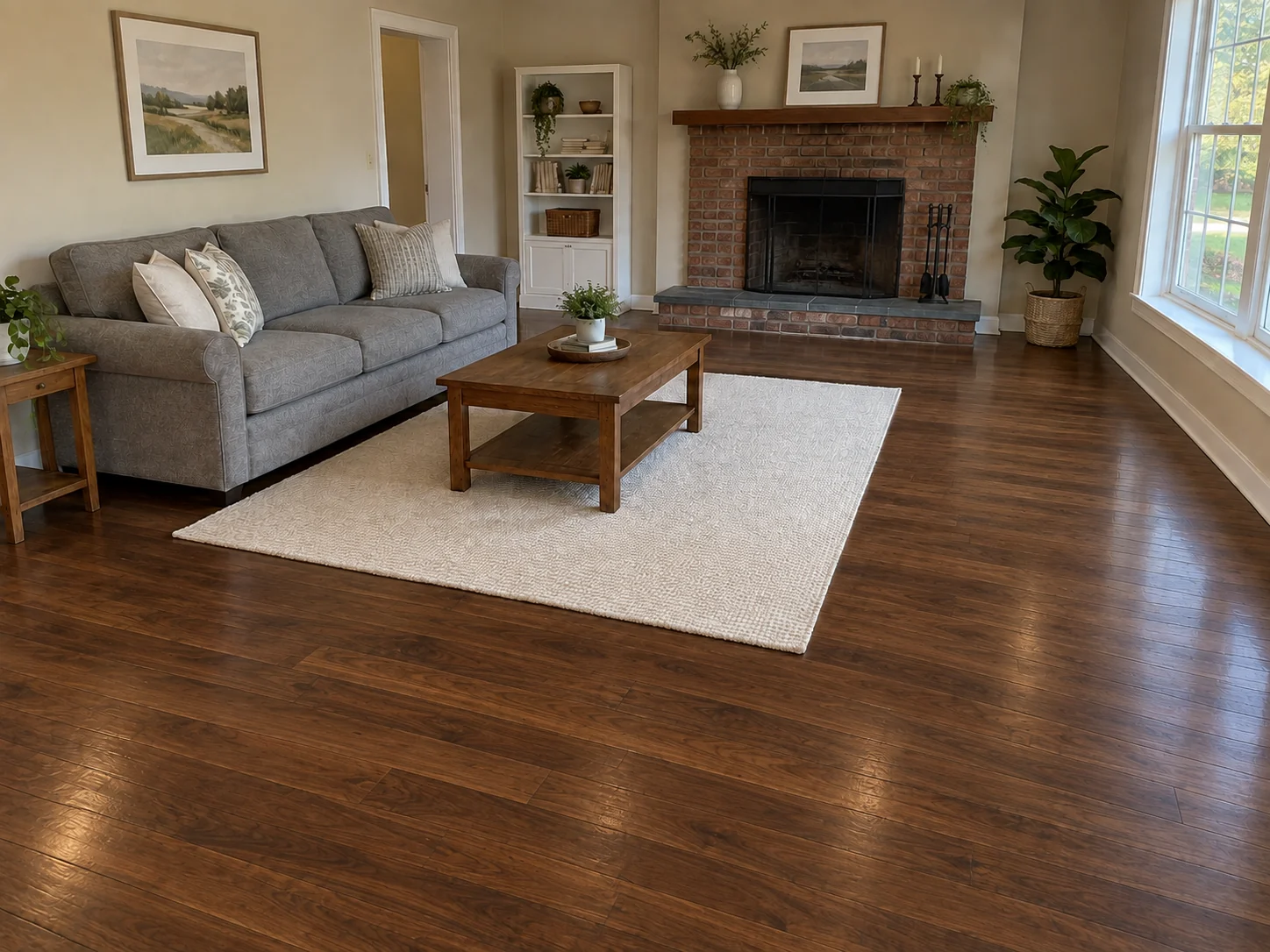
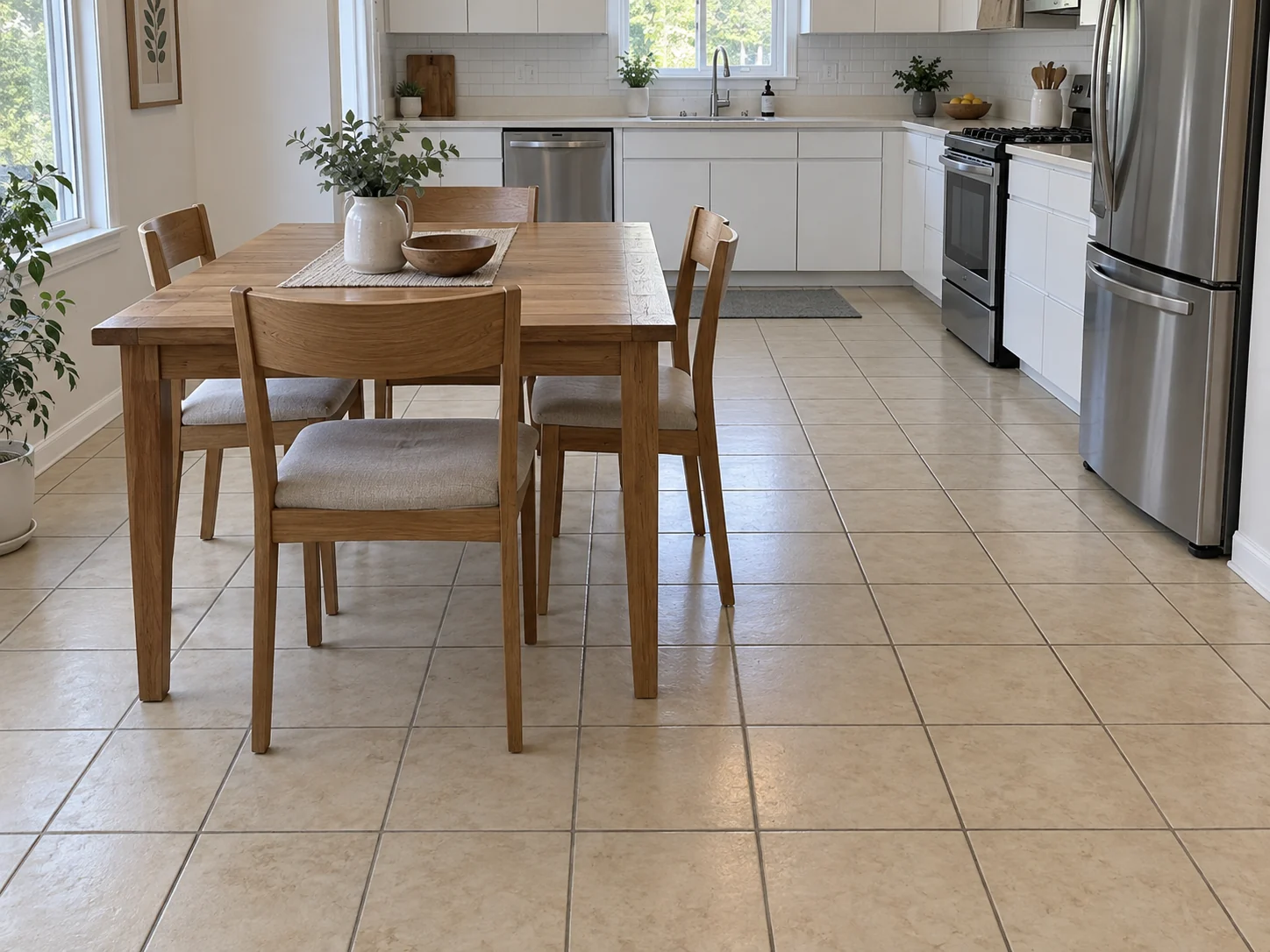
Three rooms, two floors each. Both results in a pair start from the same photo. These are illustrative AI previews, so small details can shift.
- AfterBefore
Herringbone Oak Floor in a Living Room
 AfterBefore
Dark Walnut Hardwood Floors in a Living Room
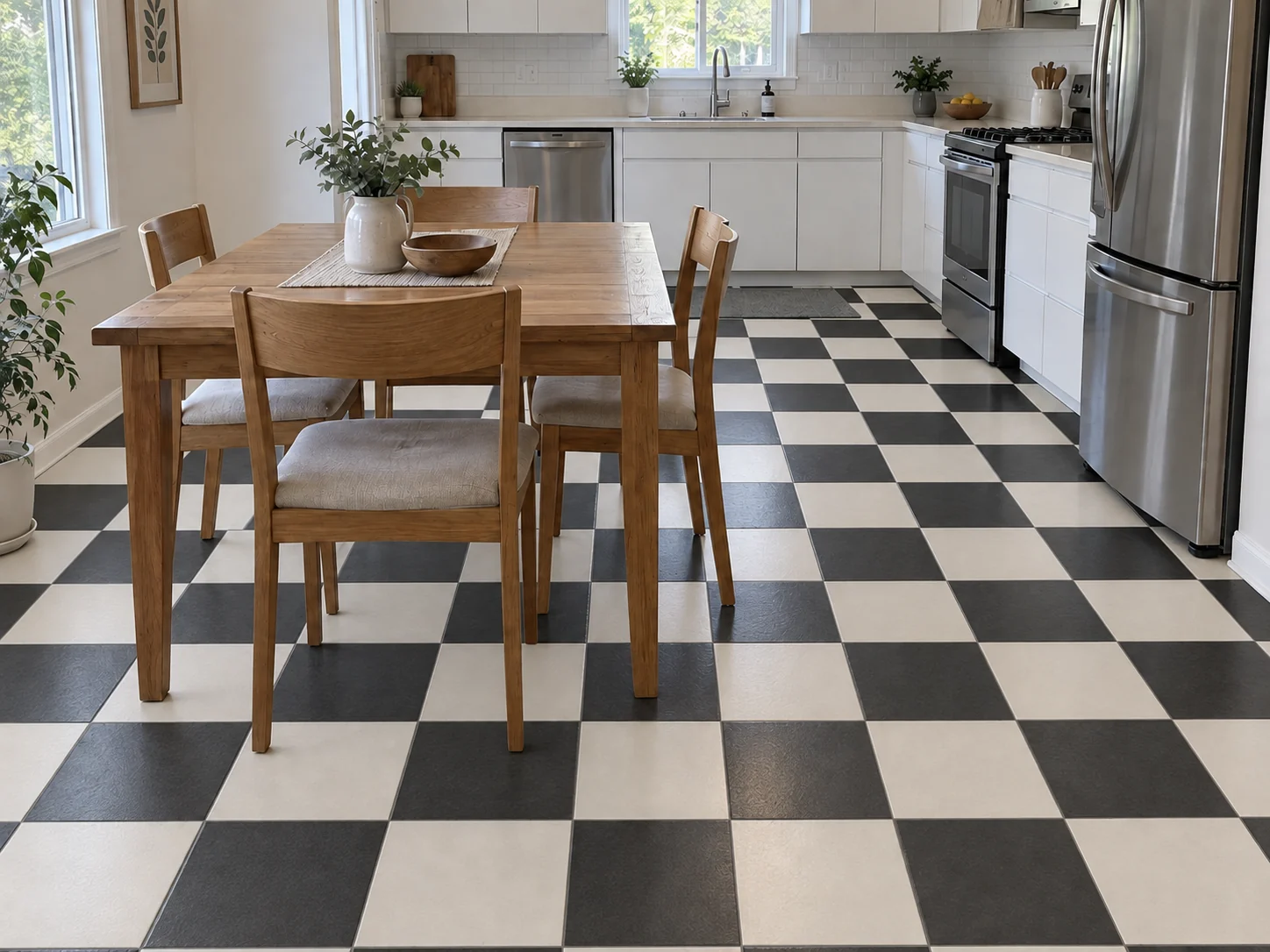 AfterBefore
Checkerboard Tile Kitchen Floor
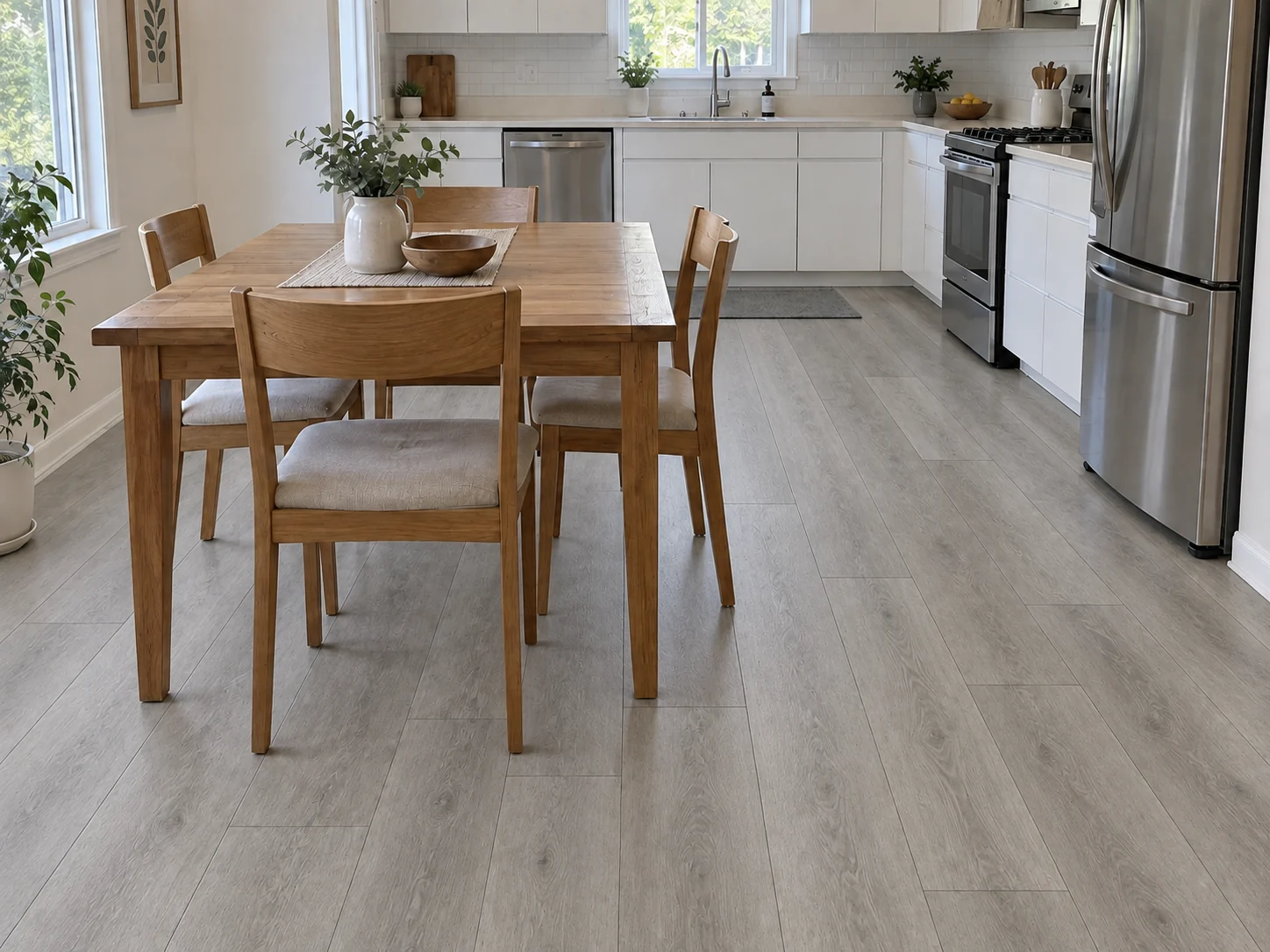 AfterBefore
Gray Vinyl Plank Kitchen Flooring
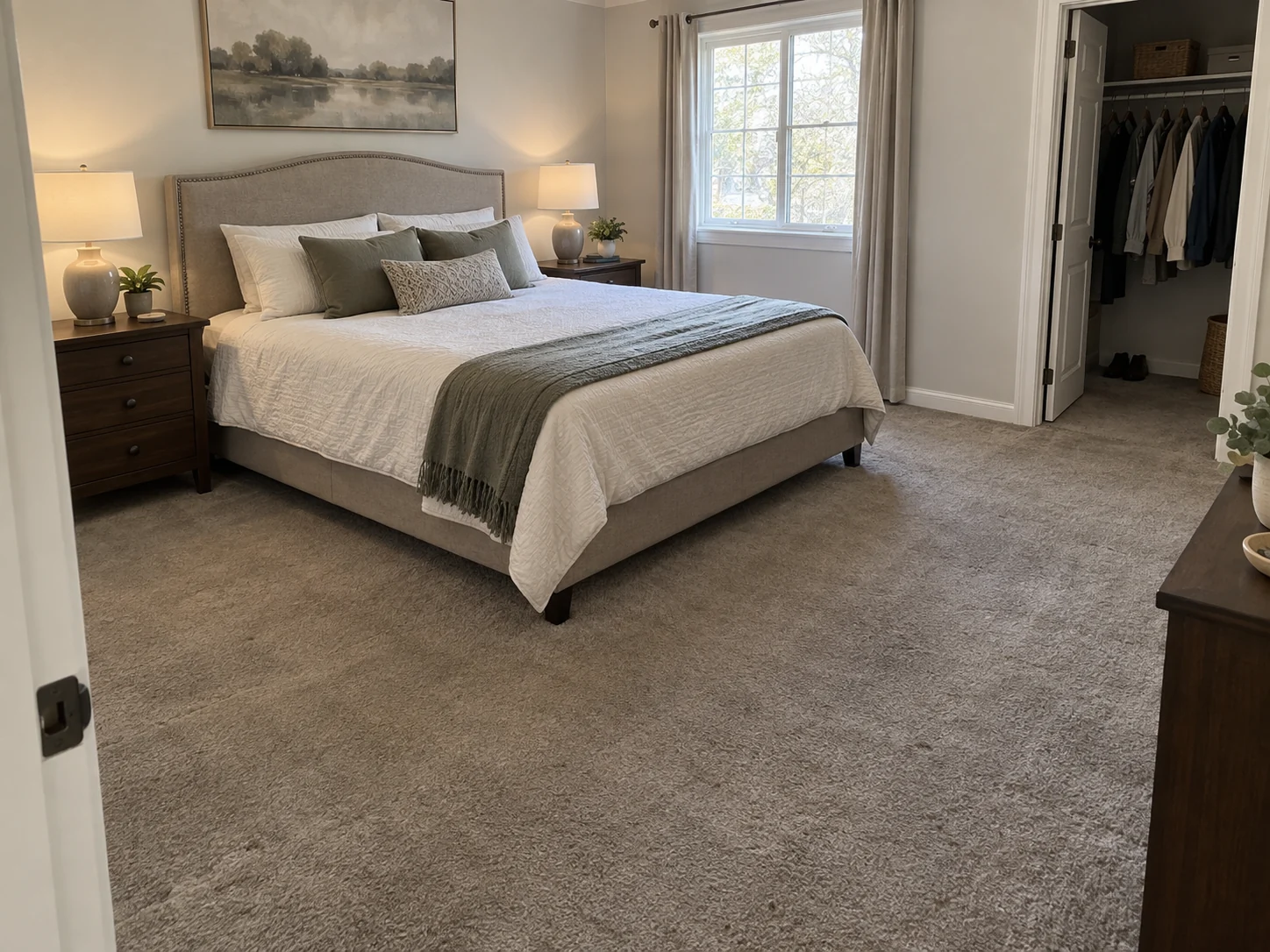
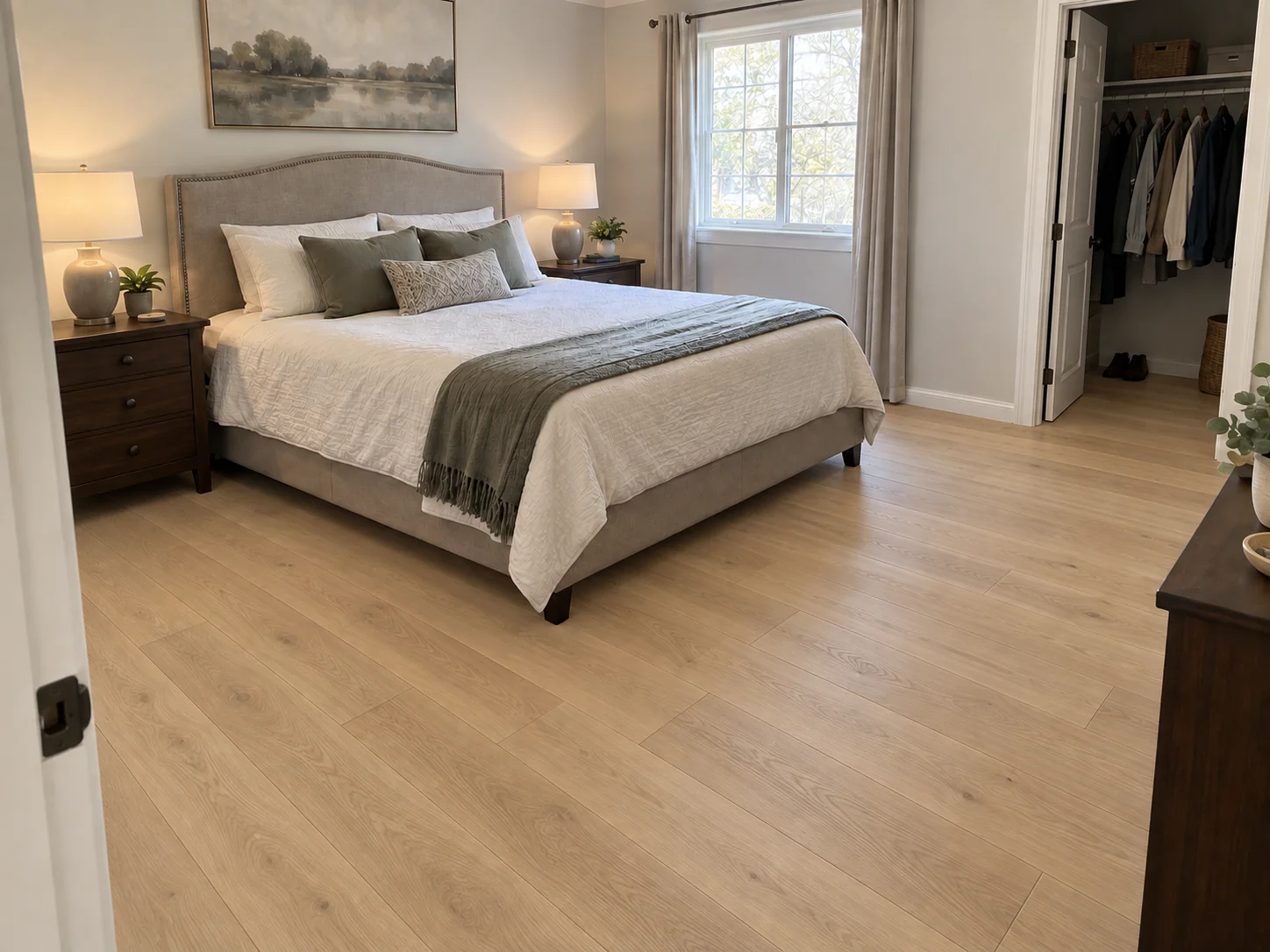 AfterBefore
Light Oak Hardwood Bedroom Floor
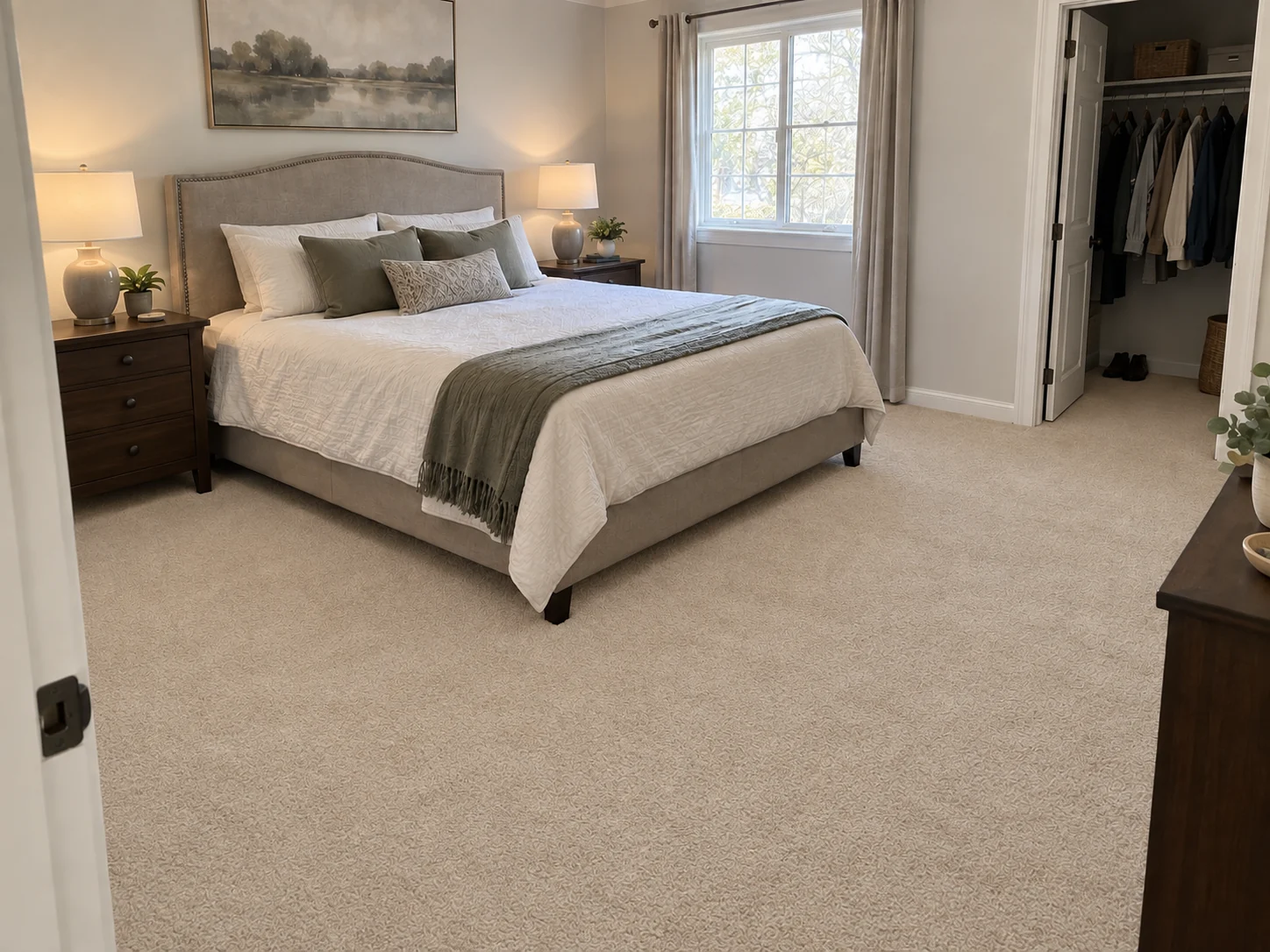 AfterBefore
Beige Carpet in a Bedroom
The basics
What Is a Virtual Flooring Visualizer?
A virtual flooring visualizer previews a new floor on a photo of your own room. Choose a material and the floor is redrawn along the same plane and perspective, while your walls, baseboards, doors, furniture and rugs stay in the frame. Think of it as a flooring simulator for the room you actually live in rather than a showroom render.
Use it to narrow the choice before you order samples or book an installer. It changes the floor surface only: it does not move furniture, rework the layout, measure the floor or price materials, and the image is a visual preview, not a guaranteed product color. AI edits can shift small details, so compare each preview with your original photo.
- Works on your own room photo, not a showroom render
- 10 floor materials, from Light Oak Hardwood to Beige Carpet
- Rugs, furniture and baseboards are meant to stay as they are
- One material per run; compare results in History or download them
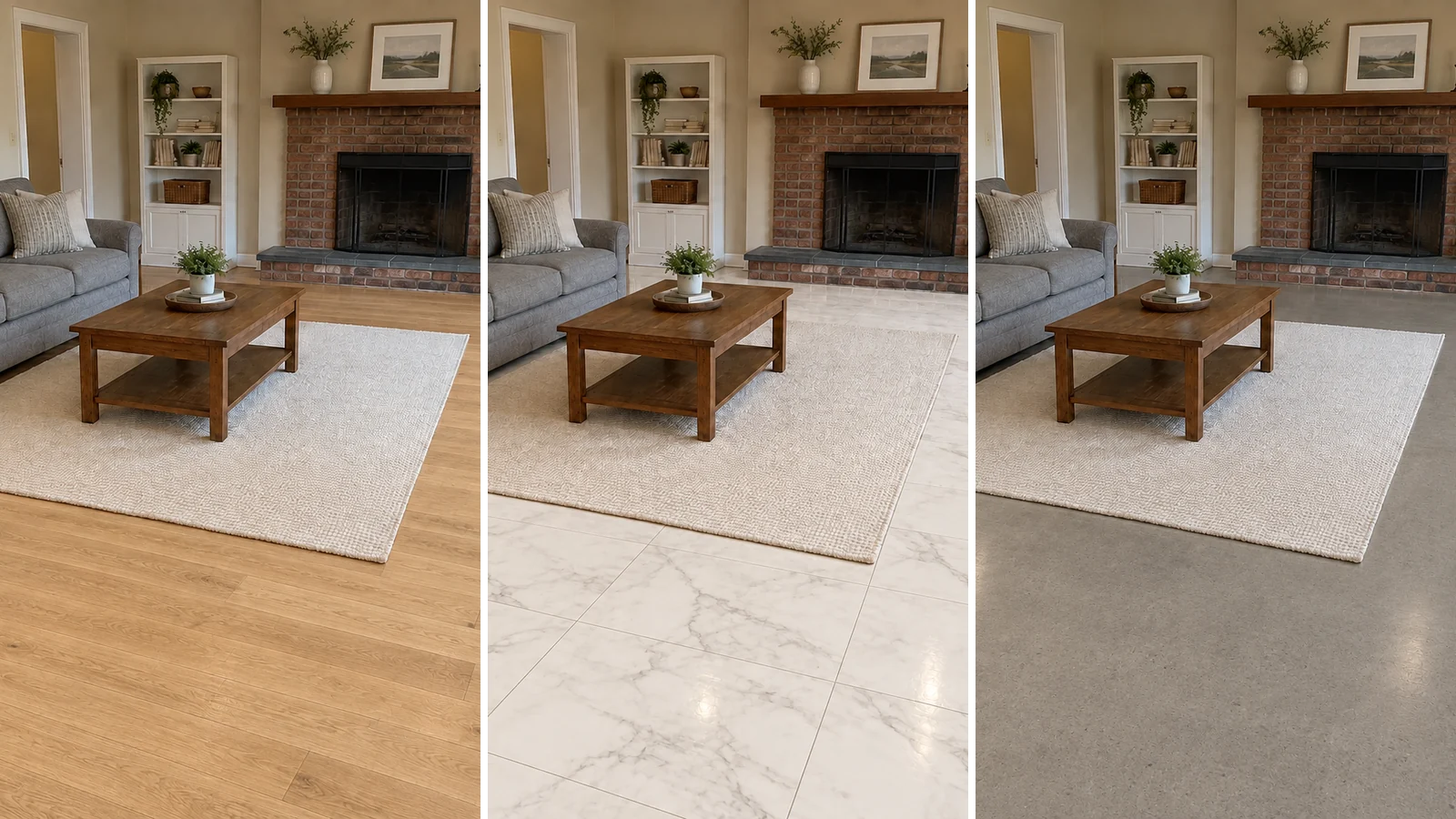
Why Use an AI Floor Visualizer?
1. Your room, not a showroom board
A sample plank under showroom lights says little about a whole floor. See the material across your own room instead.
2. Choose from 10 floor materials
Hardwood, herringbone parquet, luxury vinyl plank, marble, porcelain and terracotta tile, polished concrete or carpet.
3. Rugs and furniture on the keep list
Rugs, furniture and decor are on the AI's keep list, so you judge the new floor with what will sit on it.
4. Planks that follow the camera
Planks and tiles are asked to follow your photo's floor plane and shrink into the distance, as a real floor does.
5. A sheen that suits your light
Reflections from windows and lamps are meant to suit the material: matte Light Oak Hardwood, satin Dark Walnut Hardwood, polished White Marble Tile.
6. Free credits to start
New accounts receive signup credits. Each preview uses 10 credits; your balance is shown in the workspace.
Material options
Flooring Materials You Can Visualize
Choose from 10 flooring materials; each run lays one of them across the floor in your photo.
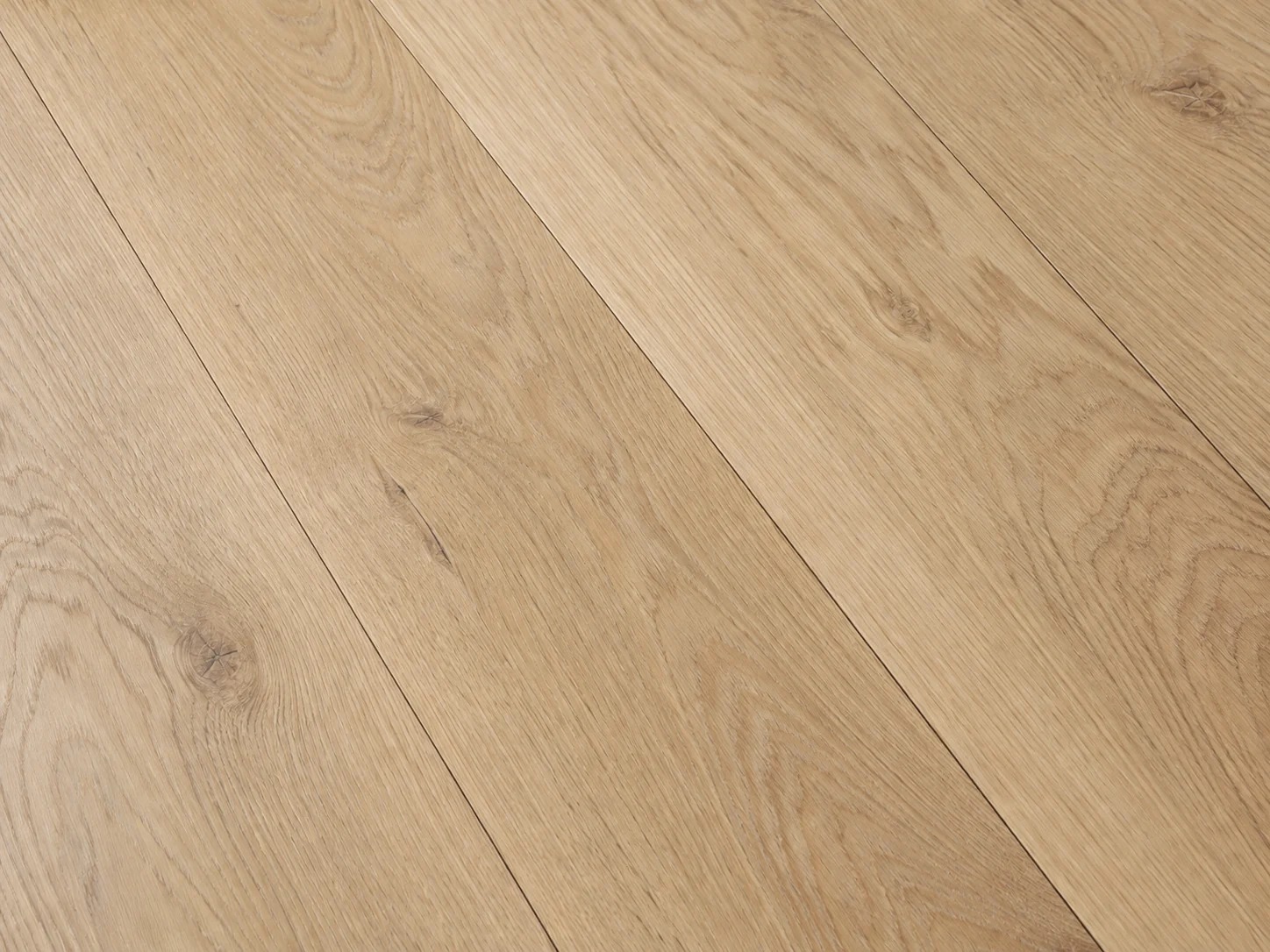
Light Oak Hardwood
Light oak planks in a natural matte finish.
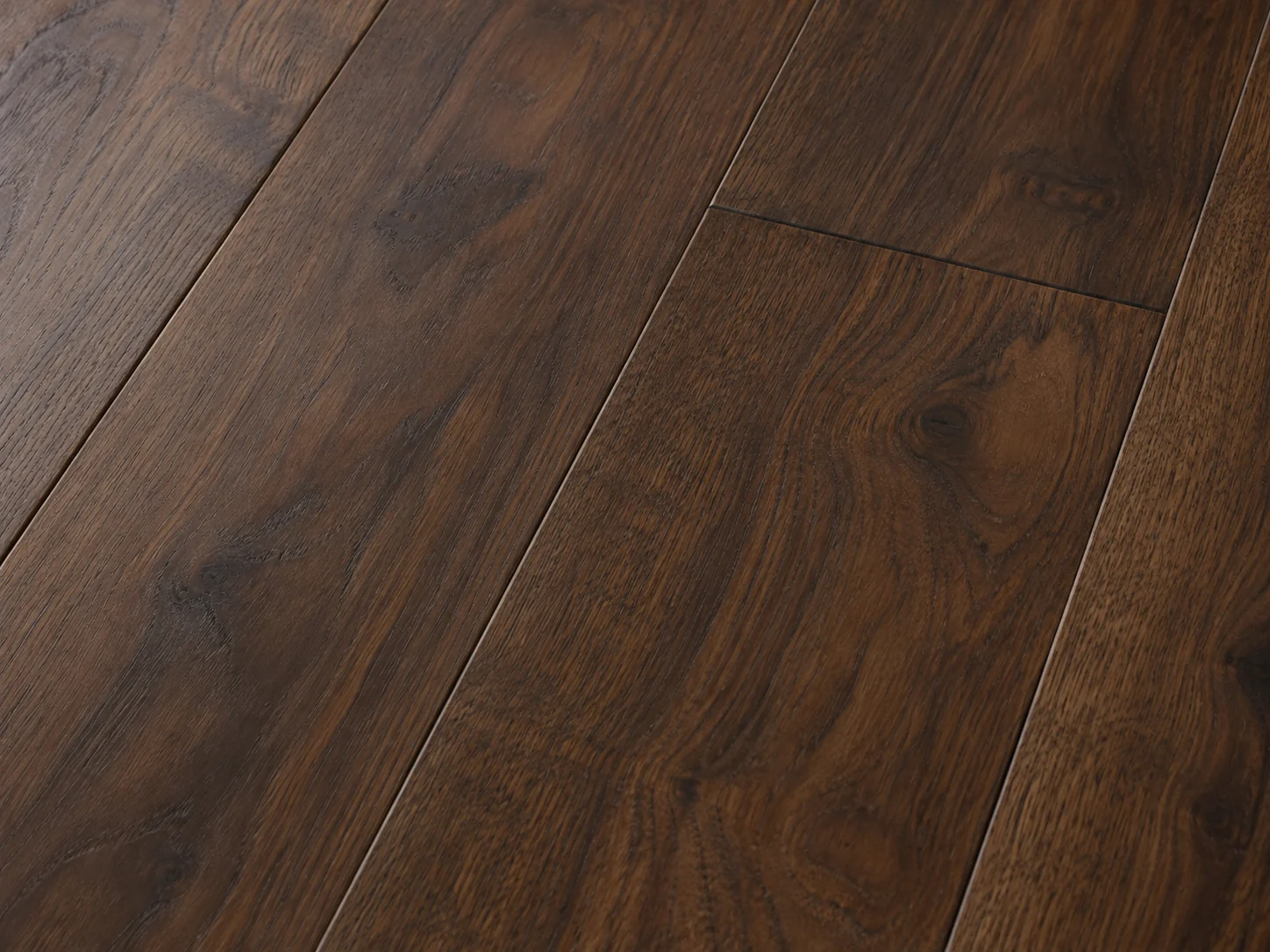
Dark Walnut Hardwood
Dark walnut planks with a satin finish.
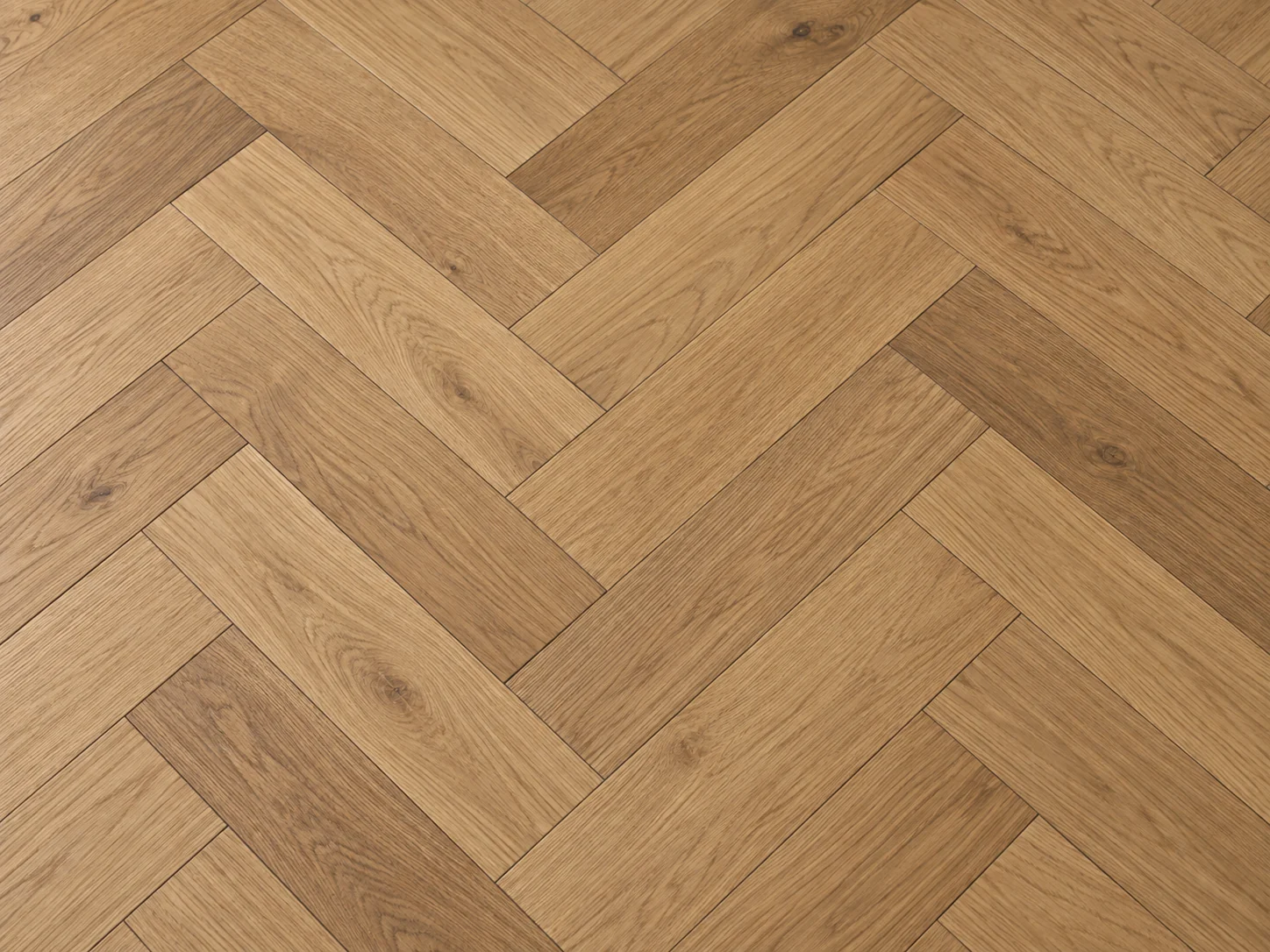
Herringbone Oak
Oak parquet laid in a classic herringbone pattern.
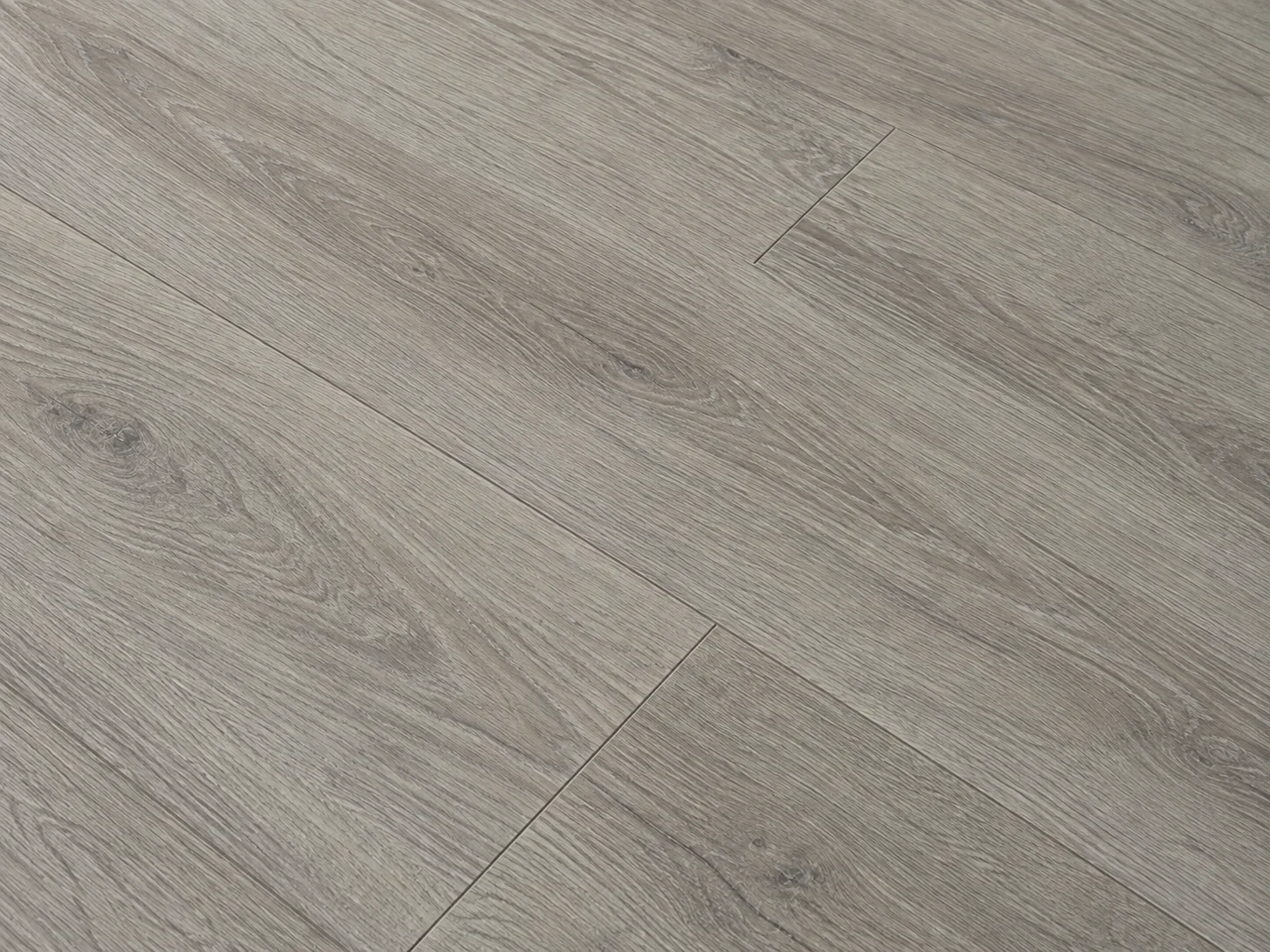
Gray Vinyl Plank
Gray wood-look luxury vinyl planks.
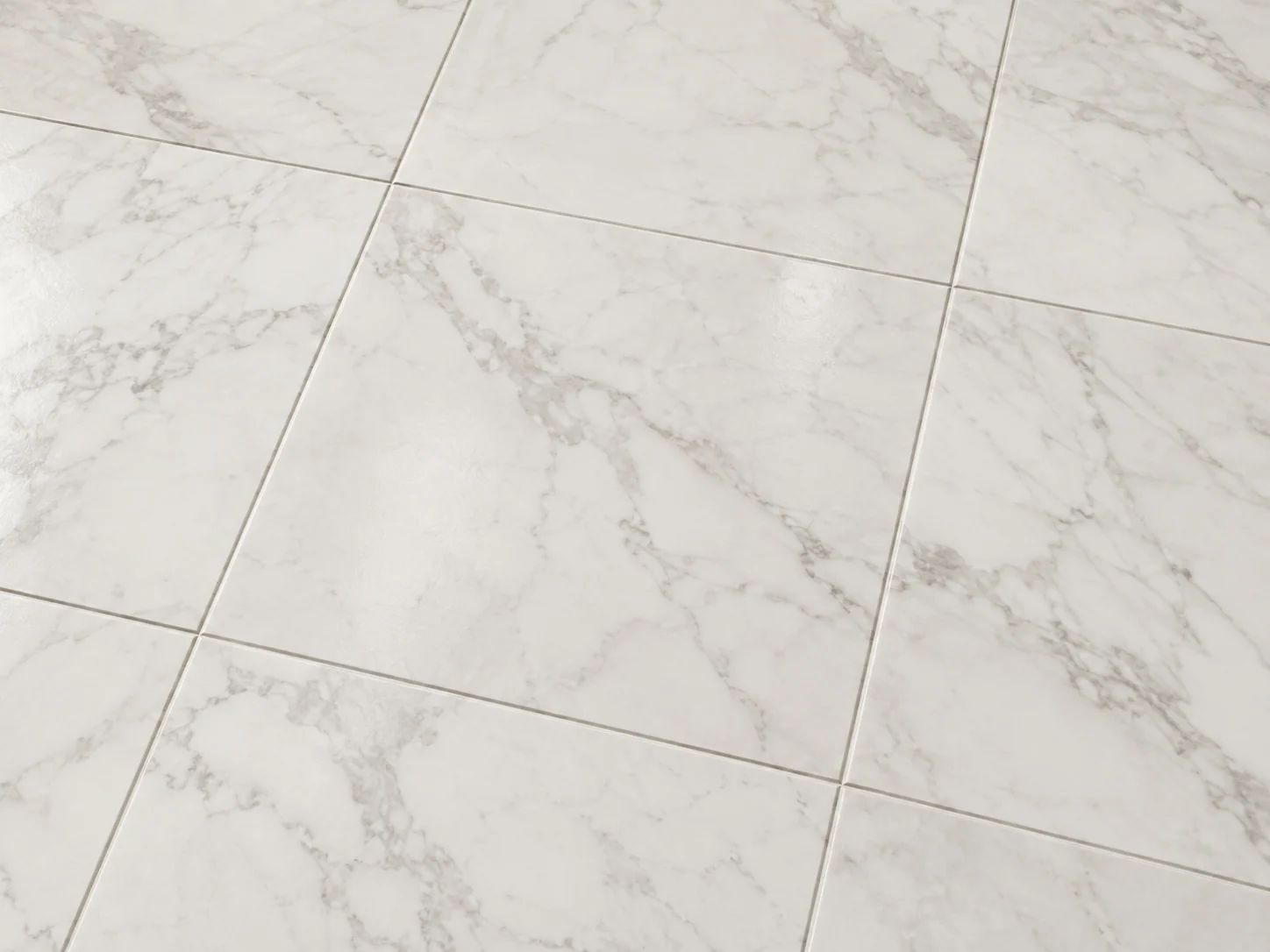
White Marble Tile
Polished white marble with soft gray veining.
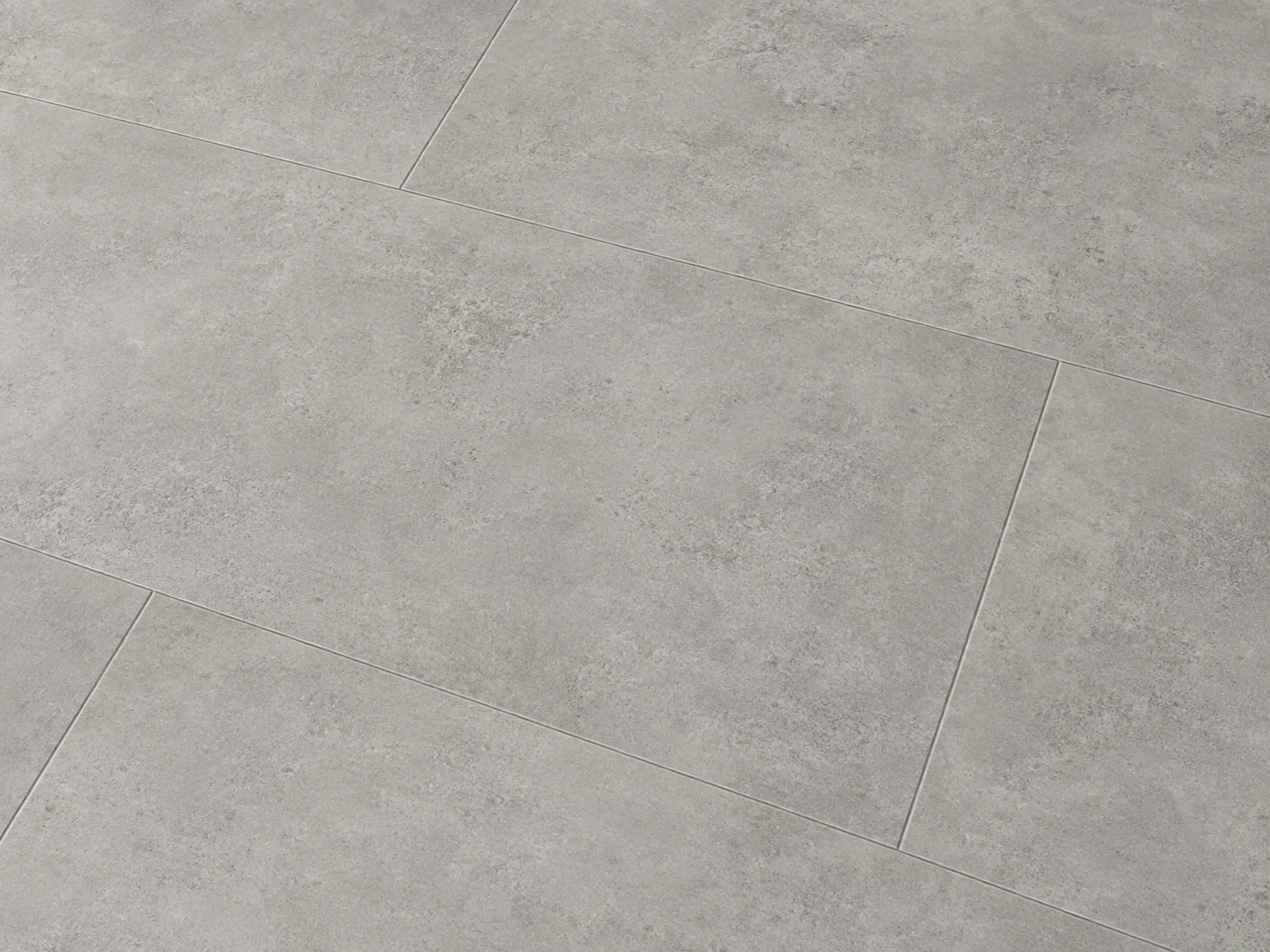
Concrete-Look Tile
Large-format porcelain with minimal grout lines.
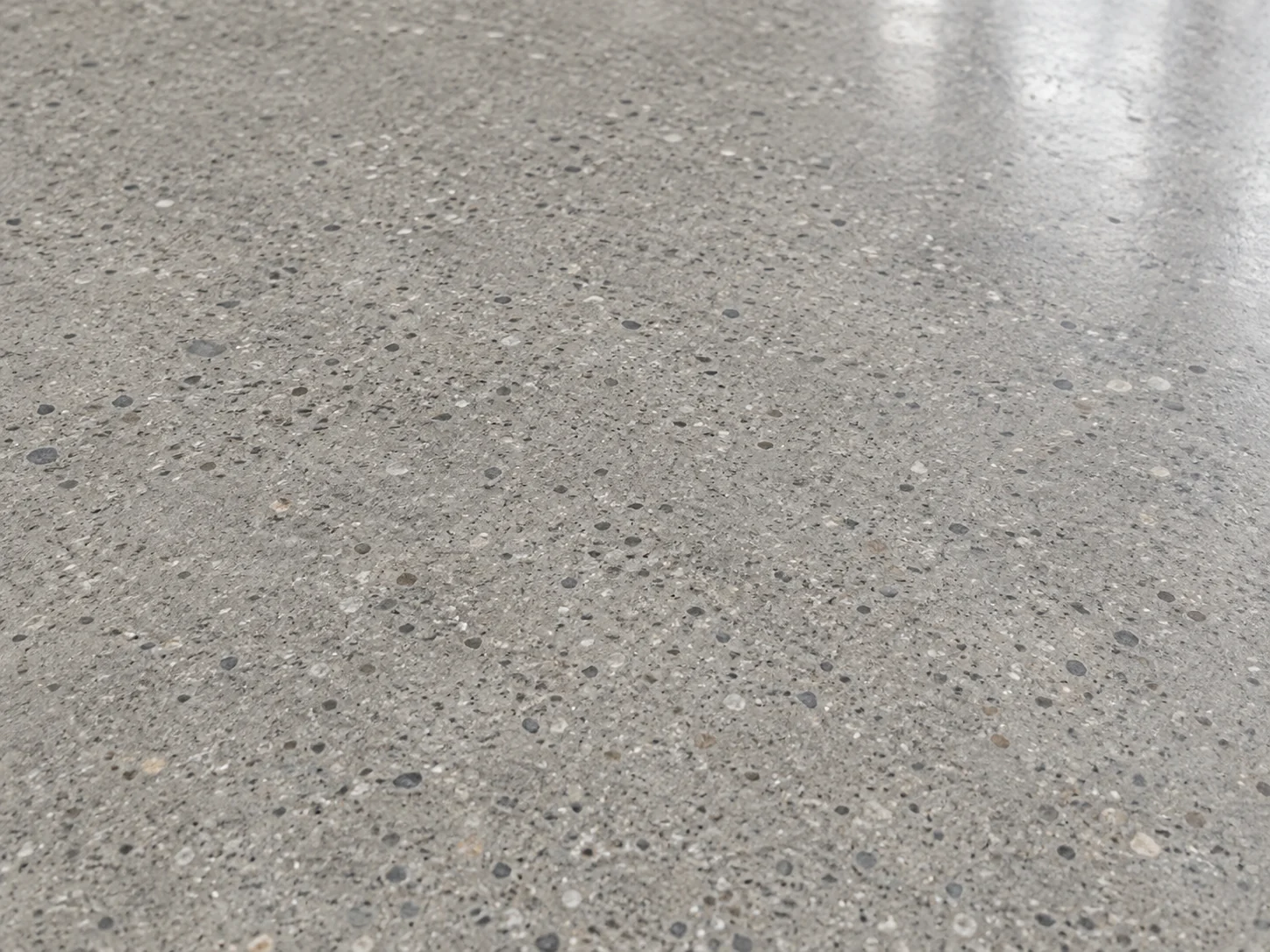
Polished Concrete
A seamless polished concrete floor.
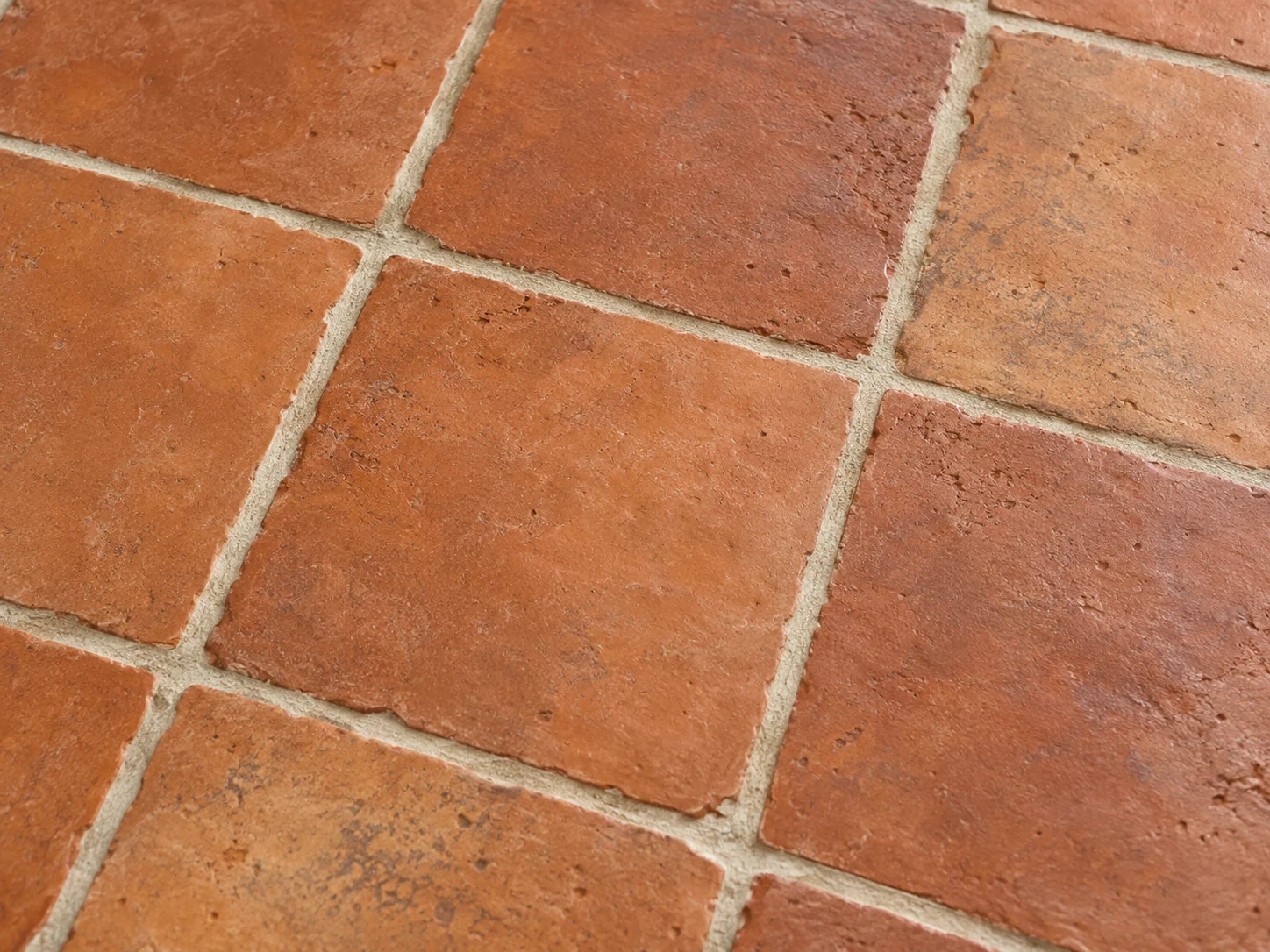
Terracotta Tile
Handmade tiles with natural color variation.
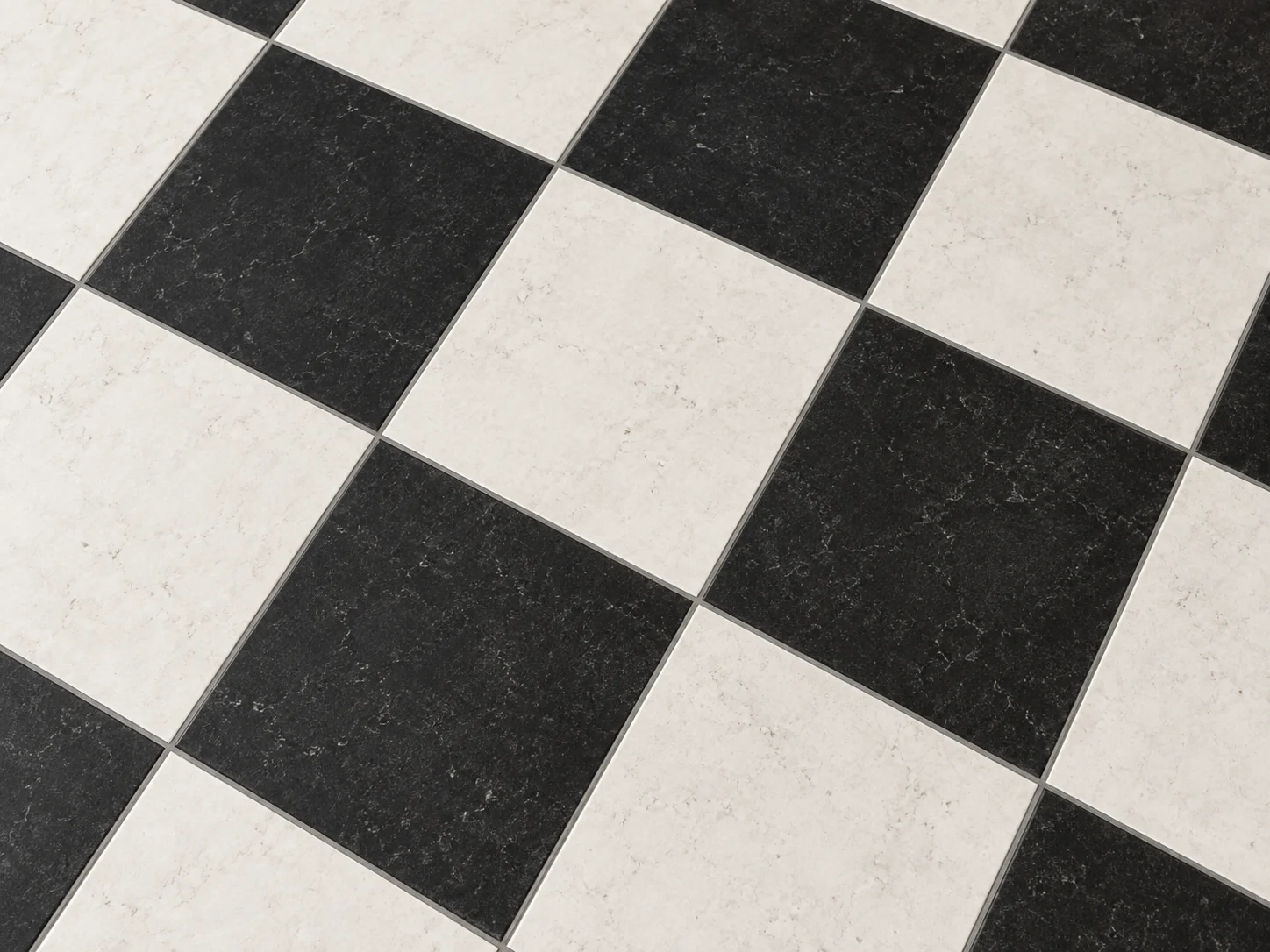
Checkerboard Tile
Black and white tiles in a checkerboard.
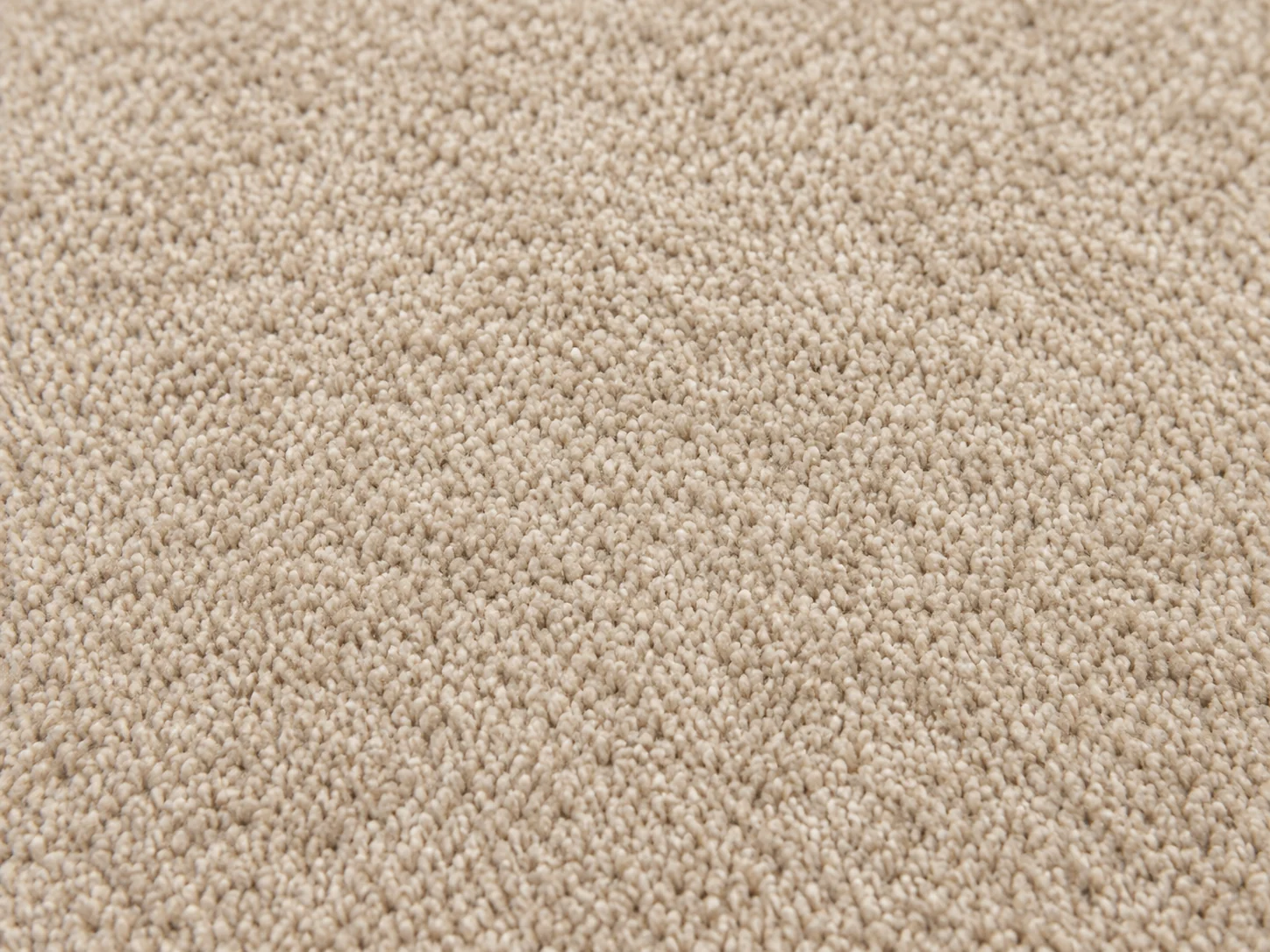
Beige Carpet
Soft wall-to-wall beige carpet.
Swatches show a base color, not a product match. Before ordering, check a real sample on your floor in morning and evening light.
How to Visualize Flooring in Your Room
Upload a room photo
Shoot from standing height with the camera tilted slightly down, so the floor fills the lower half of the frame. Use daylight. PNG, JPG or WebP up to 10MB.
Choose a flooring material
Pick one of 10 materials, from hardwood and tile to polished concrete and carpet. Use the notes only to say which parts of the floor to include or leave alone.
Compare, then order samples
Run another material on the same photo, compare the results in History or download them, then order samples of your top two floors.
See Flooring in Your Room Before You Buy
See a Floor Beside Your Furniture
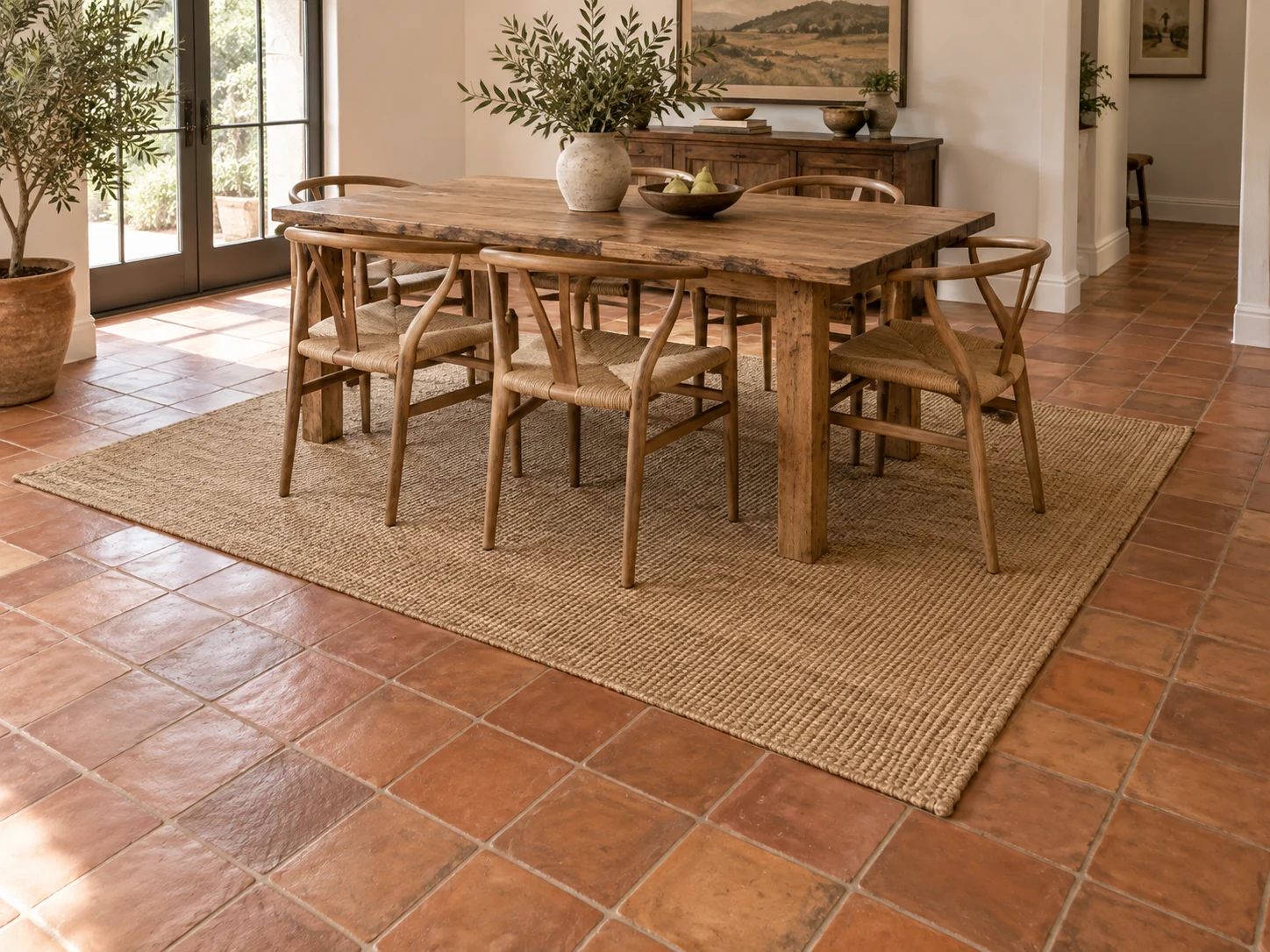
See how a warm or cool floor works with your sofa, wall color and rugs. The AI is instructed to replace the visible flooring while keeping your furniture and the rest of the room in place, so the comparison is about the floor alone.
Preview My Floor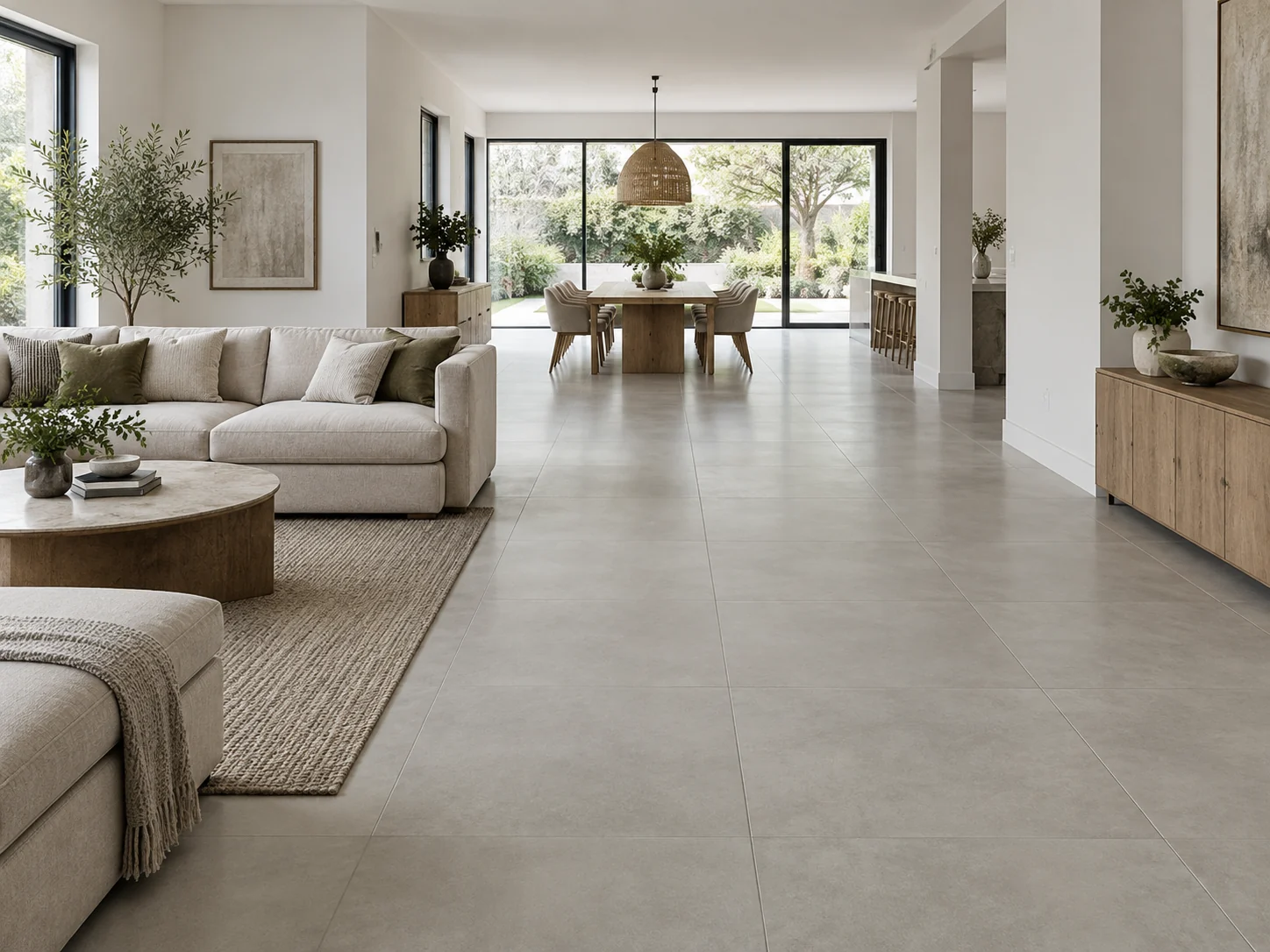
Lay Planks and Tiles in Your Room's Perspective
Planks and tiles should follow your room's perspective, including patterns such as Herringbone Oak. The AI uses the floor plane in your photo to guide the layout. Check plank widths and tile sizes against real samples before buying.
Upload Your Room Photo
Match the Sheen to Your Light
Preview finishes in your room's own light: matte Light Oak Hardwood, satin Dark Walnut Hardwood or softly reflective White Marble Tile. The AI is asked to match the daylight and shadows in your photo.
Try a Floor in Your Light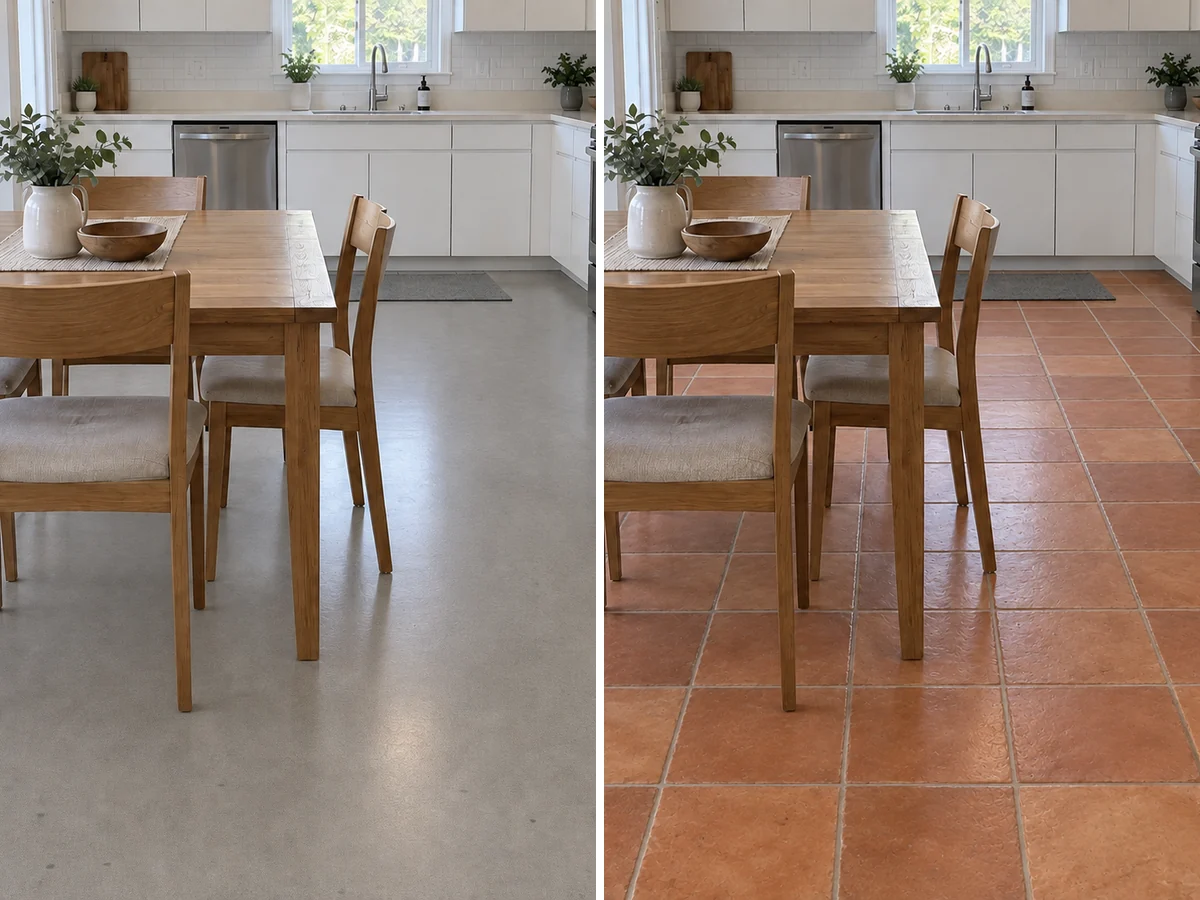
Compare Floors, Then Measure and Order
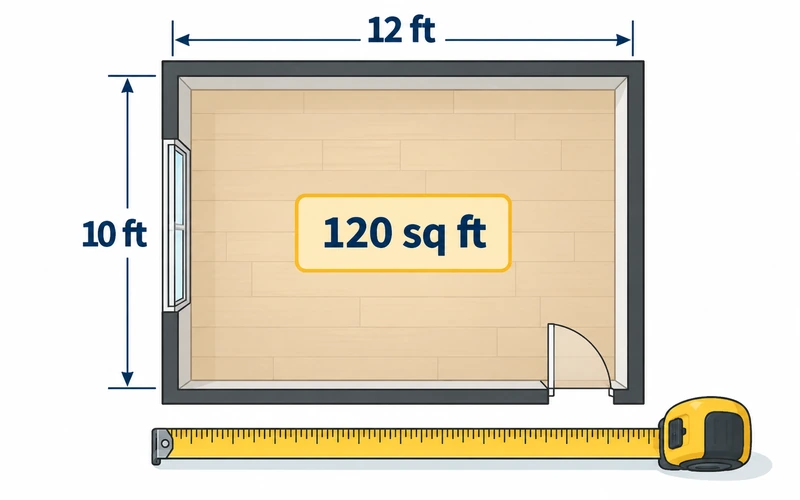
Try another material on the same photo, then compare in History or download your previews. Check your favorites as real samples, since screens can shift color and grain. The tool does not measure the room, so work out the area with the Square Footage Calculator before you ask for a quote.
Measure My Floor AreaFlooring selector
Flooring Selector: Which Floor Suits Which Room
Narrow the list before you preview it on your photo. Typical traits of each material type in the picker.
| Material | Typical rooms | Moisture | Underfoot |
|---|---|---|---|
| Light Oak Hardwood, Dark Walnut Hardwood, Herringbone Oak | Living rooms, bedrooms, dining rooms, halls | Low; wipe spills fast, avoid full baths | Warm; can dent and scratch |
| Gray Vinyl Plank | Kitchens, basements, rentals, busy family rooms | High for most water-resistant products | Softer and quieter than tile |
| White Marble Tile | Bathrooms, entries | Good when sealed; slippery when wet if polished | Hard and cool |
| Concrete-Look Tile, Checkerboard Tile | Kitchens, bathrooms, laundry, entries | High for porcelain and ceramic | Hard and cool |
| Polished Concrete | Basements, lofts, open-plan spaces | High when sealed | Hard; pairs well with rugs |
| Terracotta Tile | Kitchens, entries, sunrooms | Porous until sealed | Hard, warm in tone |
| Beige Carpet | Bedrooms, family rooms | Low; avoid kitchens, baths and damp basements | Soft, warm and quiet |
General guidance only. Check each product’s own ratings (water resistance, slip resistance, wear layer) and the installer’s advice for your subfloor before buying.


Flooring Visualizer Questions
New accounts receive free signup credits. Each generation costs 10 credits, and how many previews you get depends on your balance. Sign in to generate; free requests may enter a queue.
Yes, and the tool needs one: it replaces the floor in the photo you give it rather than inventing a room. Upload a PNG, JPG or WebP up to 10MB, taken in daylight with plenty of floor in view.
You do not need an app. It runs in your web browser on a computer or a phone, so you can upload a photo straight from your camera roll. It is not live augmented reality: it edits a still photo, which makes it easy to compare two floors on exactly the same view. Results are saved to History while you are signed in.
There are 10 materials: Light Oak Hardwood, Dark Walnut Hardwood, Herringbone Oak, Gray Vinyl Plank, White Marble Tile, Concrete-Look Tile, Polished Concrete, Terracotta Tile, Checkerboard Tile and Beige Carpet. Each run applies one; run the photo again to try another.
There is no separate laminate option. Most laminate is made to look like wood, so Light Oak Hardwood, Dark Walnut Hardwood or Gray Vinyl Plank give the closest preview of the look. The image cannot show the difference in feel, sound or durability between laminate and the real material.
No. Rugs, furniture, decor, walls, baseboards and doors are on the list the AI is instructed to keep; rugs and furniture legs are meant to sit on the new floor. To see the floor without a rug, roll it away before taking the photo. To try a new furniture arrangement instead, use Rearrange My Room.
No. It changes how the floor looks in a photo; it does not measure the room, work out how much flooring to order or price materials. Measure the room yourself (the Square Footage Calculator helps), add the waste allowance your installer recommends and get a quote from a flooring supplier.
Planning flooring comes down to three decisions: the material, the direction and the quantity. Try materials and plank direction here on your own photo, then measure the room with the Room Size Calculator — it adds a 10% waste allowance for straight-laid plank or tile. For a whole-house flooring design, draw the plan first with the 2D Floor Plan Maker so you can see where one floor meets the next at doorways.
Not in the CAD sense: it does not draw a cut list or plank-by-plank layout. It is a fast way to see how a floor will look in your room, which is the step most flooring layout tools skip. Use it to choose the look, then hand the measurements to your installer.
Use it to compare materials with your existing room. Plank width, tile size, pattern alignment and color can shift, and hidden areas cannot be inspected from the image. Check a physical sample; the tool does not measure your floor or confirm product dimensions.
Try the AI Flooring Visualizer Free
Upload one room photo and see a new floor under the furniture you already have. New accounts get free credits to start.
Visualize My Floor- 10 credits per generation
- PNG, JPG or WebP up to 10MB