
Floor Plan Rendering
Floor plan rendering from any 2D plan: choose a render type and an interior style, and get a realistic floor plan render in seconds.
Render My Floor PlanRender a Floor Plan Online
Upload a clear plan, pick a render type and a style, and add notes about materials or the view.
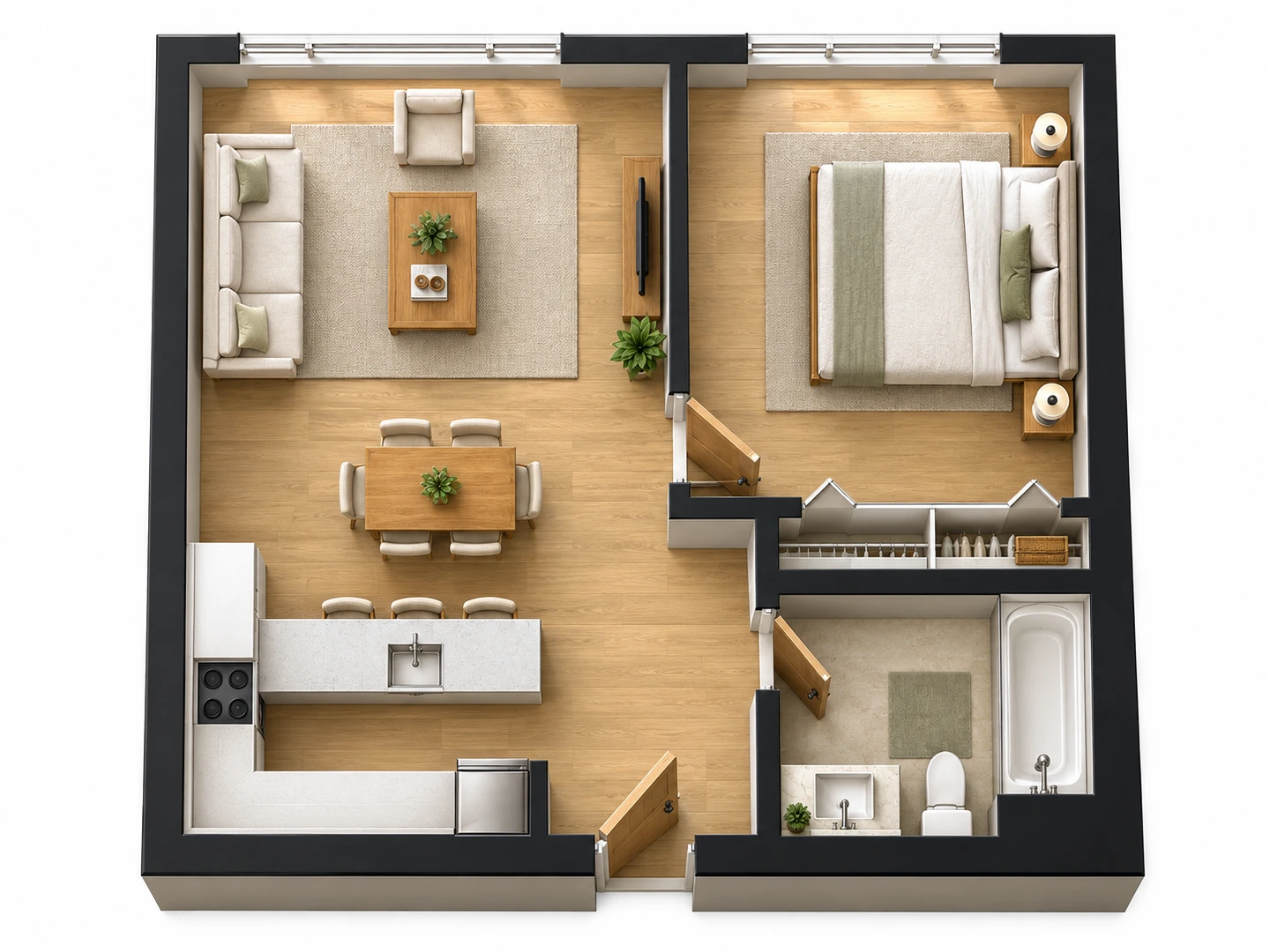
Top-down render
Open-plan apartment
Floor Plan Rendering Examples
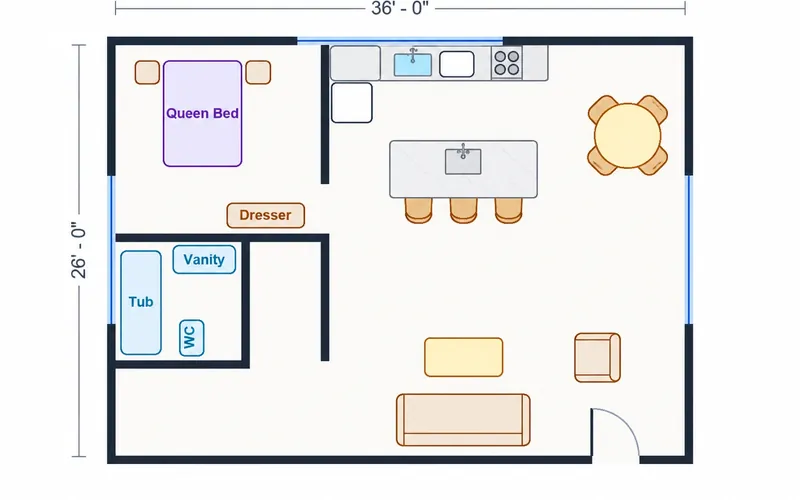
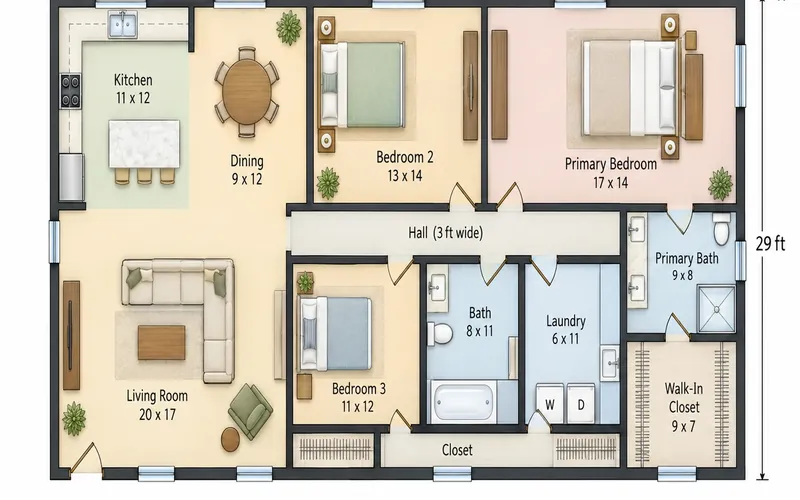
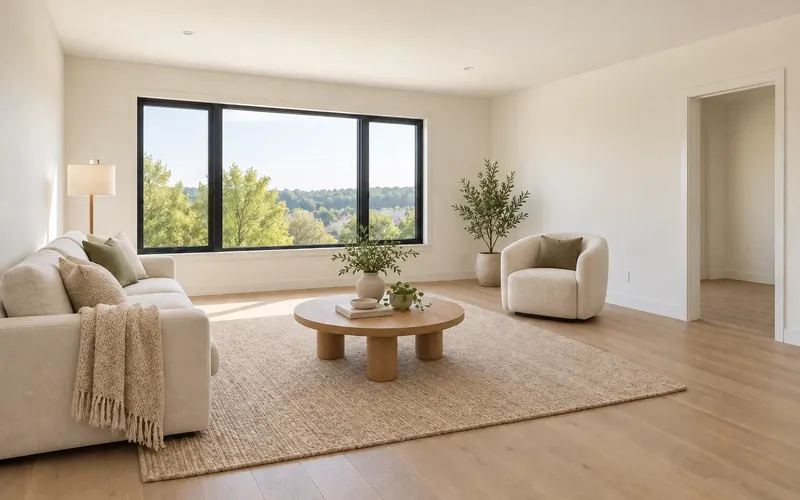
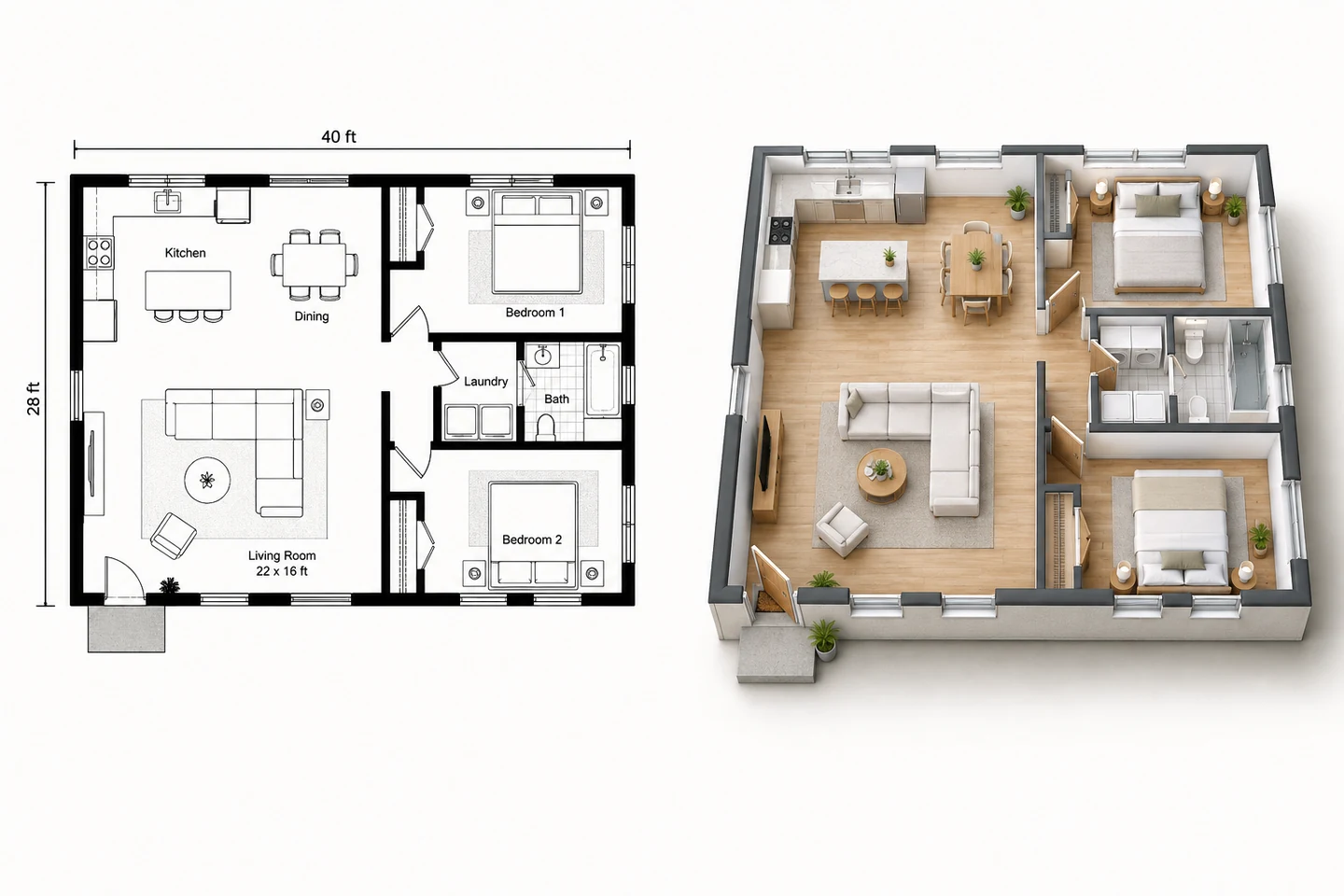
Same kind of input — a plain 2D plan — three different render types.
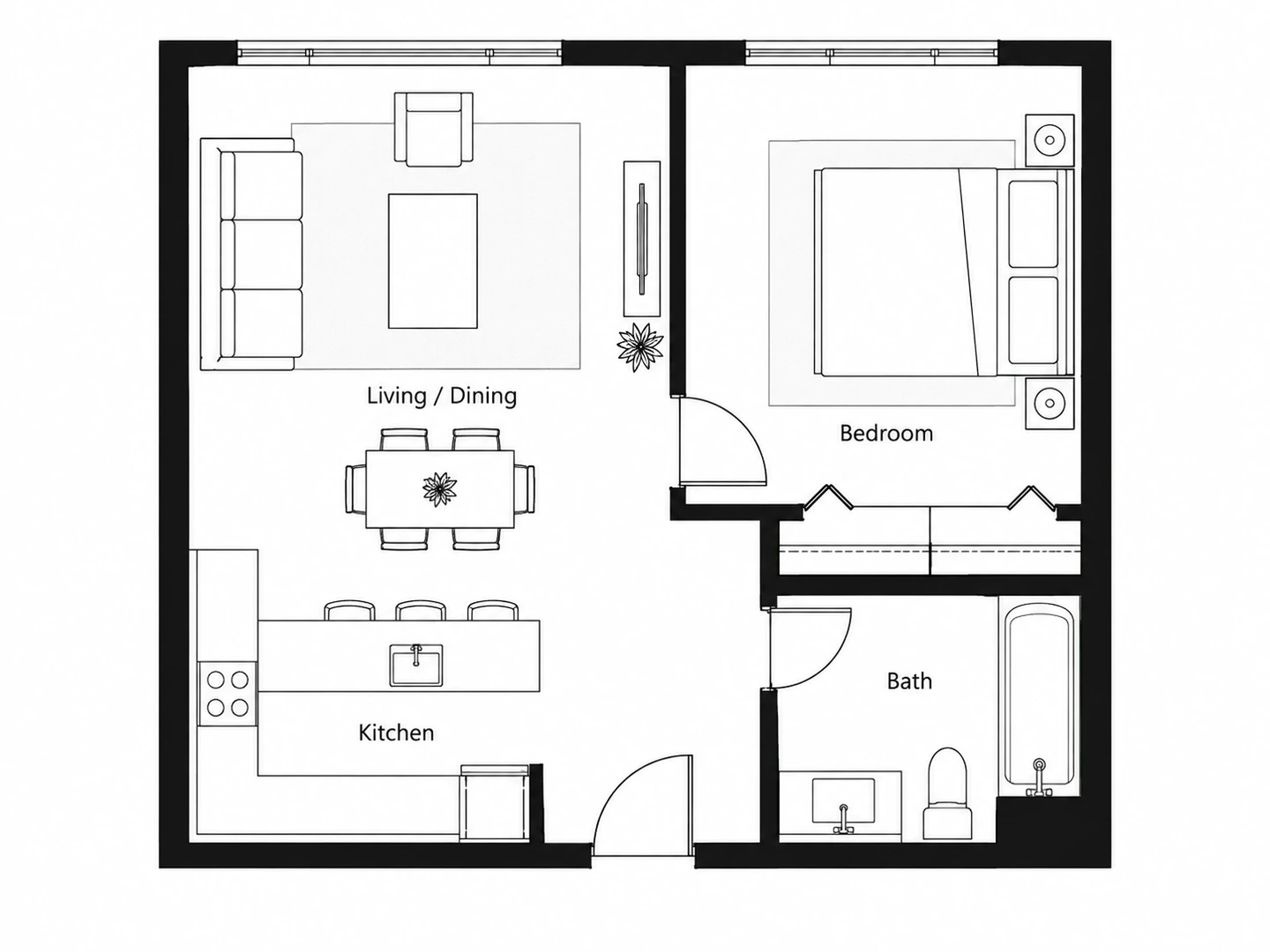
Before After Top-down color render of an open-plan apartment
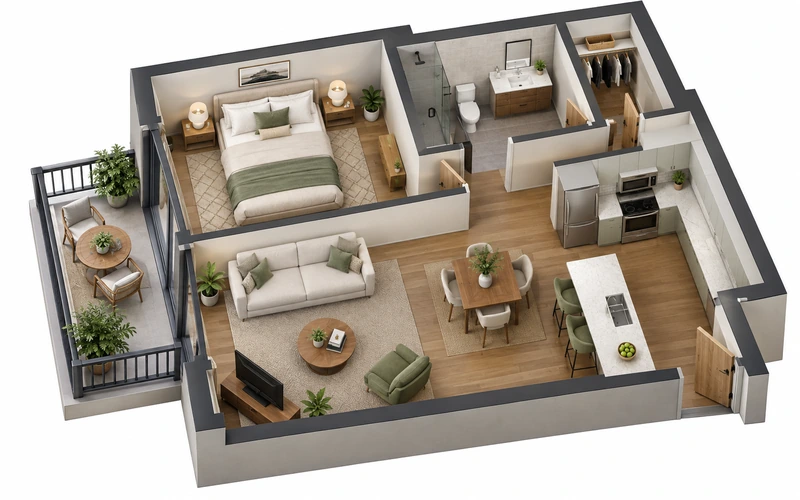
Before After 3D isometric rendering of a two-bedroom plan
Before After Eye-level rendering of the living room
From linework to light
What Is Floor Plan Rendering?
Floor plan rendering turns a flat 2D drawing into a realistic image: floors get wood and tile, rooms get furniture and light, and the plan suddenly reads like a home. Traditionally a 3D artist models the plan by hand; AI floor plan rendering does it from the image in seconds.
Pick from 4 render types: a top-down color render for listings, a 3D isometric render that shows every room at once, an eye-level view from inside the main space, or a presentation board that combines them. Renders are illustrations — keep the original plan as the source of truth for dimensions.
- Top-down, isometric, eye-level or presentation board
- Ten interior styles or your own reference photo
- Walls, rooms and openings follow your plan
- Ready for listings, pitches and planning
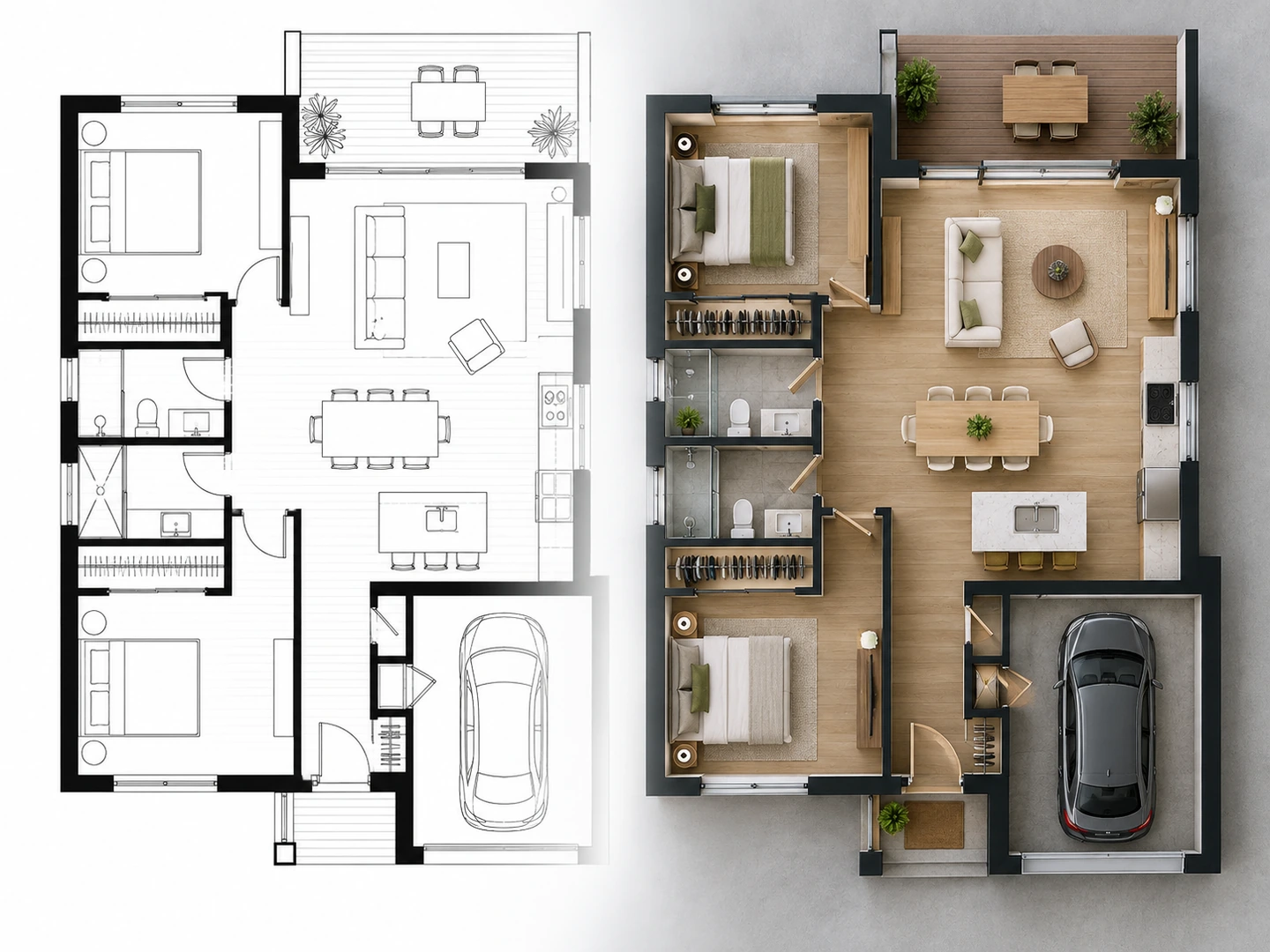
How to Render a Floor Plan with AI
Upload the 2D plan
A clean, high-contrast plan with walls, doors and labels visible gives the best render. Crop away title blocks and notes.
Choose render type and style
Top-down for a listing, isometric for an overview, eye-level to feel a room, presentation board for a pitch. Then pick an interior style.
Generate and compare
Check the render against the plan. Add notes about finishes or which room to show, and render again for another version.
Realistic Floor Plan Renderings, Four Ways
Top-down renders for listings
A photorealistic top-down render shows buyers the whole layout with real materials and furniture — far more inviting than black linework, and still easy to read.
Render top-down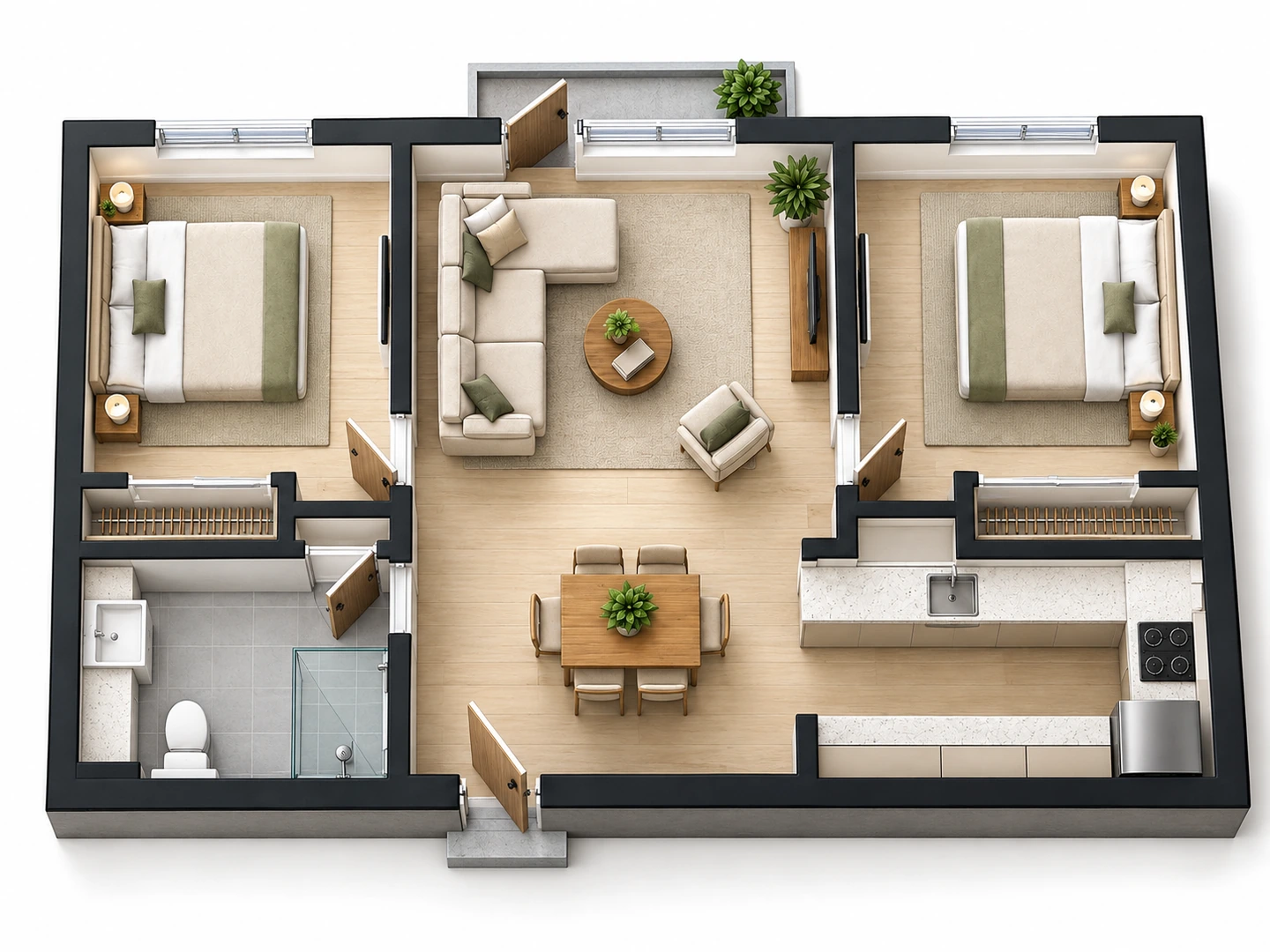
3D renderings of house plans
The isometric render raises the walls and furnishes every room, so a 3D rendering of the floor plan explains room relationships at a glance.
Floor Plan to 3D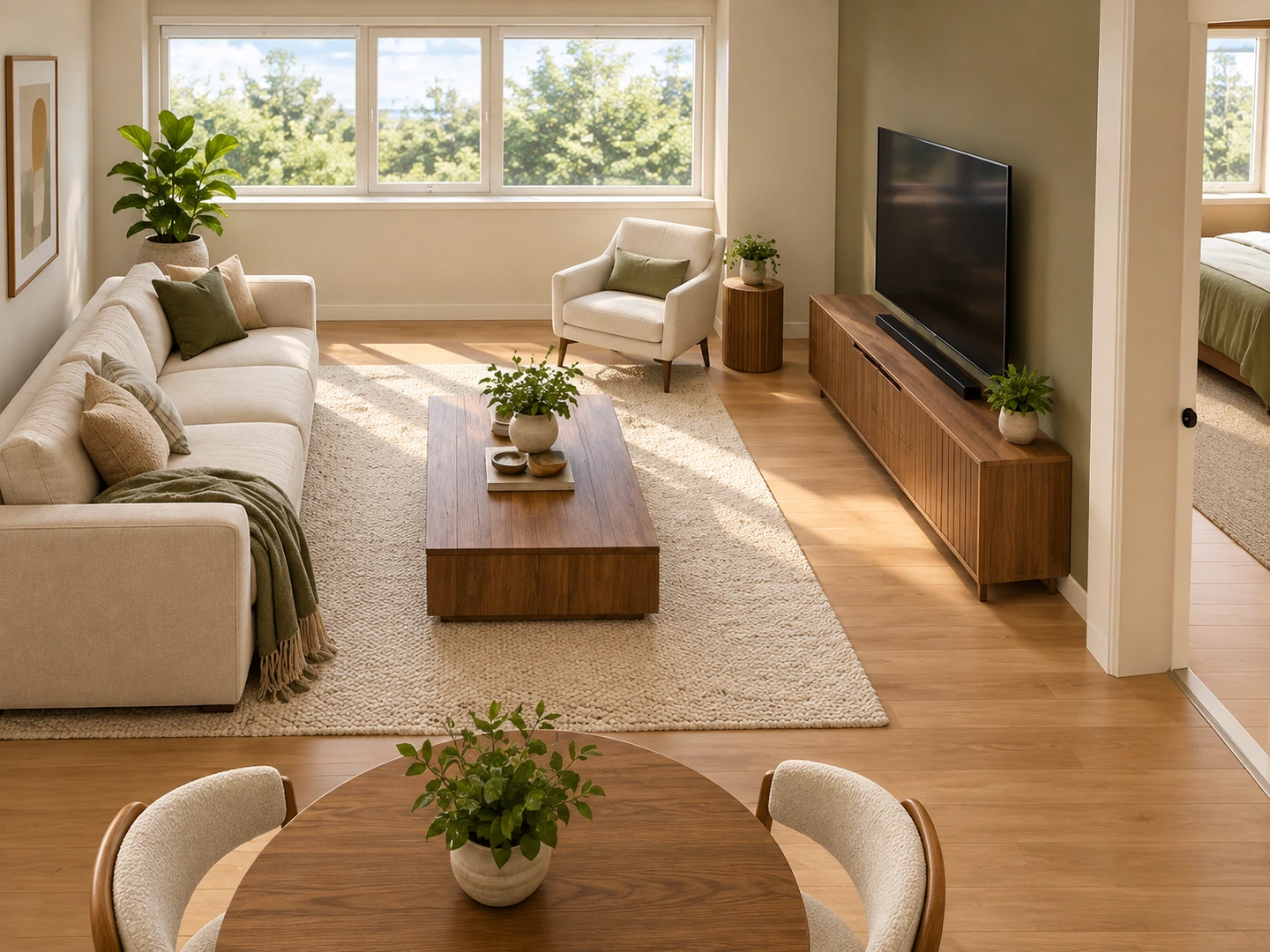
Eye-level views from the plan
Choose the eye-level room view to stand inside the plan’s main space. Name a room in the notes — "the kitchen looking toward the patio" — to render that view instead.
Render a room view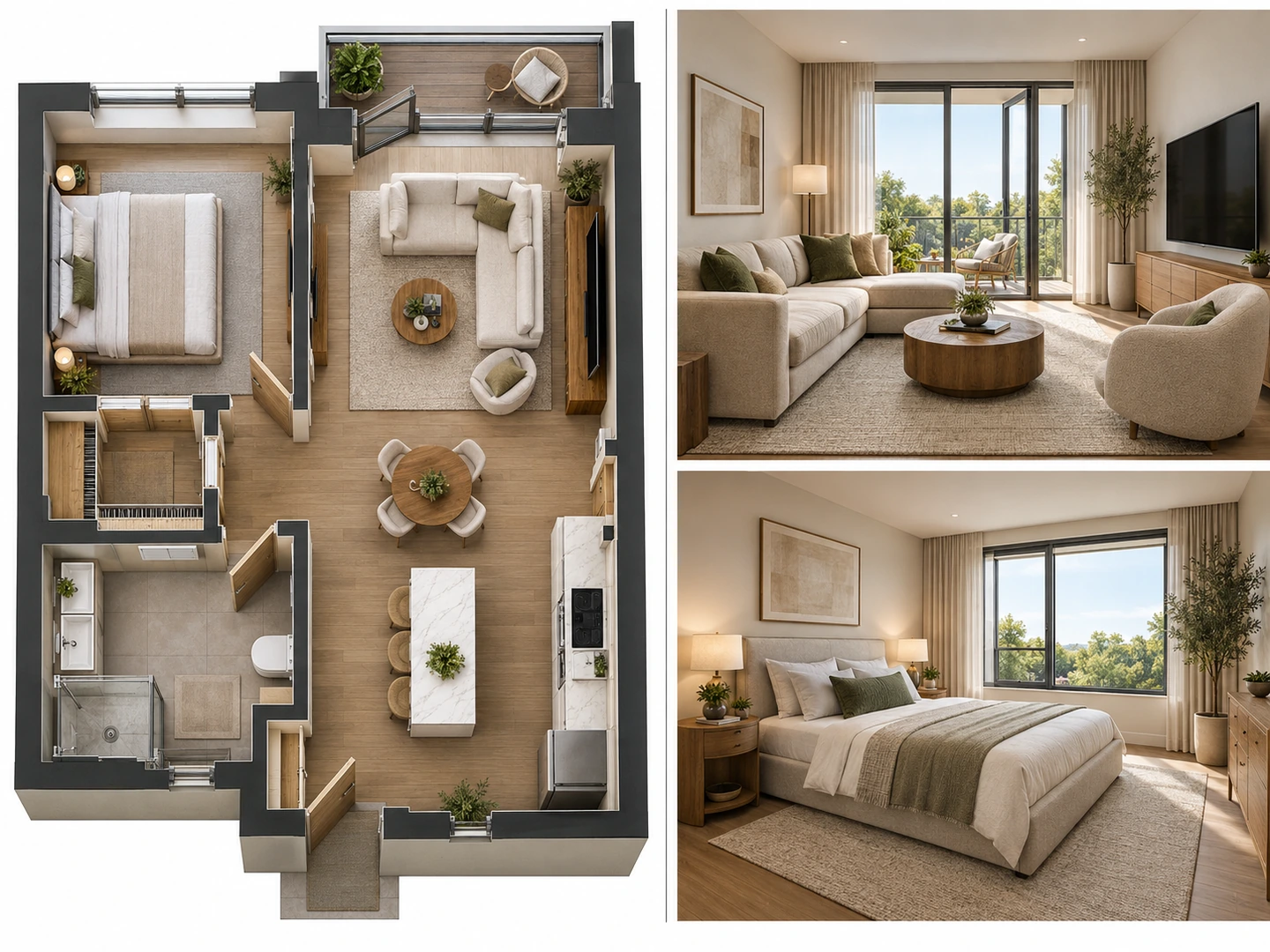
Presentation boards
One image with the rendered plan and two room views — ready for a client meeting, a pitch deck or a listing gallery.
Make a boardChoosing a render type
Which Floor Plan Render Should You Use?
| Render type | Best for | Shows |
|---|---|---|
| Top-down color render | Listings, brochures, apartment unit plans | Whole layout, materials, furniture from above |
| 3D isometric render | Explaining a layout, renovation proposals | Every room at once, wall heights, flow |
| Eye-level room view | Feeling the space, choosing finishes | One room as you would see it standing in it |
| Presentation board | Client meetings, pitch decks | Plan plus two room views on one image |
Who Uses AI Floor Plan Rendering
Real estate agents
Add a realistic floor plan rendering to a listing next to the plain plan, labeled as an illustration. Furnished renders help buyers picture the space.
Designers and architects
Turn early plans into quick renders for a first client conversation, before investing hours in a full 3D model.
Homeowners and builders
See how a new build or remodel will look with real finishes, and compare a few interior styles on the same plan.
Floor Plan Rendering FAQ
Upload the plan, choose a render type and a style, and click Render Plan. New accounts get free credits and each render uses 10 credits.
Floor Plan to 3D always produces a furnished isometric 3D view. Floor plan rendering offers four render types — top-down, isometric, eye-level and a presentation board — for different uses.
Yes, if the walls and rooms are readable. For rough sketches, first redraw them as a clean plan with the Blueprint Maker or the floor plan maker, then render that plan.
Walls, rooms and openings are kept where the plan shows them, but small rooms, labels and dimensions can be misread. Compare the render with the plan, and do not use it as a measured drawing.
Yes, as an illustration. Label it as a rendering, keep the original plan alongside it and follow your MLS rules for virtually staged or rendered images.
A high-resolution image (PNG) you can download and reuse. It is not an editable 3D model or CAD file.
Render Your Floor Plan Today
Upload a 2D plan and get a realistic floor plan render in seconds. New accounts get free credits.
Render My Floor Plan- 10 credits per render
- PNG, JPG or WebP up to 10MB