
How to Make a 3D Floor Plan, From a 2D Plan or From Scratch
How to make a 3D floor plan: convert a 2D plan with AI in seconds or build it in 3D software with real wall heights. Plus 3D renderings and elevations.
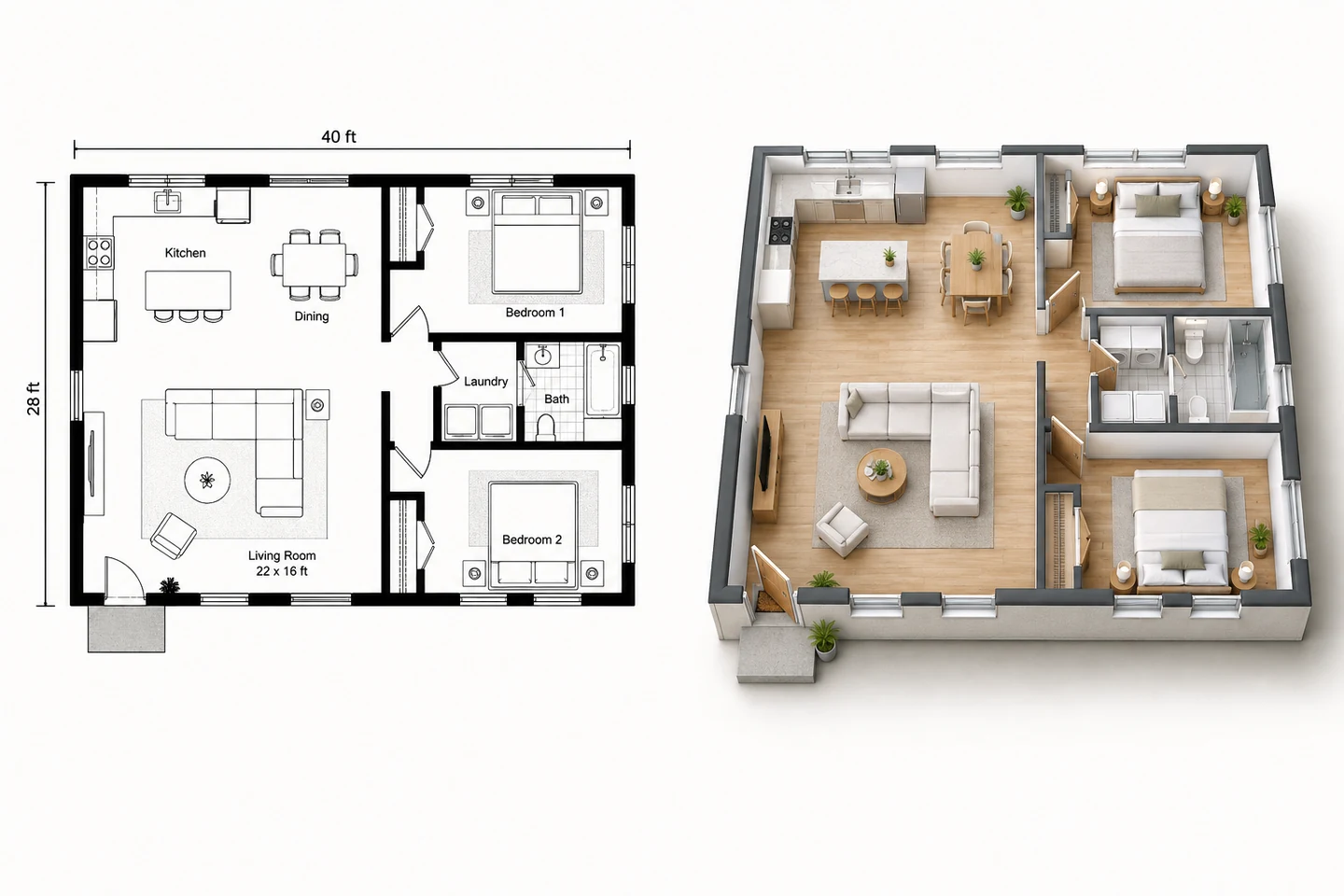
To make a 3D floor plan, start with an accurate 2D plan, then either convert it with AI or rebuild it in 3D software. AI is the fast route: upload the plan image to a floor plan to 3D converter and get a furnished 3D view in seconds. Software is the flexible route: trace the walls, raise them to ceiling height (usually 8 or 9 feet), cut in doors and windows at their real heights, add floors and furniture at real size, and set up a cutaway view with the roof removed. The first gives you a picture to share; the second gives you a model you can orbit, walk through and edit. For photoreal views of a room or the outside of the house, add a rendering or an elevation.
What Counts as a 3D Floor Plan
"3D floor plan" covers several different things, and knowing which one you need decides the method:
Swipe left or right to see the full table →
| Term | What it is | Typical use |
|---|---|---|
| 3D floor plan | A whole floor seen from above at an angle, roof removed, walls raised, rooms furnished | Listings, presentations, planning |
| 2.5D floor plan | A top-down plan with low walls and shadows | Brochures and websites |
| 3D model | An editable file you can orbit, walk through and change | Design development |
| 3D rendering | A photoreal image of a room or of the house | Choosing finishes, marketing |
| Elevation | A flat, straight-on view of one side of the house | Exterior design, permits |
| 3D tour | A capture of a real, finished space | Listings of existing homes |
Before You Start: What You Need
A 2D plan with dimensions. If you do not have one, how to find floor plans of a house covers where existing plans are kept, and how to draw a floor plan covers measuring and drawing your own.
Heights, which a 2D plan does not show. Measure them, or start from these typical figures:
Swipe left or right to see the full table →
| Element | Typical height | Note |
|---|---|---|
| Ceiling | 8 ft in many homes, 9 ft common in newer ones | 7 ft minimum for habitable rooms (model IRC) |
| Floor to floor (two stories) | Ceiling height plus about 10 to 14 in | The floor structure between levels |
| Doors | 80 in (6'-8") | 96 in (8 ft) in some newer homes |
| Window head | Usually in line with the door heads | About 80 in in an 8 ft room |
| Window sill | About 24 to 36 in | Bedroom escape sills no higher than 44 in |
| Kitchen counter | 36 in | Upper cabinets usually start about 54 in up |
| Bathroom vanity | 30 to 36 in | Taller vanities are now common |
| Stair headroom | At least 6'-8" | Model IRC minimum |
Standard ceiling height and standard door sizes go into more detail on the two that matter most.
Finishes and furniture, at least roughly: floor materials, wall colors and the main pieces in each room, with their sizes.
Method 1: Convert a 2D Floor Plan to 3D With AI
This is the quickest way to get a 3D floor plan from 2D, and it needs no 3D skills. The example is a two-bedroom, one-bath house of 40 x 28 feet (1,120 square feet).
- Get a clean plan image. A straight-on scan, a PDF export or a screenshot, cropped to the plan, with walls clearly darker than everything else. Crop out title blocks and notes if you can.
- Upload it to the floor plan to 3D tool and choose one of its ten interior styles, such as Modern Minimalist or Scandinavian.
- Add notes about the view and finishes, such as a 45-degree isometric view, light oak floors, both bedrooms furnished and the room labels kept.
- Generate, then compare with the plan. Check that walls, doors and windows sit where the plan has them. If something moved, generate again and say in the notes what to keep.
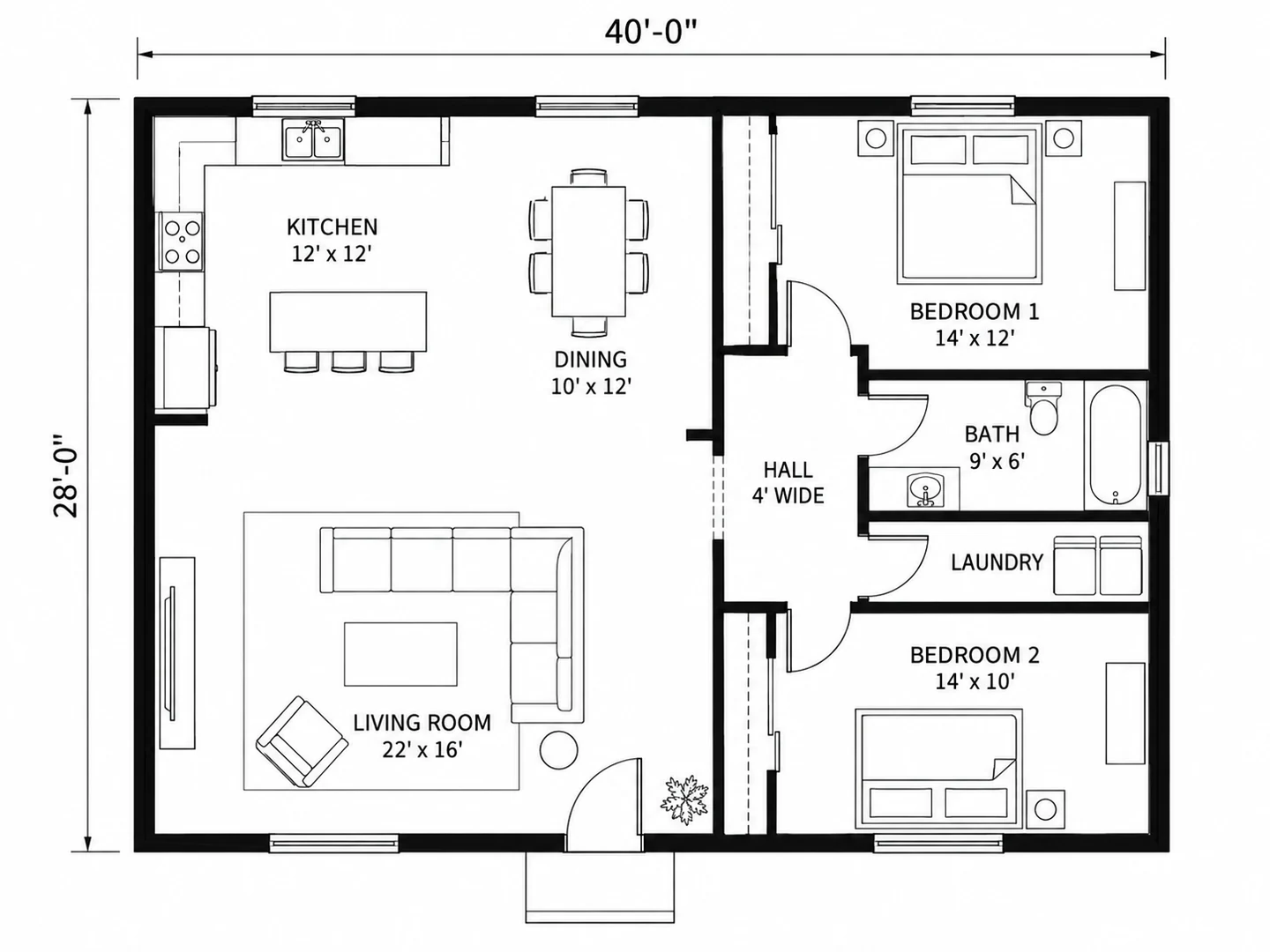
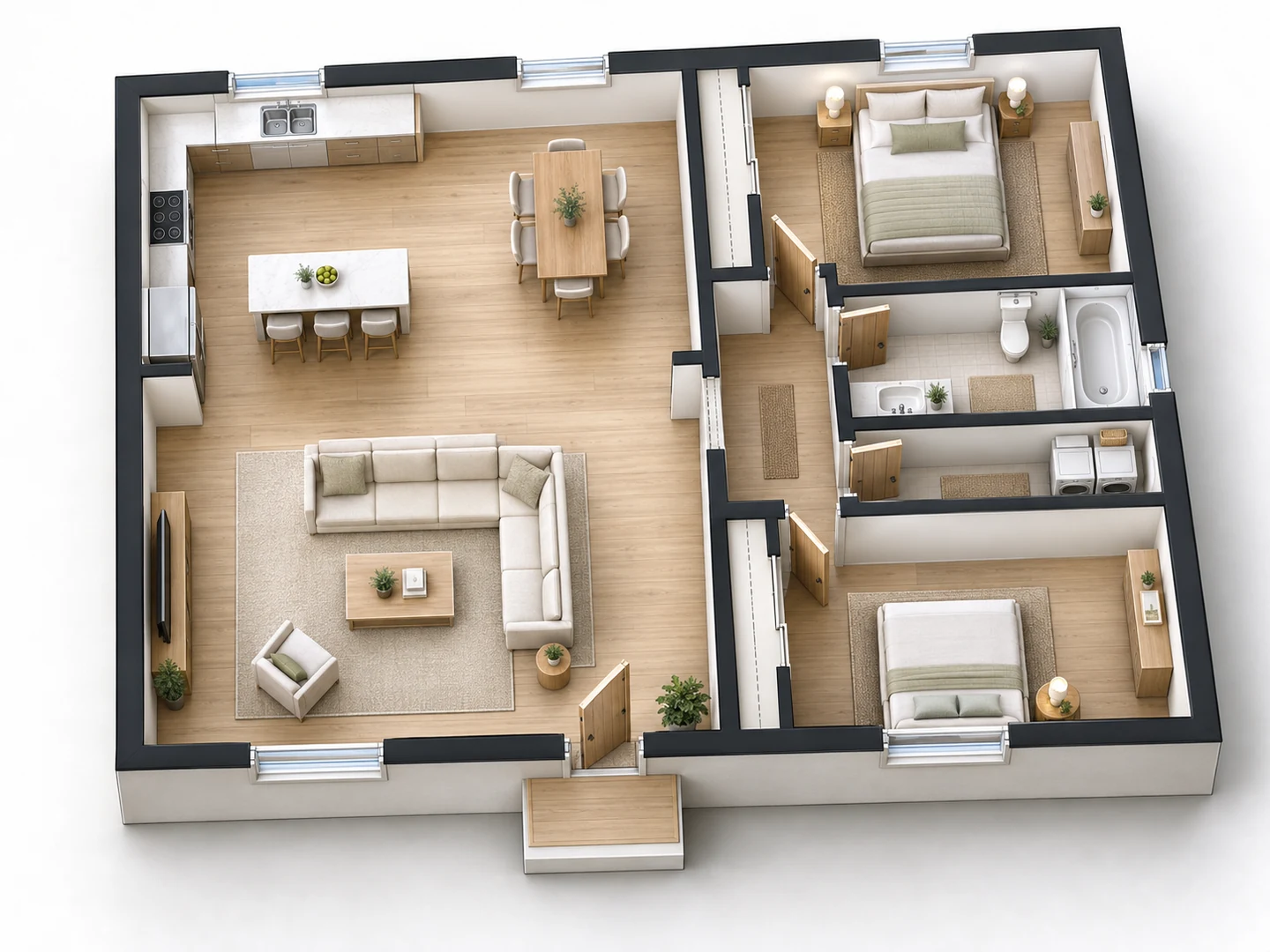 AfterBefore
45-degree isometric 3D floor plan of the uploaded 2-bedroom house, roof removed. Keep every wall, door and window where the plan has them. Light oak floors, white walls, Scandinavian furniture: sofa and rug in the living room, table for six in the dining area, a queen bed in each bedroom. Keep the room labels.
What you get is a rendered PNG image, not an editable 3D model: you cannot orbit it, move a wall or take measurements from it. Keep the 2D plan as the source of truth for dimensions. With no plan at all, the floor plan maker can generate one directly in its 2.5D or 3D Isometric style from a description.
Method 2: Build a 3D Floor Plan in Software
This route gives you a real 3D model. A beginner can model a small single-story house in an afternoon or two, and the steps are much the same in most programs:
- Choose the software. Sweet Home 3D (free, desktop) and browser planners such as Floorplanner, Planner 5D and RoomSketcher build the 3D for you as you draw walls in 2D. SketchUp Free is a general 3D modeler: more control, more learning. Best free floor plan software compares them.
- Import the 2D plan as a background and set its scale. Measure a long, known wall on the image and tell the program its real length. Sweet Home 3D has a background-image wizard for this; in SketchUp you can resize an imported image with the Tape Measure tool.
- Draw the exterior walls, then the interior ones, at real thickness: about 6 to 8 inches outside and 4½ inches inside. Trace the wall faces you measured.
- Set the wall height to the ceiling height, 8 or 9 feet, and treat vaulted ceilings separately.
- Add doors and windows at their real widths and heights, with sills and heads from the table above.
- Add floors, ceilings and stairs. For a second story, add a level at the floor-to-floor height, not the ceiling height.
- Furnish at real size. Library furniture is often generic; check each piece against the one you own or plan to buy.
- Apply materials and lights, then set up views: an overhead cutaway with the roof hidden, an isometric view and one or two eye-level views. Export images, a video walk-through or the model itself (Sweet Home 3D, for example, exports OBJ) for rendering elsewhere.
How to Make a 3D Rendering of a House
A rendering is a photoreal image. There are two ways to make one:
- From your 3D model. Most planners have a built-in render or photo mode. For more realism, export the model to a renderer: Blender is free and open source, and professionals often use real-time engines such as Twinmotion, Lumion, Enscape or D5 Render.
- From a 2D plan, with AI. The floor plan rendering tool turns an uploaded plan into a top-down color render, a 3D isometric render, an eye-level view of the main room or a presentation board that combines the plan with two room views.
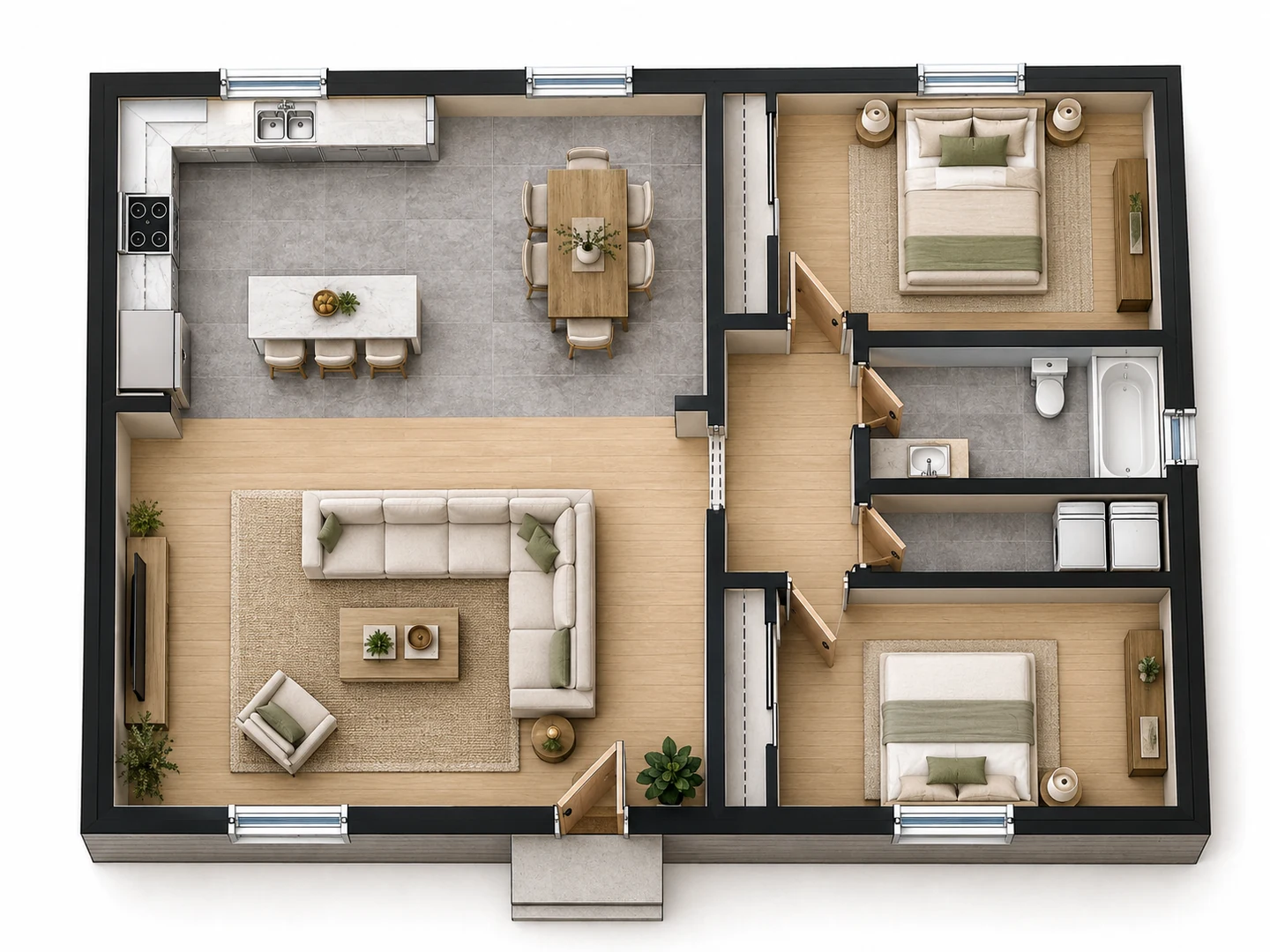
Whichever route you take, the same things make a rendering believable:
- Materials at the right scale. Floorboards, tiles and countertop patterns that are too large or too small give the game away at once.
- Light from where the windows are. Use daylight through the real openings plus warm interior lights, and check which way the house faces so the sun comes from the right side.
- A camera at eye level, around 4 to 5 feet high, with vertical lines kept vertical. Very wide lenses make rooms look bigger than they are.
- Restraint. A few well-chosen pieces of furniture look more real than a crowded room.
How to Make a 3D House Exterior
A floor plan shows the house from above; the outside needs elevations and a roof.
- In 3D software, extrude the exterior walls, then add the roof: its shape (gable, hip or shed), its pitch, written as rise per 12 inches of run such as 6:12, and overhangs of roughly 12 to 24 inches. Place the windows and doors from the plan, then add siding, trim and roofing materials.
- With AI, the 2D plan to elevation tool reads a floor plan (or a description) and generates a front elevation as a 3D render or a 2D drawing, a side render, or a sheet with all four elevations, in styles from modern farmhouse to craftsman.
The AI elevation is a concept of what the house could look like, following the plan's width, number of floors and openings. Use it to choose a direction, then draw or model the exterior properly before anyone builds it.
Which Method to Use
Swipe left or right to see the full table →
| Approach | Time | Skill | Output | Cost |
|---|---|---|---|---|
| AI floor plan to 3D | Seconds to minutes | None | 3D-style image (PNG) | Free signup credits, then 10 credits each |
| AI rendering or elevation | Seconds to minutes | None | Photoreal or drawn image (PNG) | Free signup credits, then 10 credits each |
| Browser drag-and-drop planner | An hour or two | Low | 3D view and renders inside the app | Free tier; paid for better exports |
| Sweet Home 3D | An afternoon | Low to medium | Editable model, images, video, OBJ | Free |
| SketchUp Free | A day or more while learning | Medium to high | Fully editable 3D model | Free for personal use |
| CAD or BIM plus a renderer | Days | Professional | Model, photoreal renders, construction drawings | Paid software |
| 3D rendering service | Days | None | Renders, sometimes animations | Paid per image or project |
If the goal is a picture for a listing, a client or your family, start with AI. If you will keep changing the design, or need to walk through it and measure it, build a model.
Common 3D Floor Plan Mistakes
- Wrong wall heights. Leaving the default 8 feet in a house with 9-foot ceilings makes every room look squat, and stacking floors at the ceiling height instead of the floor-to-floor height leaves no room for the stairs.
- Furniture at the wrong scale. A library sofa shrunk to fit the space rather than drawn at its real 84 inches makes the room look bigger than it is. Check pieces against real sizes; the sofa size guide lists common ones.
- Walls without thickness. Tracing single lines puts every room a few inches off, and the errors add up across a house.
- Doors and windows at random heights. Line up the heads and keep sills consistent unless the real house differs.
- A distorted camera. Very wide angles and tilted verticals make renderings look like bad real estate photos.
- Wrong orientation. Without a north arrow, sunlight comes in through the wrong windows.
- Treating an AI image as a measured model. It is a visualization. Take dimensions from the 2D plan.
Frequently asked questions
Draw the plan in a free program such as Sweet Home 3D or SketchUp Free and view it in 3D, or upload a 2D plan to an AI floor plan to 3D tool. Our tool gives new accounts free credits, and each conversion uses 10 credits.
Either upload the plan image to an AI converter, which returns a furnished 3D view in seconds, or import it into 3D software as a background, set its scale, trace the walls and raise them to ceiling height.
Yes. A clear, straight-on photo or scan works with AI converters, and 3D programs can use it as a tracing background once you set the scale from a known wall length.
Start from a 2D floor plan, model the walls at real thickness and height, add doors, windows, floors and a roof, then furnish it and set up views. Sweet Home 3D and SketchUp Free are free places to start.
Build or convert a 3D model and render it with realistic materials, daylight and an eye-level camera, or upload a 2D plan to an AI rendering tool for a top-down, isometric or eye-level render.
Yes. Measure the house, draw the plan to scale and build it in a free program such as Sweet Home 3D or SketchUp Free. Expect an afternoon or two for a small single-story home while you learn.
Architects and designers commonly use BIM and CAD programs such as Revit, ArchiCAD, Chief Architect or Vectorworks, often with a rendering engine such as Twinmotion, Lumion, Enscape or V-Ray.
It follows the walls and rooms of the plan you upload, but it is a generated image with approximate dimensions, not a measured model. Use it to visualize and present, and take measurements from the 2D plan.
Try these tools
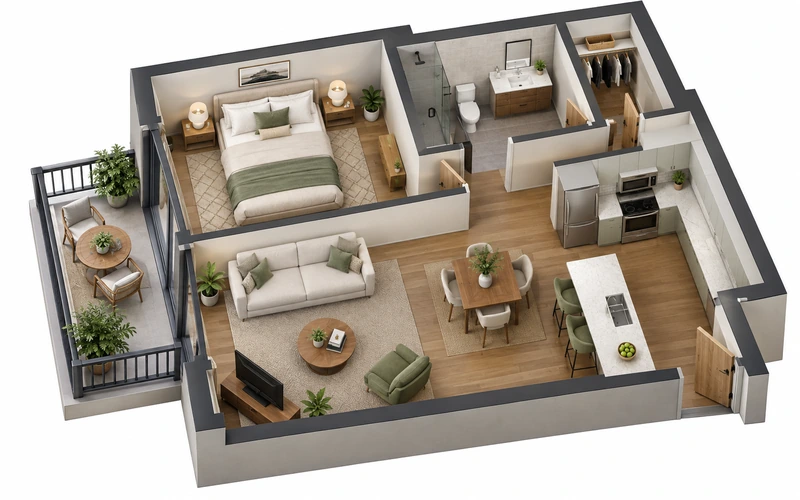 Floor Plan to 3DConvert a 2D floor plan into a furnished 3D floor plan.
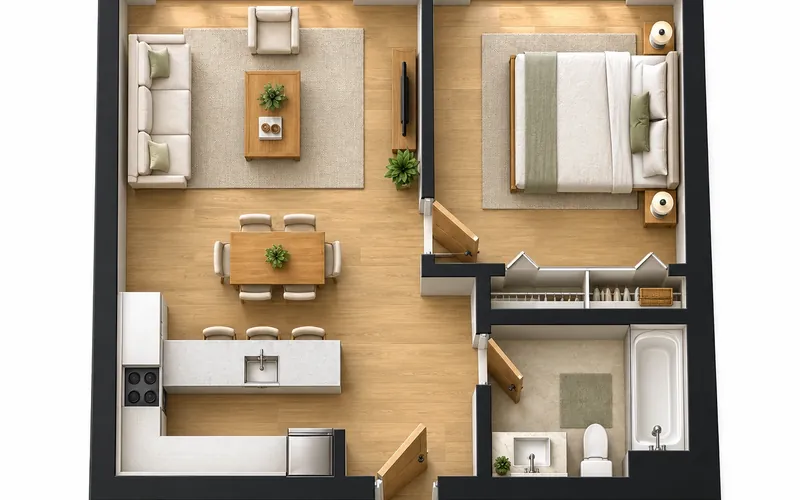 Floor Plan RenderingRender a 2D plan as a photorealistic top-down or room view.
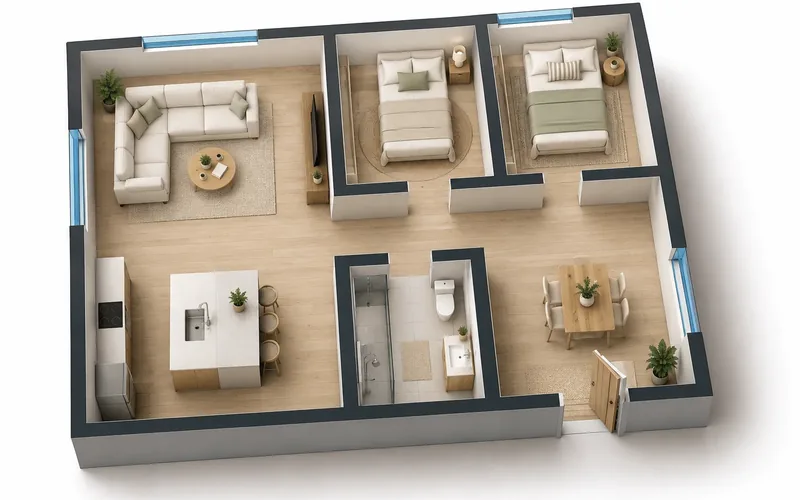 Free Floor Plan MakerGenerate 2D, 2.5D and 3D floor plans for any space with AI.
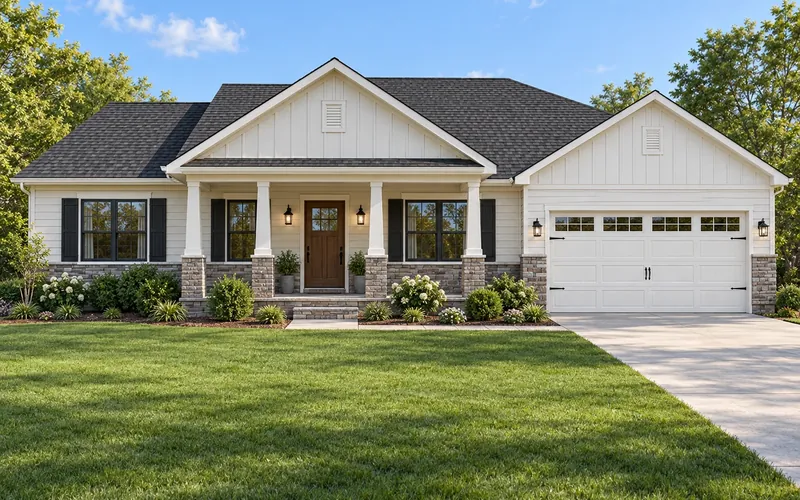 2D Plan to Elevation AITurn a floor plan into a front elevation render or drawing.
Sources
- International Residential Code (IRC) — International Code Council
- Kitchen and Bath Planning Guidelines — National Kitchen & Bath Association (NKBA)