
Kitchen Cabinet Visualizer
A kitchen cabinet visualizer that restyles the cabinets in a photo of your kitchen: pick a door finish or a paint color and see the result.
Visualize My Cabinets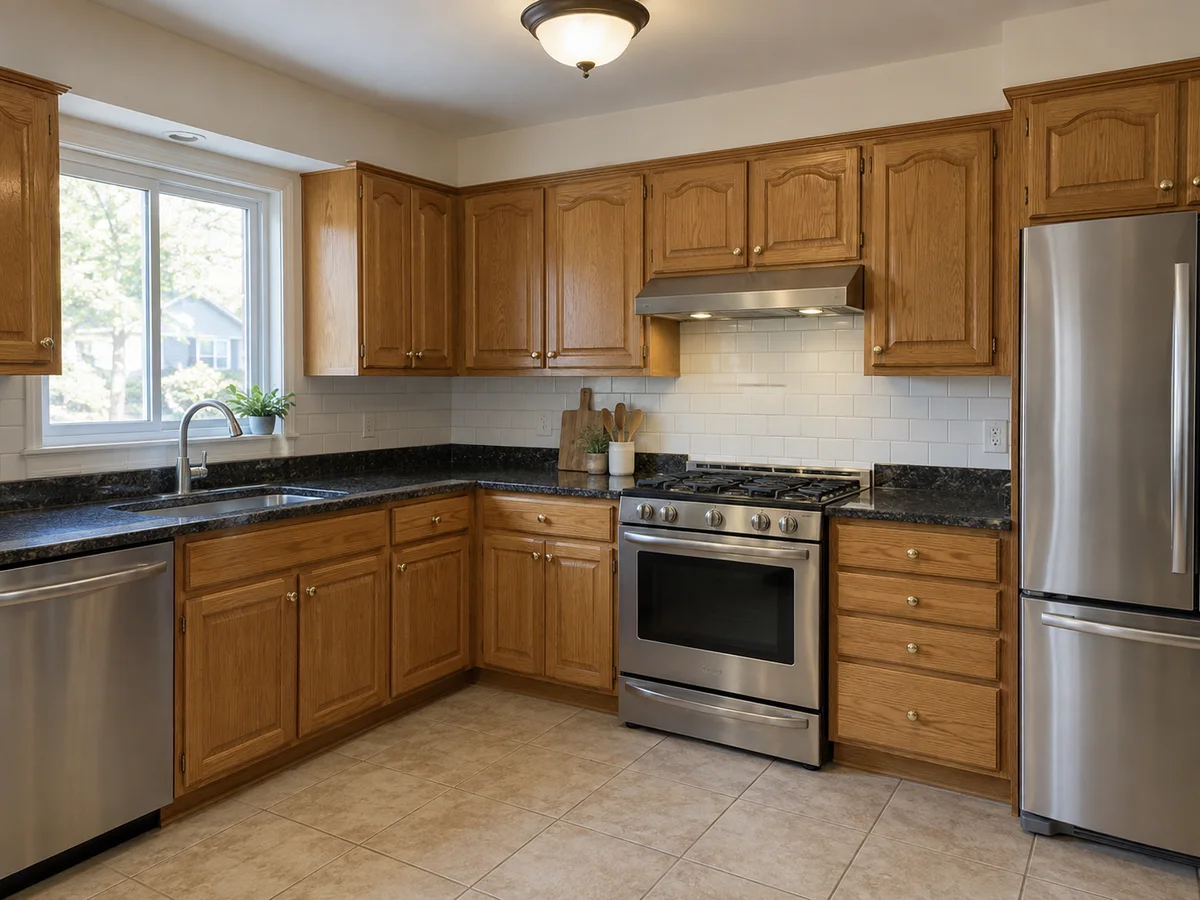
 AfterBefore
Kitchen Cabinet Visualizer: Upload Photo, Pick a Finish
Upload a kitchen photo, choose a cabinet finish and, if you like, a different cabinet color. Use the notes to say what to include or leave alone.
AfterBeforeWhite Shaker Cabinets
Illustrative cabinet preview
Cabinet Visualizer Examples: Before & After
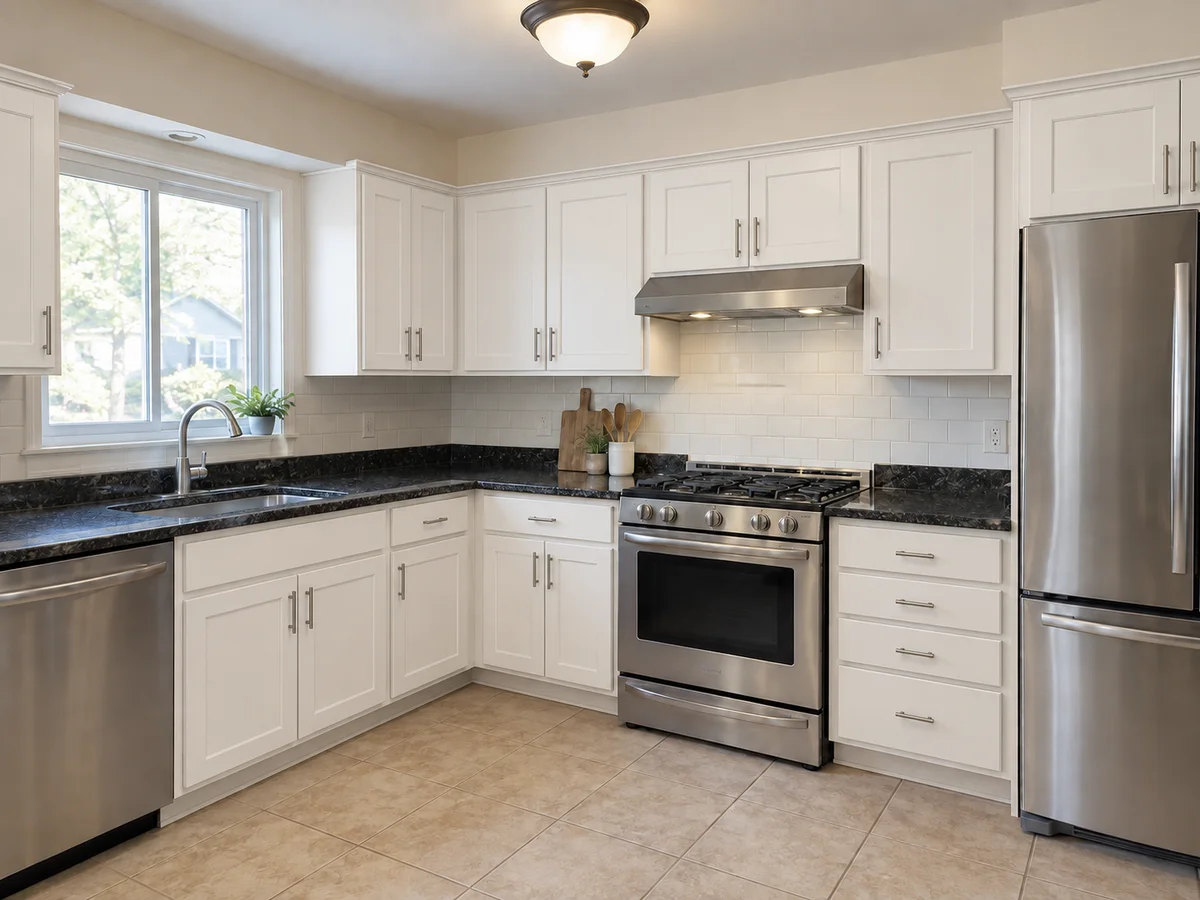
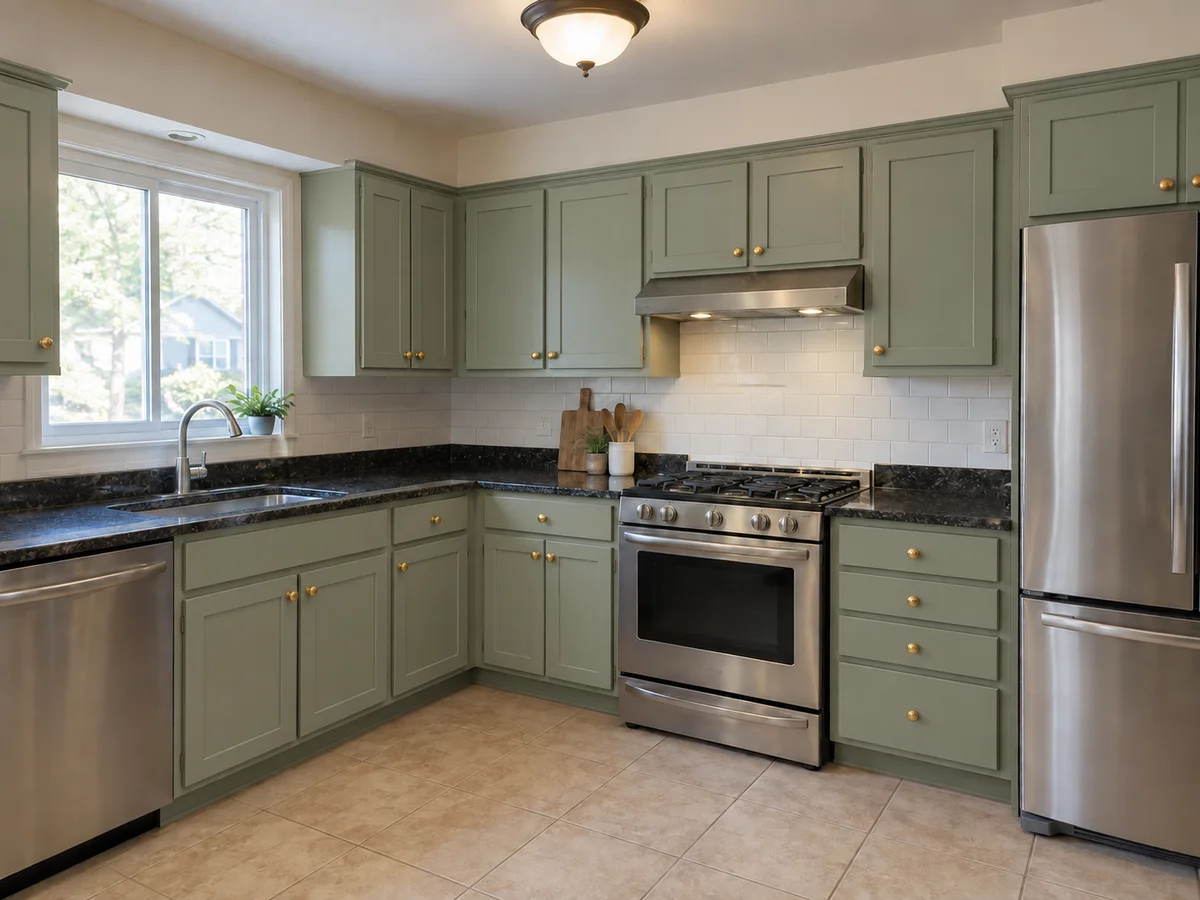
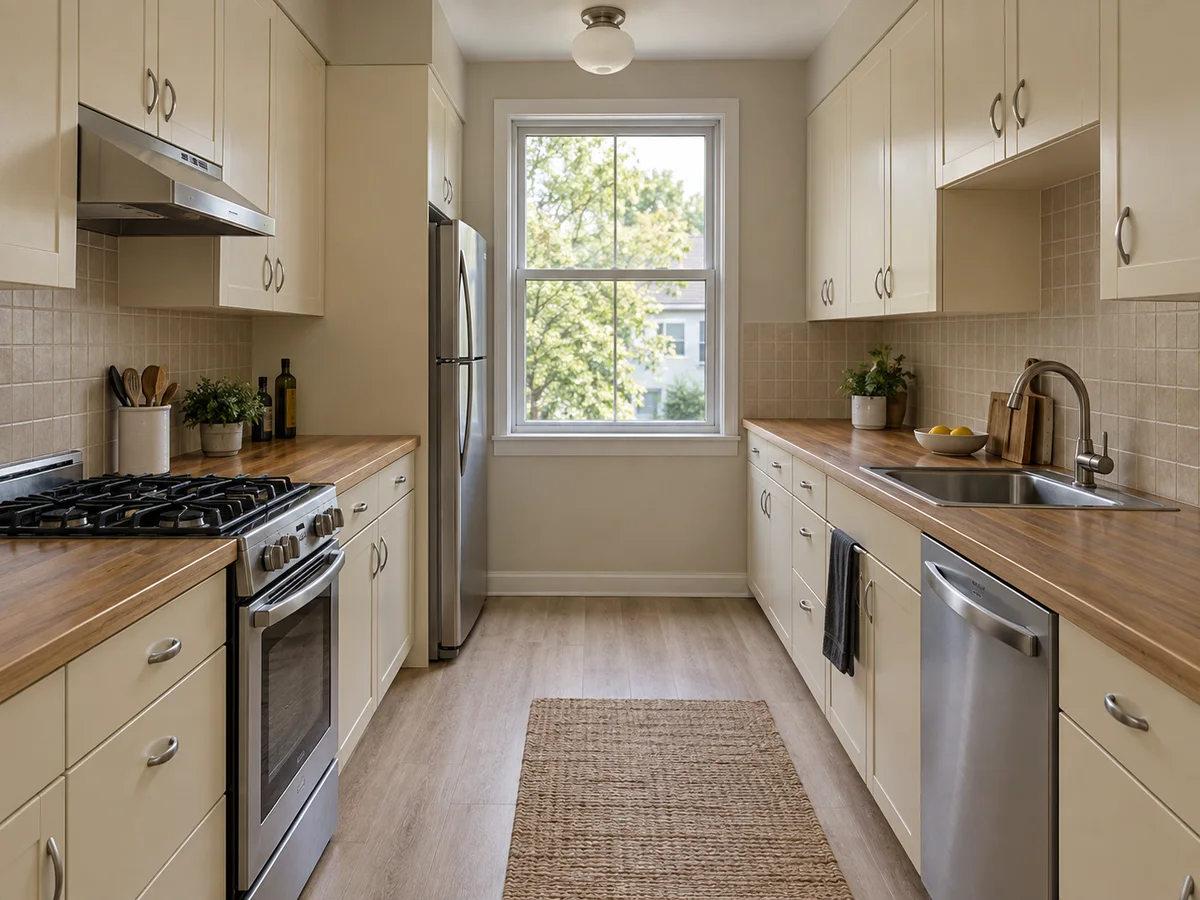
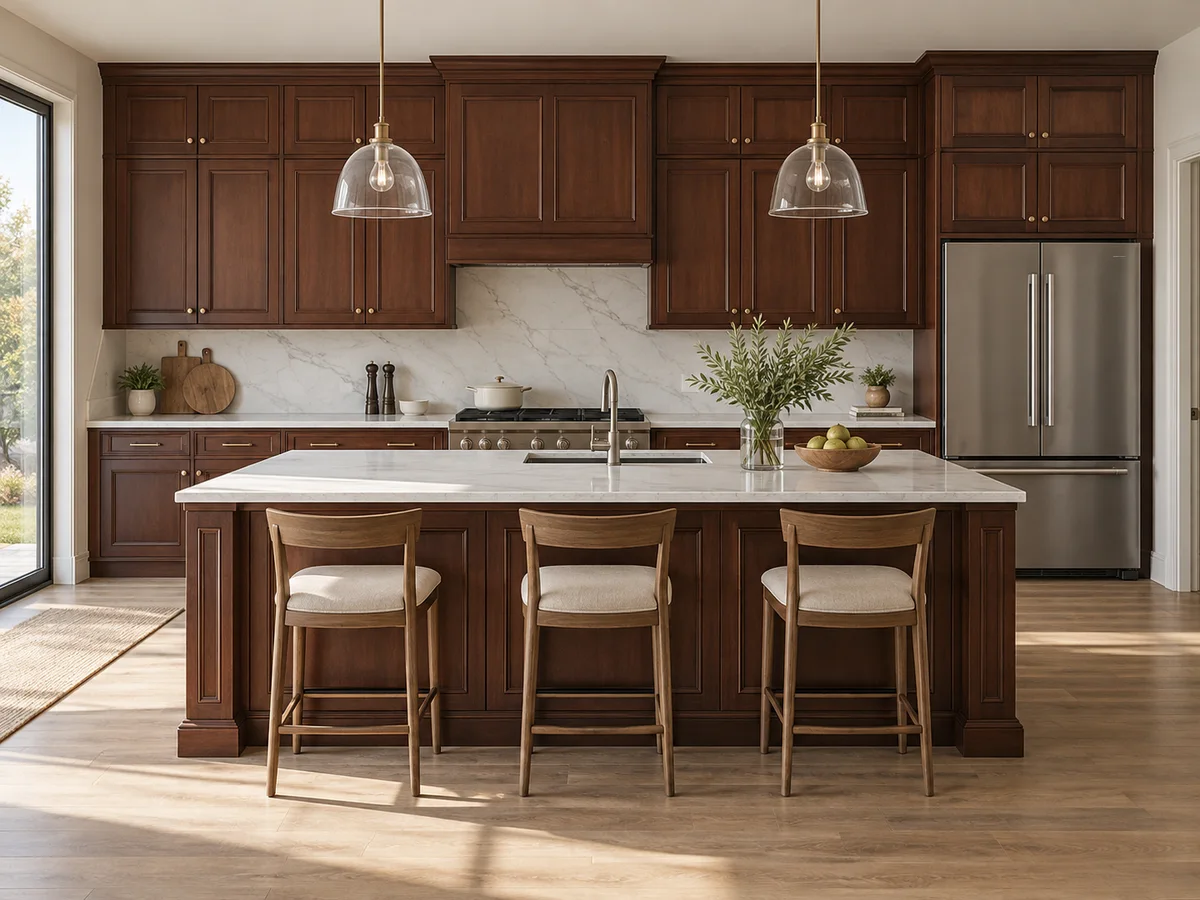
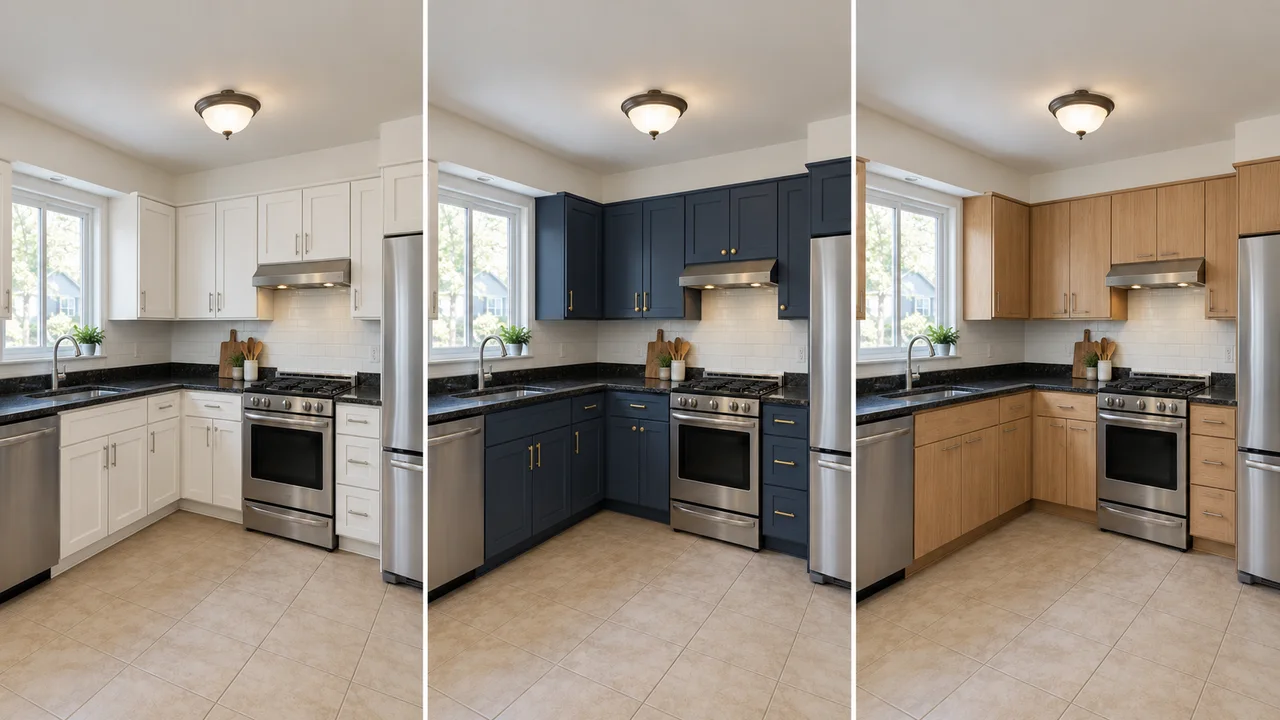
A dated oak kitchen, a galley and an open kitchen with an island, each shown in two finishes generated from the same photo. These are illustrative AI previews, so small details can shift.
- AfterBefore
White Shaker Kitchen Cabinets
 AfterBefore
Sage Green Shaker Cabinets
 AfterBefore
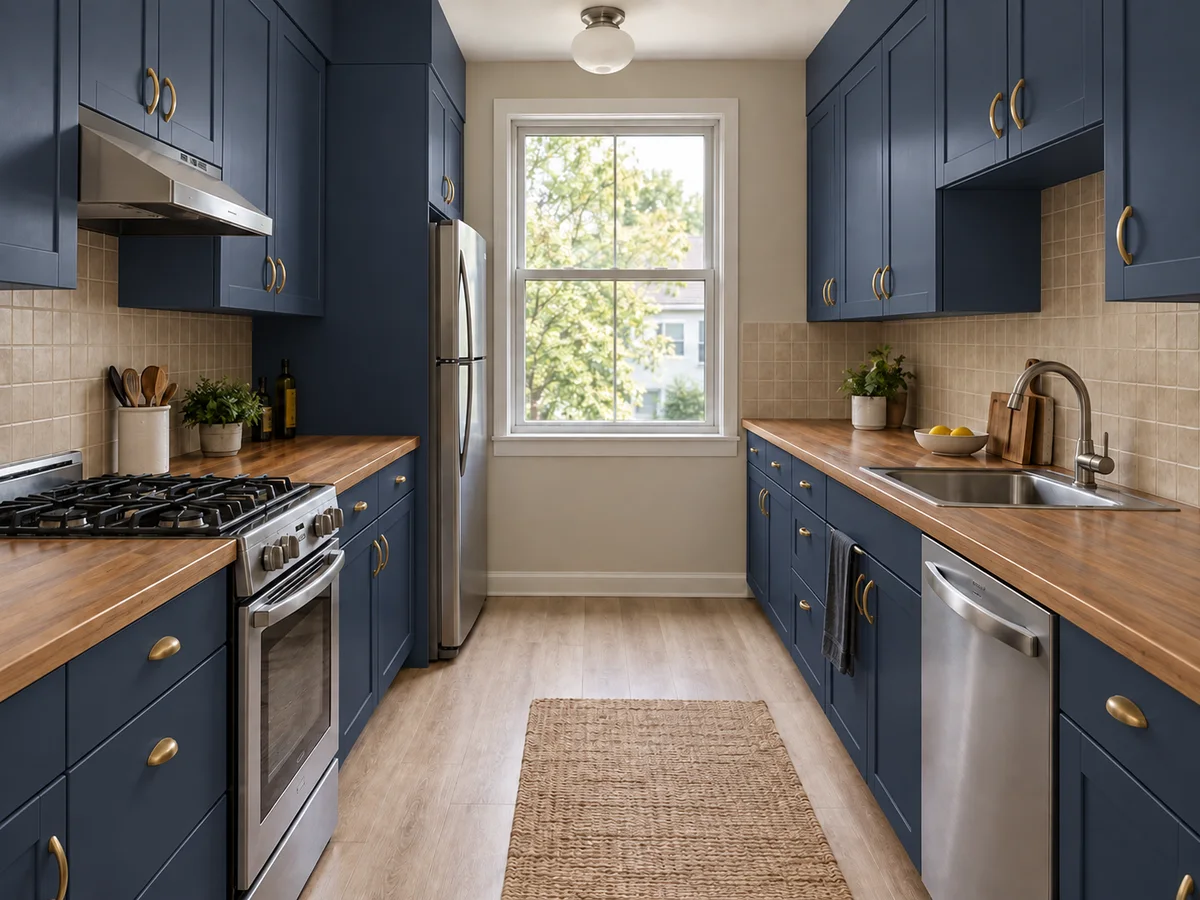
Navy Blue Shaker Cabinets in a Galley Kitchen
 AfterBefore
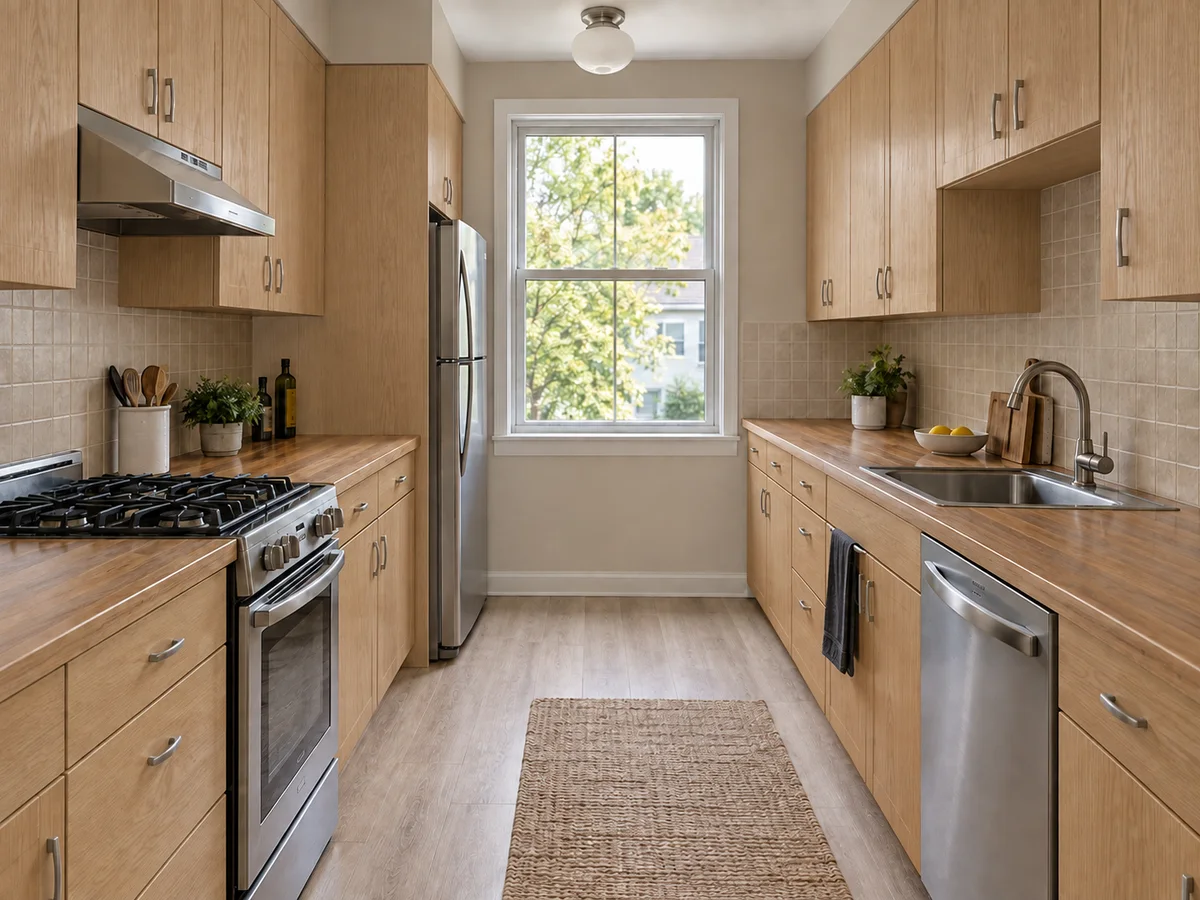
Natural Oak Cabinets in a Galley Kitchen
 AfterBefore
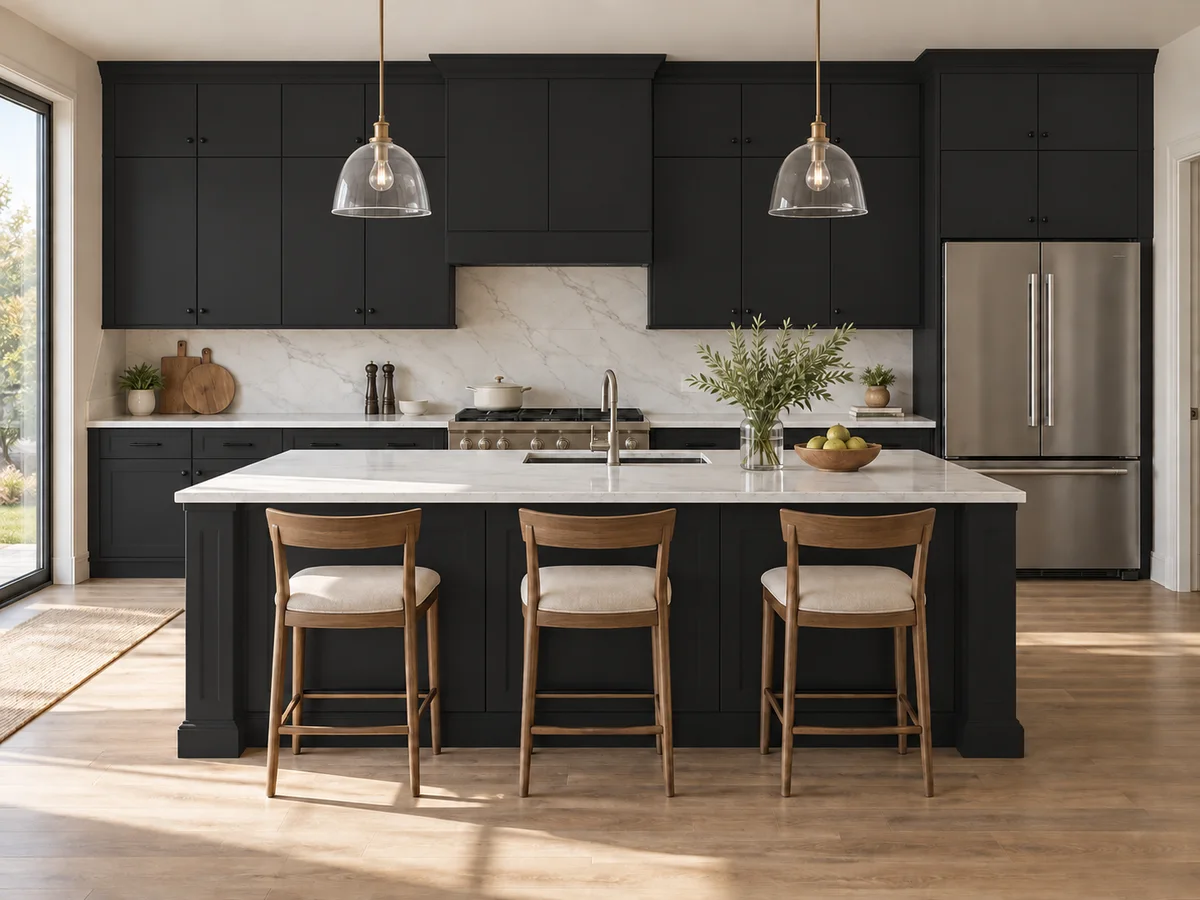
Matte Black Cabinets in an Open Kitchen
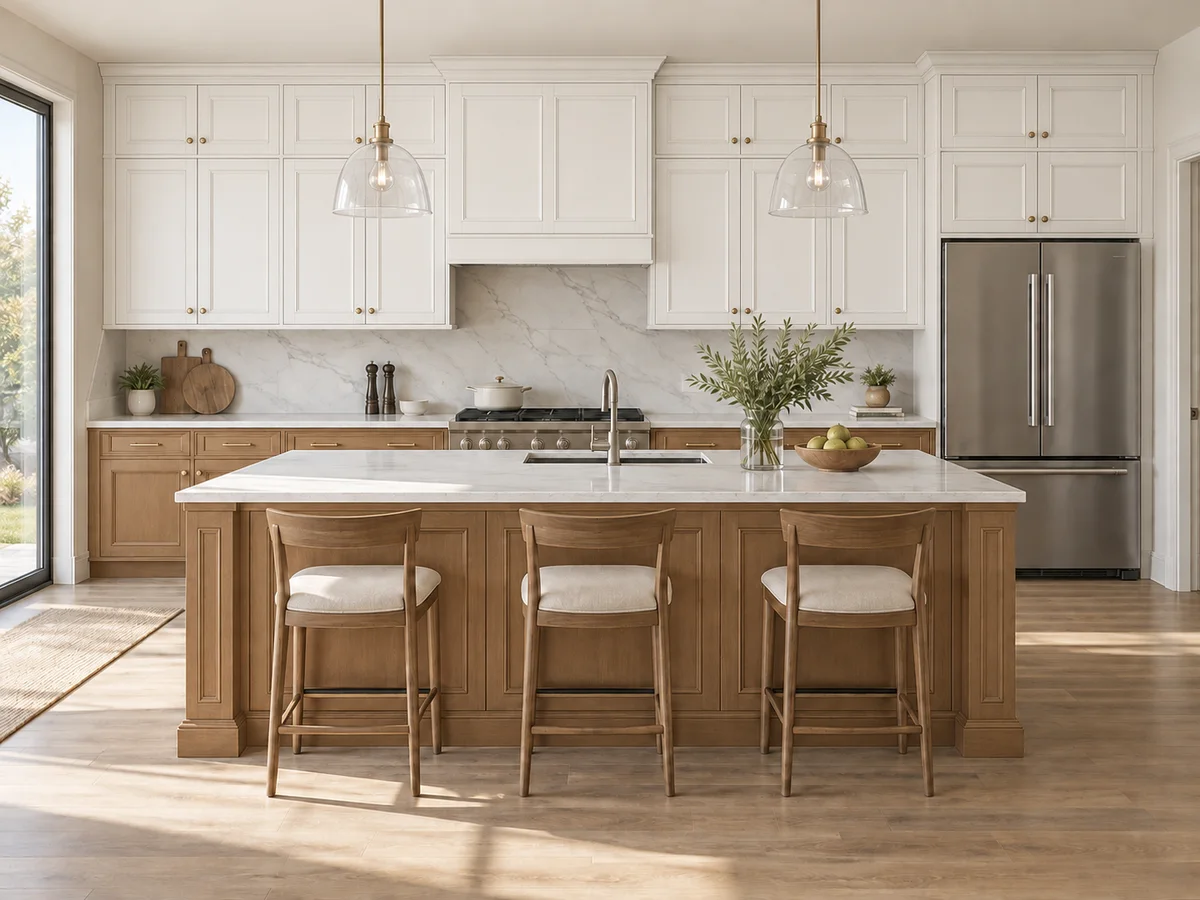 AfterBefore
Two-Tone White & Wood Kitchen Cabinets
The basics
What Is a Kitchen Cabinet Visualizer?
A kitchen cabinet visualizer previews new cabinet fronts on a photo of your own kitchen. The finish you pick sets the door profile, surface and hardware, and an optional color changes its shade. The AI redraws doors, drawer fronts and the visible cabinet sides rather than the whole room, which makes it a cabinetry visualizer for painting and refacing decisions, not a remodel tool.
It is instructed to keep cabinet positions, sizes and door divisions, plus the counters, backsplash, appliances, sink and floor, unless your notes ask otherwise. The result is an AI-edited photo for comparing looks, not a product color match or a measured order: check a painted sample door in your own light and measure the openings before you order anything.
- Works on your own kitchen photo, not a showroom render
- 11 cabinet finishes, from White Shaker to Two-Tone White & Wood
- Optional cabinet color: 16 shades or a custom hex code
- Counters, backsplash and appliances are meant to stay as they are
Why Use a Cabinetry Visualizer on Your Own Photo?
1. Your kitchen, not a showroom
A sample door under showroom lights says little about your room. See the finish beside your own counters, floor and daylight.
2. Start from 11 finishes
Shaker, inset, slab, handleless and wood fronts. Where a finish names its hardware, such as brass or black pulls, the hardware changes too.
3. Pick from 16 cabinet colors
Keep the finish's own color, or choose a palette shade or a custom hex. The finish's door style and hardware stay.
4. Built around your layout
The AI is instructed to keep cabinet sizes, door and drawer divisions, counters and appliances, so the preview shows a paint or refacing job, not a new kitchen.
5. Paint, reface or replace?
Seeing a finish in your own kitchen makes it easier to decide which of the three is worth a quote. The comparison table below lays out the trade-offs.
6. Free credits to start
New accounts receive signup credits. Each preview uses 10 credits; your balance is shown in the workspace.
Finish options
Cabinet Finishes You Can Visualize
Choose from 11 cabinet finishes. Each one sets the door style and, where named, the hardware; add a cabinet color to change its shade.
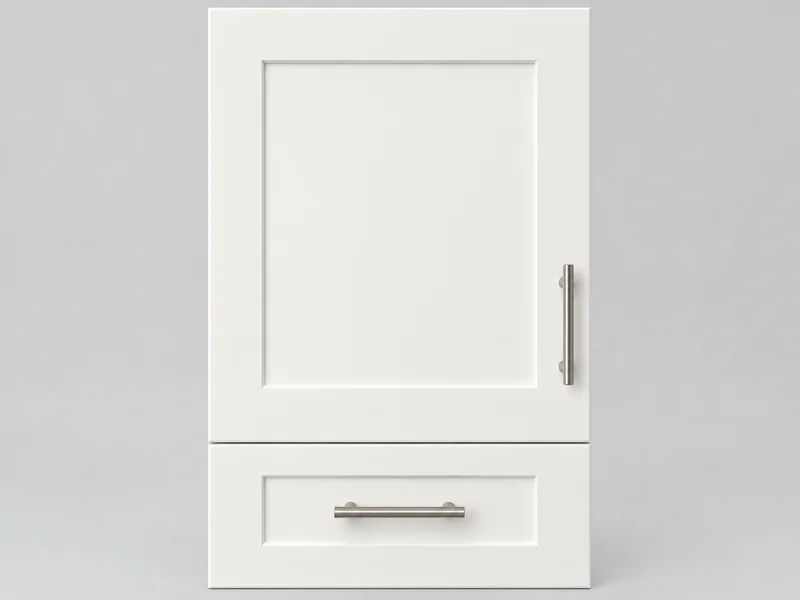
White Shaker
Recessed-panel Shaker doors with brushed nickel pulls.
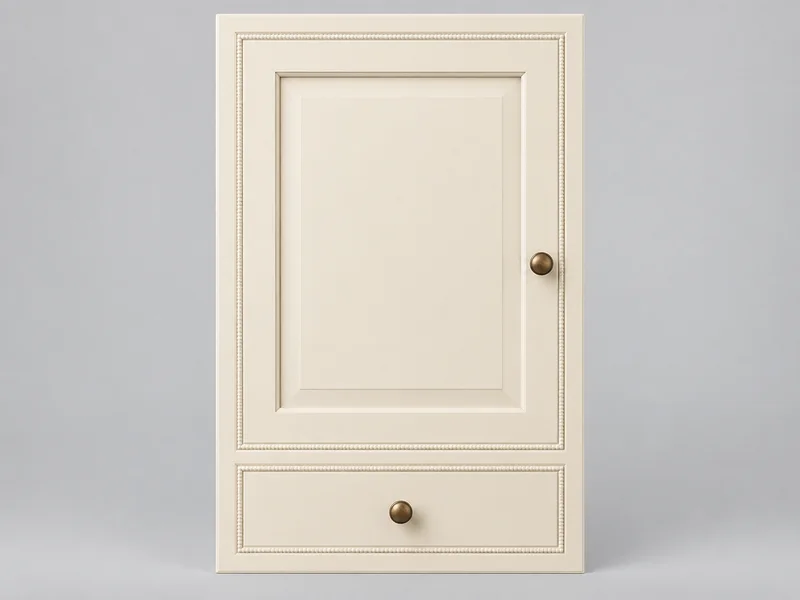
Cream Inset
Inset doors in beaded frames with antique brass knobs.
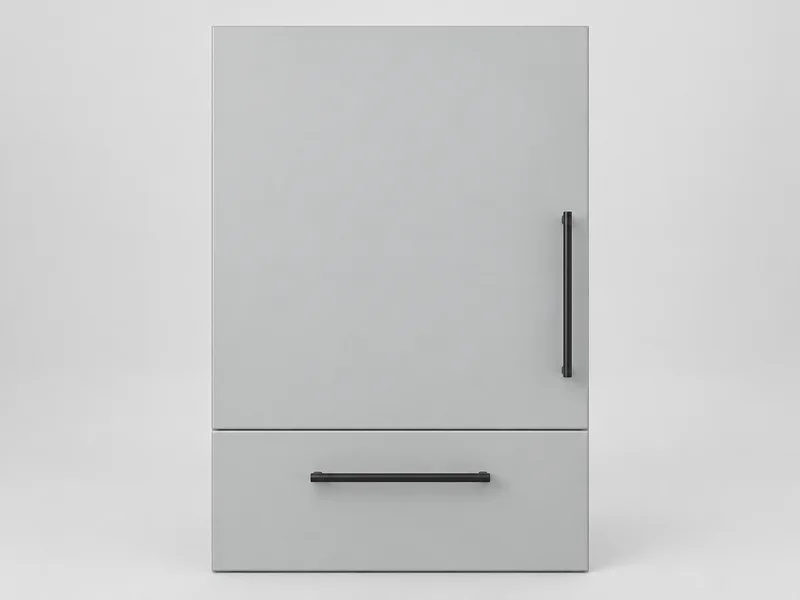
Light Gray Slab
Matte slab doors with slim black bar pulls.
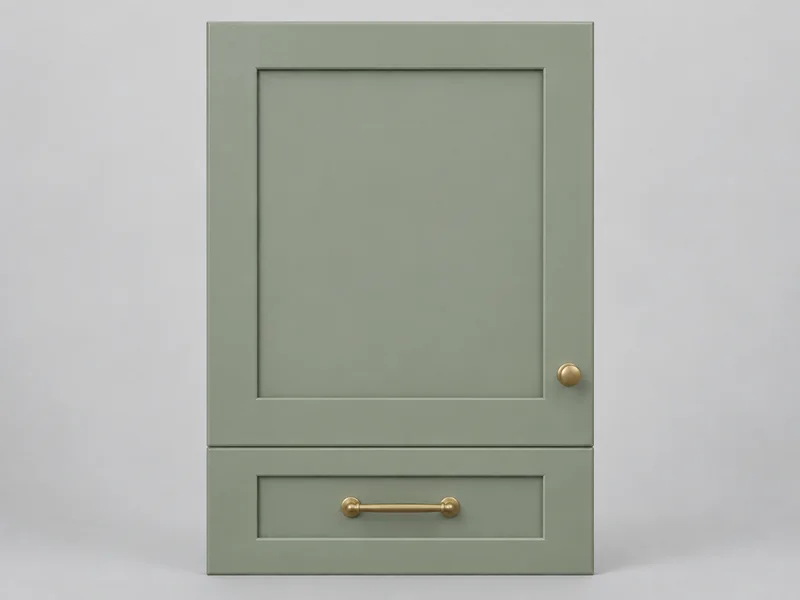
Sage Green Shaker
Painted Shaker doors with unlacquered brass hardware.
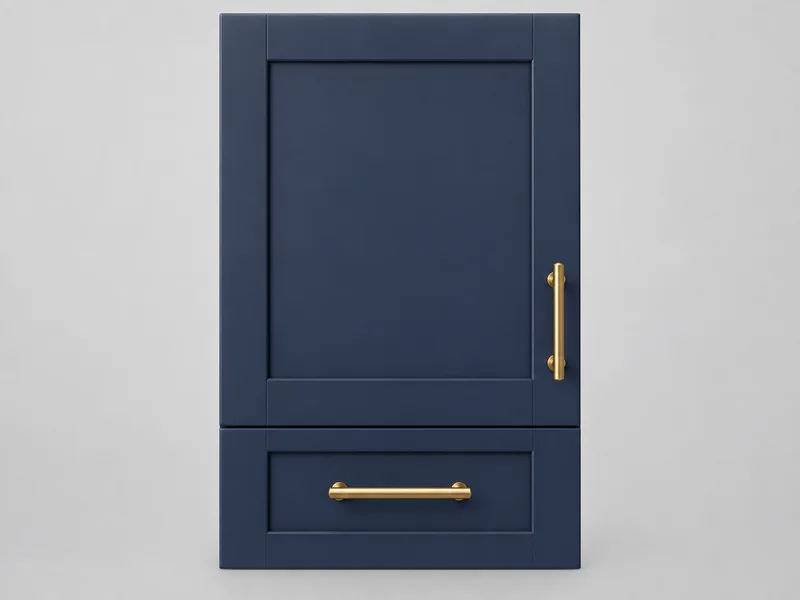
Navy Blue Shaker
Deep navy Shaker doors with polished brass hardware.
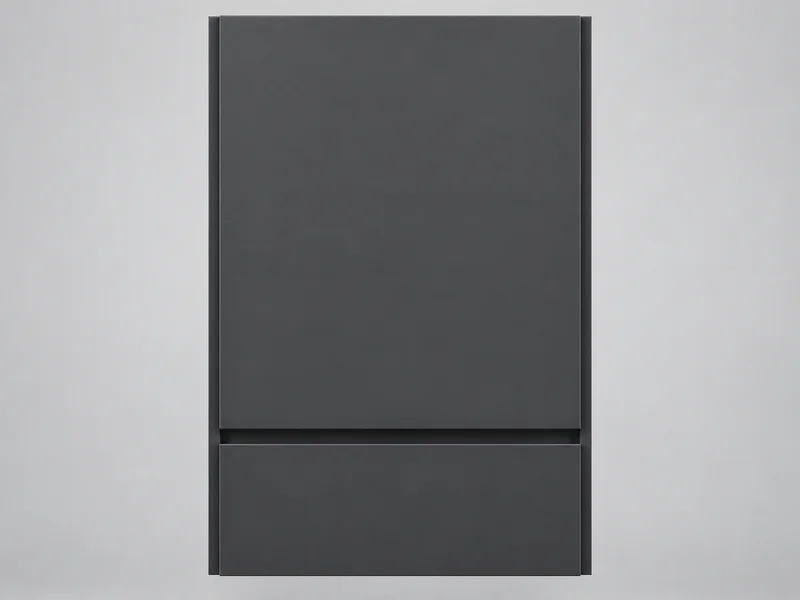
Matte Charcoal
Handleless flat doors with finger-pull edges.
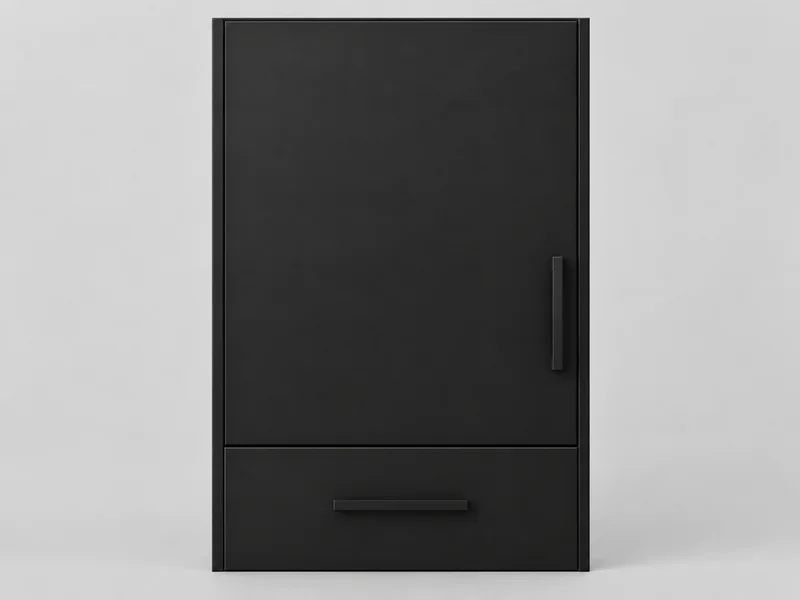
Matte Black
Flat doors with discreet black hardware.
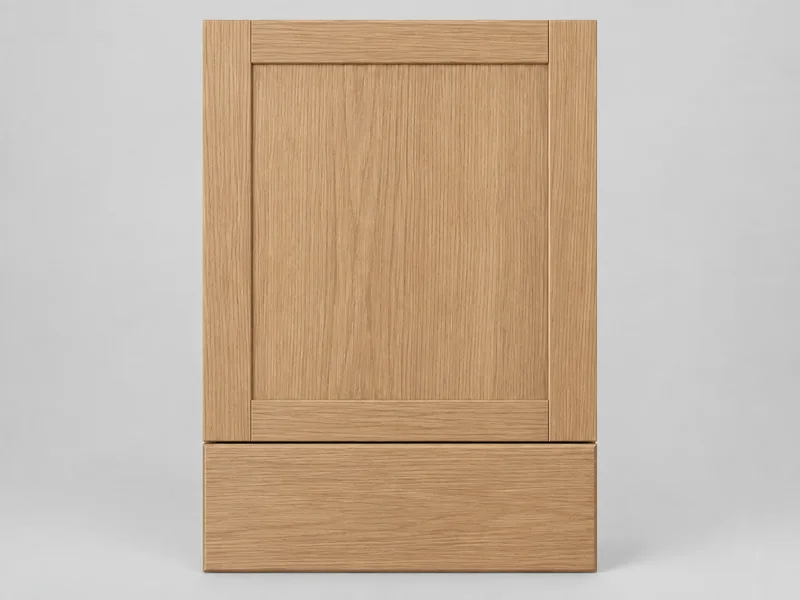
Natural Oak
White-oak slab fronts with straight grain.
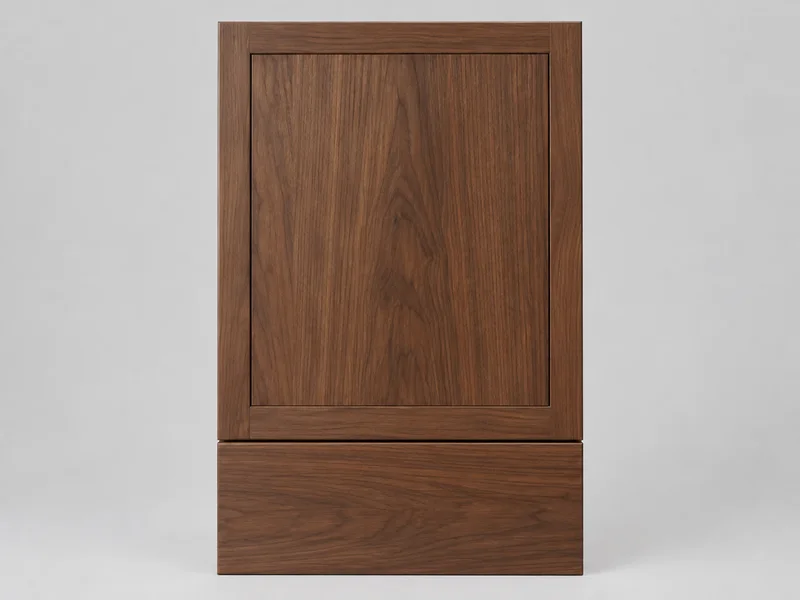
Walnut
Walnut veneer fronts with matching grain.
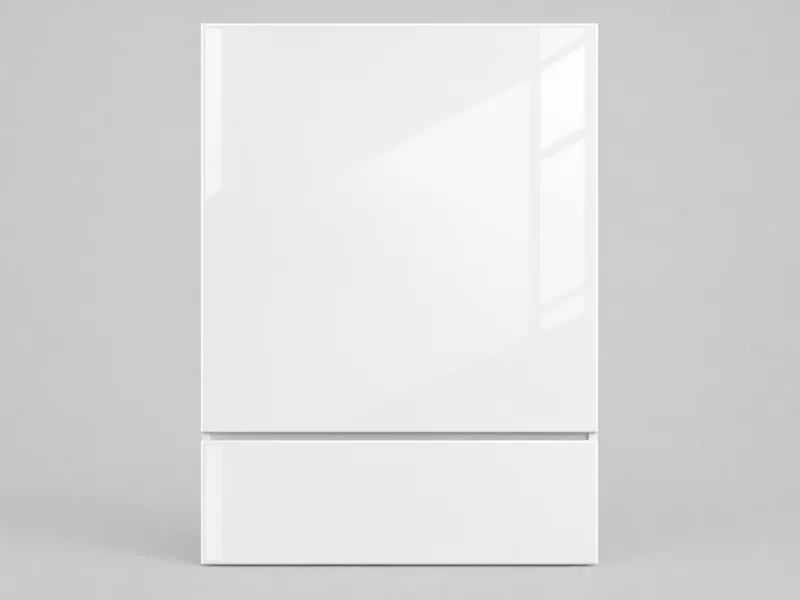
High-Gloss White
Handleless lacquer fronts with crisp reflections.
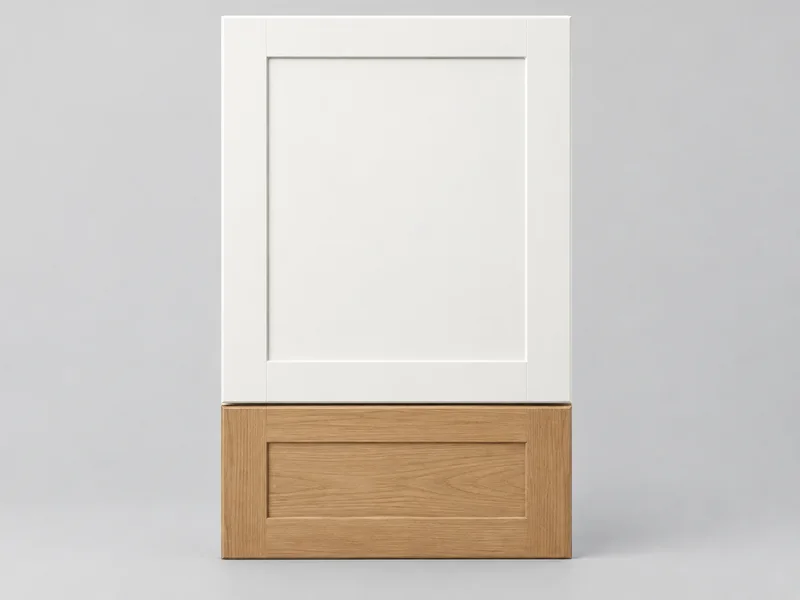
Two-Tone White & Wood
White painted uppers over natural wood lowers.
Images illustrate each finish; they are not an exact product match. Before ordering, check a real door sample in your kitchen in morning and evening light.
How to Change Cabinet Color Using AI
Upload a kitchen photo
Shoot in daylight with the lights on and the counters cleared. A corner view of the main cabinet run works best. PNG, JPG or WebP up to 10MB.
Pick a finish, then a color
Choose the finish with the door style you want; it also sets the hardware. Leave Keep finish color selected, or pick a palette shade or a custom hex from a paint chip.
Compare, then order samples
Run another finish or color on the same photo, compare the results in History or download them, then order sample doors or a paint sample for your top two.
A Kitchen Cabinets Visualizer That Uses Your Own Photo
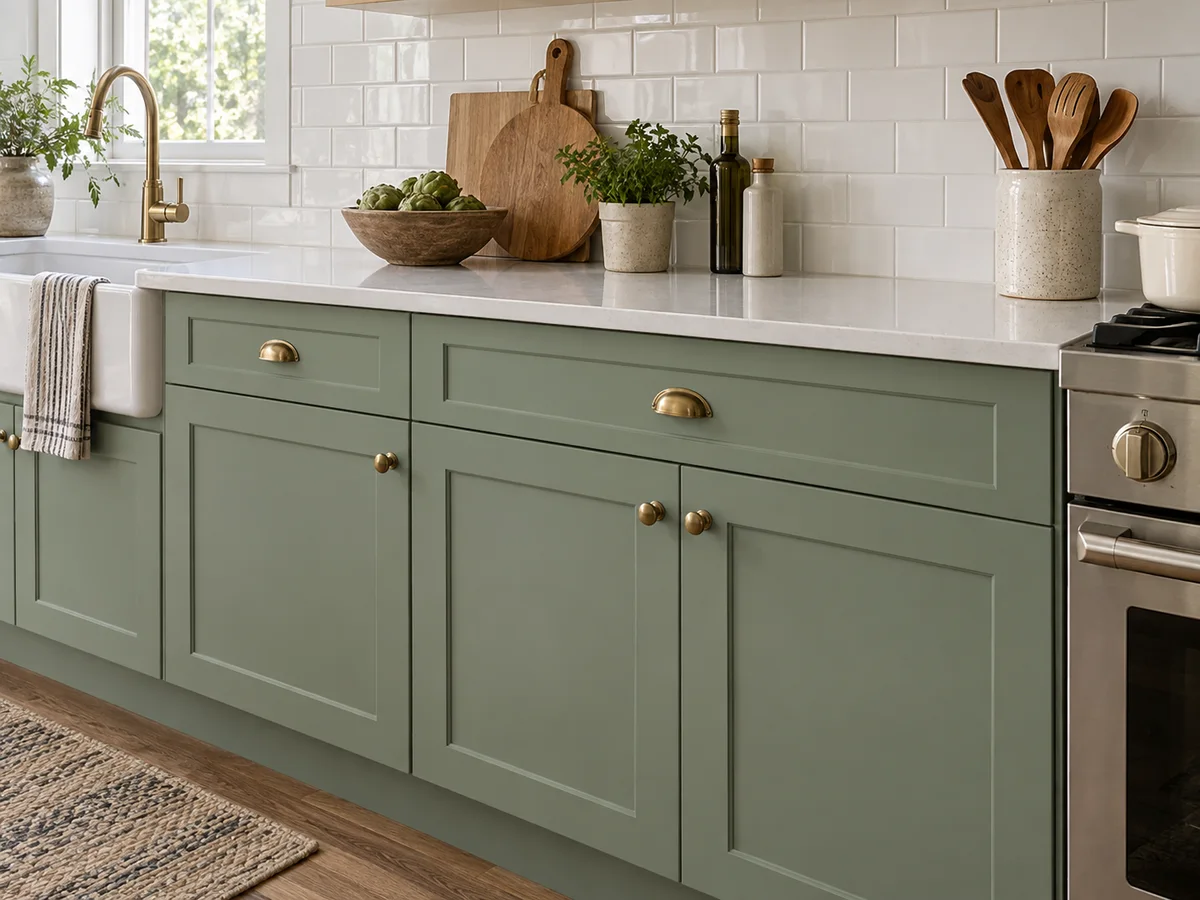
See Cabinets Beside Your Counters
A door sample in a showroom sits under bright lights, far from your countertop, floor and backsplash. Here the new finish appears beside the surfaces you are keeping, so you can judge the contrast in your own light before you buy paint or order doors.
Try a Cabinet Finish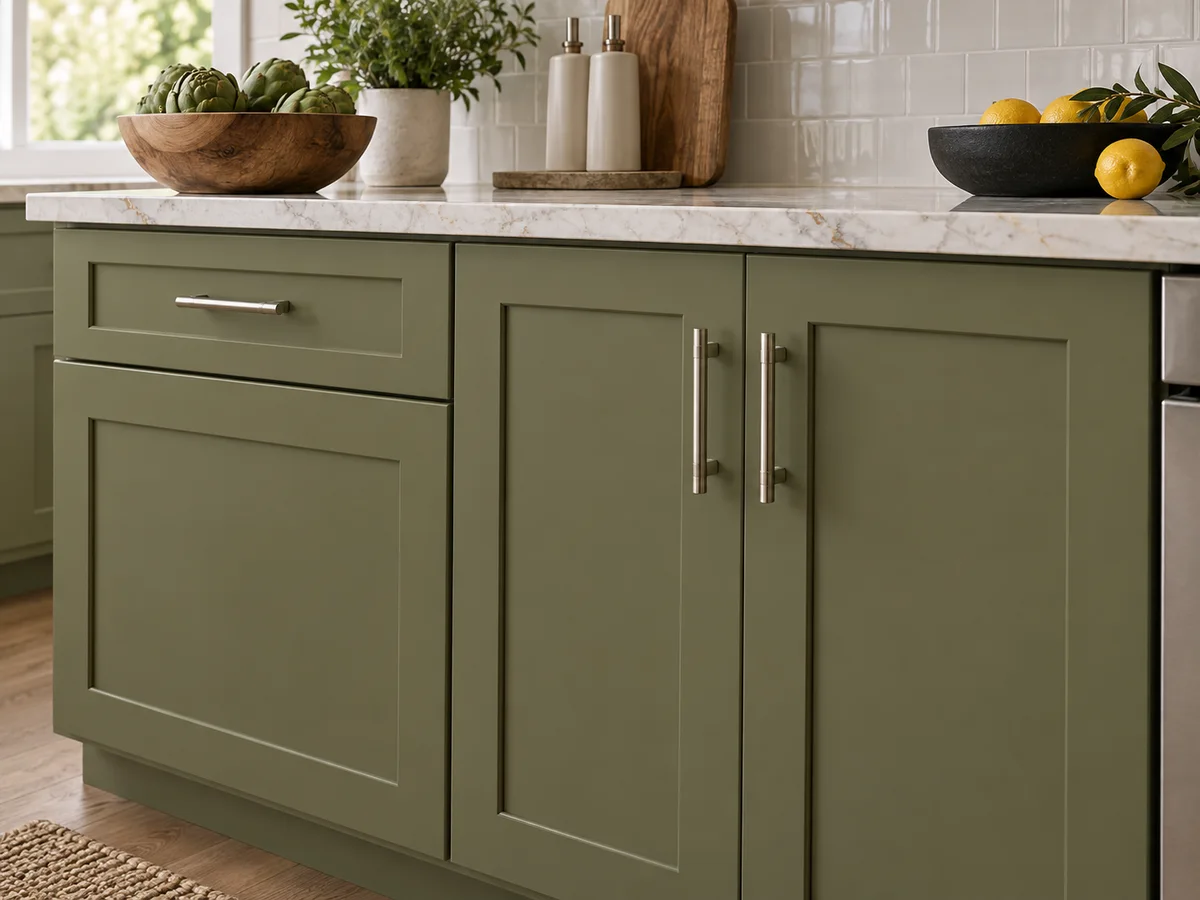
Change Cabinet Color: AI Preview on Any Door Style
Like the Shaker profile but not the white? Choose White Shaker for the door and its pulls, then pick one of 16 cabinet colors or enter a hex from a paint chip. The color replaces the finish's default shade, while the door style and hardware stay as that finish describes them.
Change Cabinet Color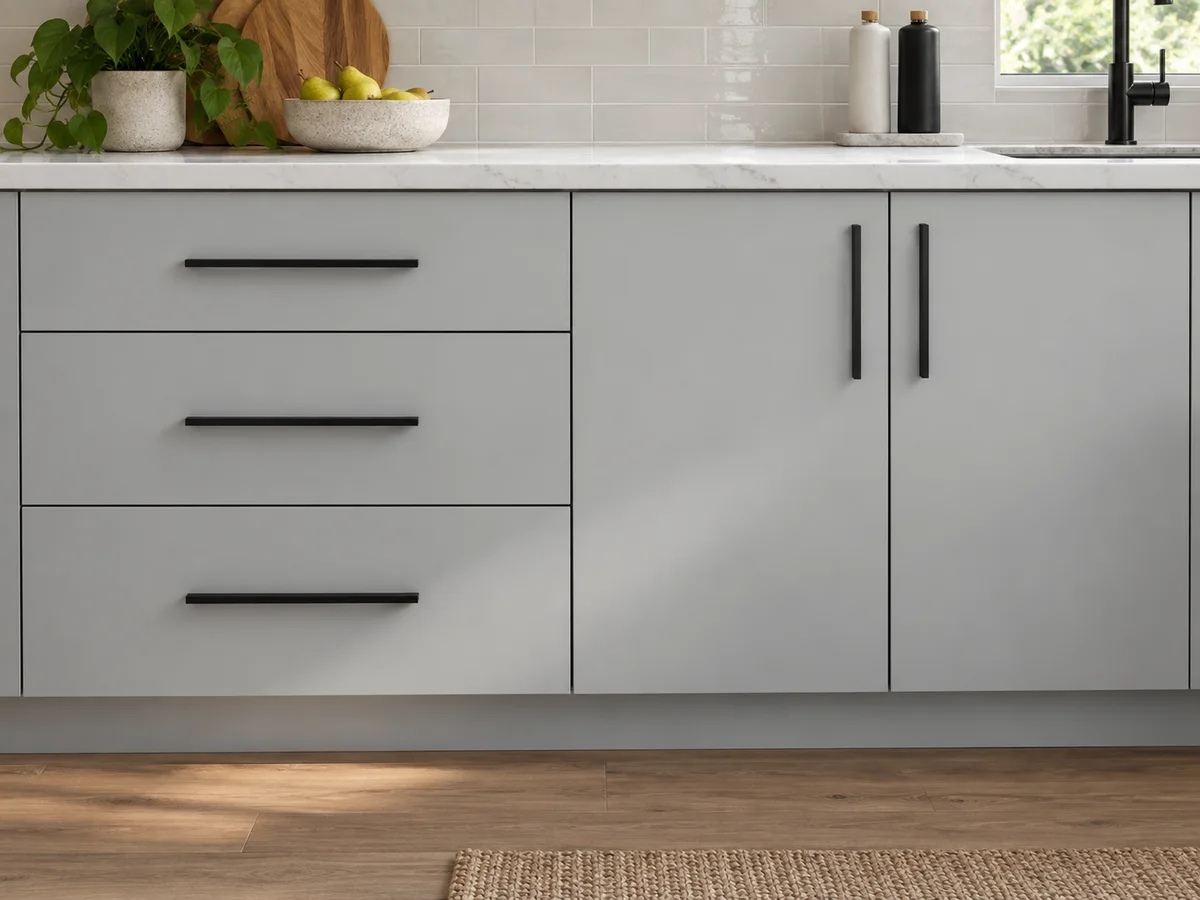
Keep the Layout You Already Have
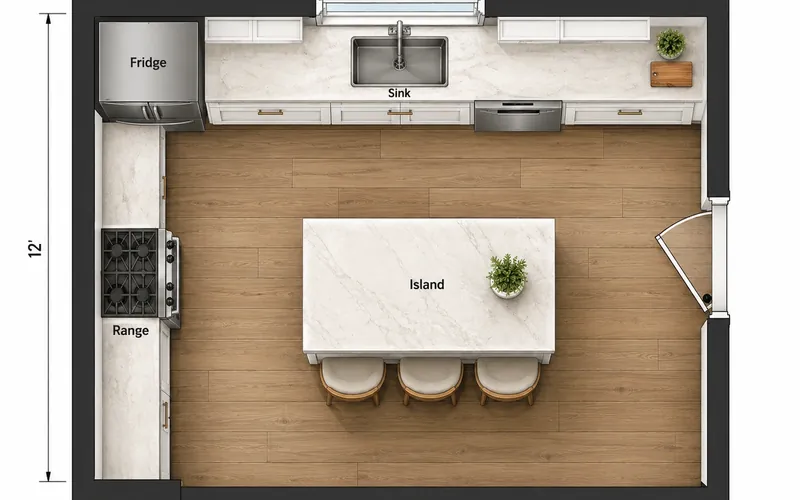
Preview new fronts on your current arrangement before you request quotes, and check that drawer divisions and appliance positions still match the original photo. To rethink counters, flooring and lighting together, AI Kitchen Design creates a broader concept; to move cabinets, plan the layout from above first.
Try AI Kitchen Design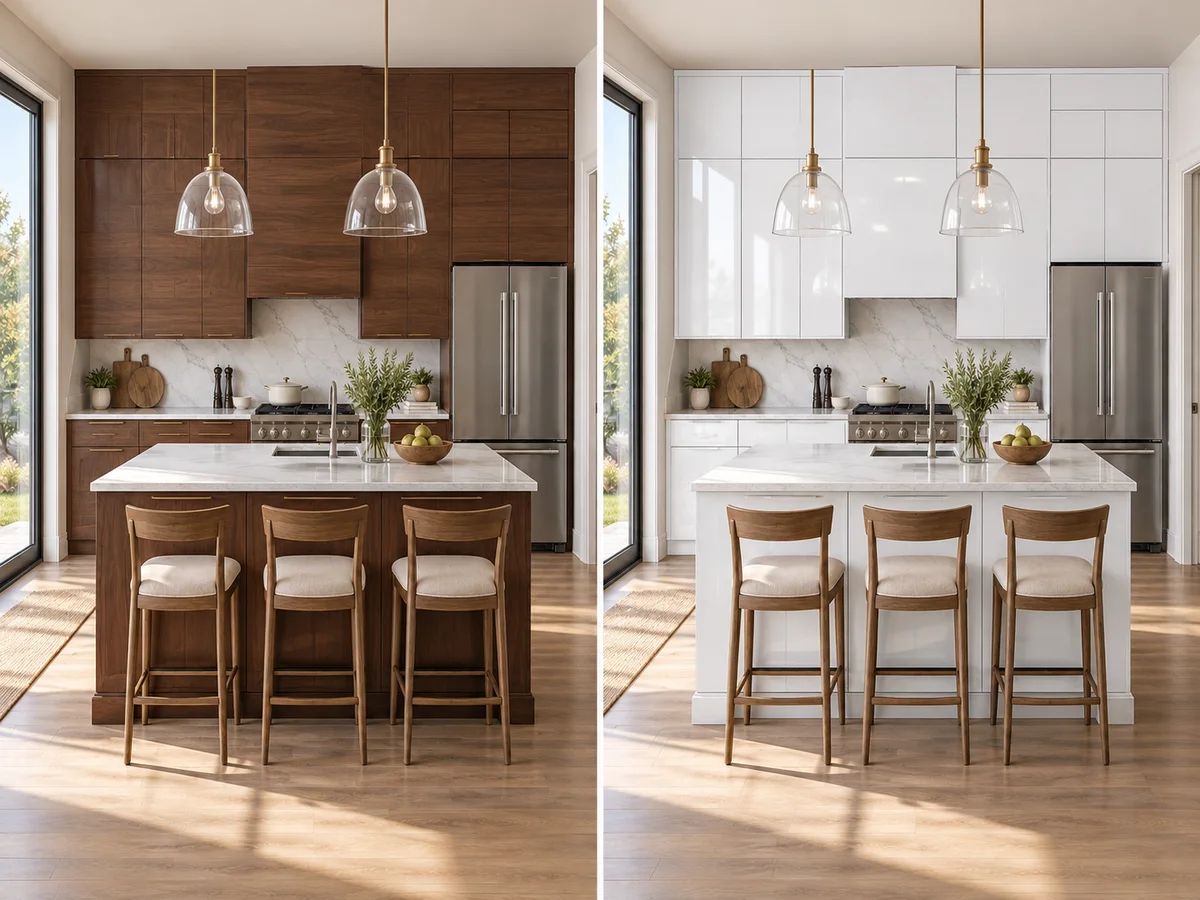
Compare Finishes, Then Order Samples
Each run applies one finish, plus an optional color. Generate another from the same photo, then compare the results in History or download them. Screens shift color, so take your top two to real door samples in your kitchen before you commit to paint or new doors.
Compare Two FinishesBefore you get quotes
Paint, Reface or Replace Kitchen Cabinets?
What each option changes, how it compares on cost, and how to preview it here.
| Option | What changes | Relative cost | Choose it when | How to preview it |
|---|---|---|---|---|
| Paint | Existing doors, drawer fronts and frames get a new color; hardware can be swapped | Lowest | Boxes and doors are sound and you like the door shape | Pick the finish closest to your door style, then a cabinet color |
| Reface | New doors and drawer fronts, new veneer over the cabinet frames, usually new hardware | Middle | Boxes and layout work, but you want a new door style | Pick the finish with the door style you want |
| Replace | New cabinet boxes, doors and hardware; counters are often redone too | Highest | The layout does not work or the boxes are damaged | Plan the new layout first in the Kitchen Layout Planner |
General comparison, not a quote. Prices vary widely by region, cabinet count and materials. A careful paint job can take several days, because doors need to dry and cure between coats.
Finish guide
Cabinet Finishes Compared: Wear and Upkeep
General traits of each finish type in the picker, to weigh alongside the look.
| Finish type | In the picker | Wear | Cleaning and upkeep |
|---|---|---|---|
| Painted Shaker and inset | White Shaker, Cream Inset, Sage Green Shaker, Navy Blue Shaker | Edges can chip over the years but touch up easily | Wipe with mild soap; white shows grime near the pulls |
| Matte slab and handleless | Light Gray Slab, Matte Charcoal, Matte Black | Hides fine scratches better than gloss | Dark matte shows fingerprints and dust; handleless edges get touched often |
| Wood | Natural Oak, Walnut | Small scratches blend into the grain | Tones can shift with sunlight over the years |
| High-gloss lacquer | High-Gloss White | Shows scratches and dents more than matte | Fingerprints show; wipe with a soft microfiber cloth |
| Two-tone | Two-Tone White & Wood | Wood lowers hide scuffs from feet and bags | White uppers keep the room bright; clean each finish its own way |
General tendencies only. Real durability depends on the product (paint system, lacquer, veneer quality), so ask the manufacturer or painter about the finish they use.
What People Use the Cabinet Visualizer For
Painting dated oak cabinets
Honey oak cabinets are the classic candidate. See white, sage green or navy in your own kitchen before anyone sands a door, then pick a wall color that works with the new cabinets.
Refacing instead of a full remodel
If the boxes and layout work, new doors and drawer fronts change the look for less than new cabinets. Preview the door style here; if the layout itself has to change, plan it top-down first, or see counters and lighting change too in AI Kitchen Design.
Matching cabinets to floors and walls
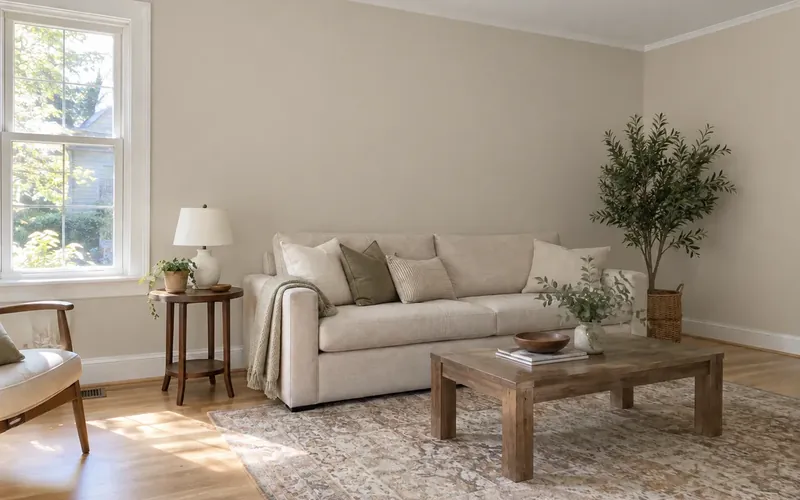
Cabinets, floor and walls are seen together, so test them together. Run your favorite finish here, then try floors and a wall color on the same kitchen photo.
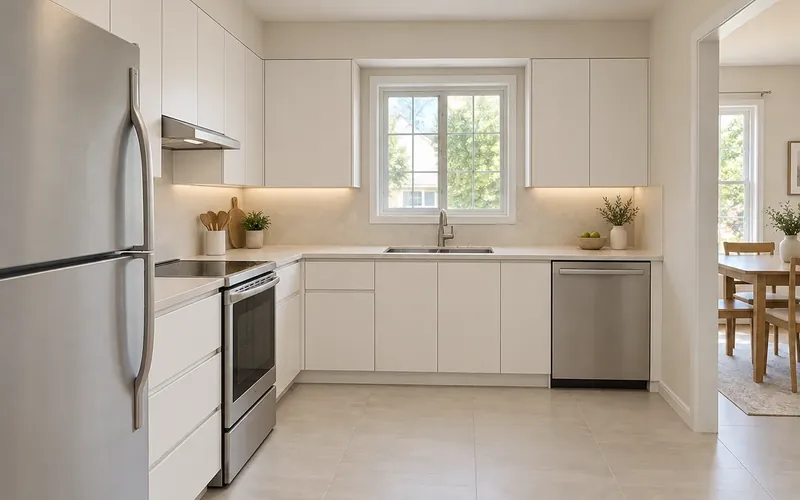
Kitchen Cabinet Visualizer Questions
New accounts receive free signup credits. Each generation costs 10 credits, and how many previews you get depends on your balance. Sign in to generate; free requests may enter a queue.
Yes, and the tool needs one: it edits the cabinets in the photo you give it rather than inventing a kitchen. Upload a PNG, JPG or WebP up to 10MB, taken in daylight with the cabinet doors clearly visible.
Partly. The AI redraws the fronts in the door style of the finish you pick, so choose the one closest to your doors (Shaker, inset or flat slab), then pick one of 16 cabinet colors or a custom hex. The color replaces the finish's default shade; compare the preview with your real doors, because the profile follows the finish, not your photo.
Not by default. The AI is instructed to keep countertops, backsplash, appliances, sink, flooring and walls unless your notes explicitly ask for a change. This page is built for cabinets; to rethink counters, lighting and flooring together, use AI Kitchen Design.
Yes, when the finish names it. White Shaker comes with brushed nickel pulls, Navy Blue Shaker with polished brass hardware, and Matte Charcoal is handleless, with finger-pull edges. Picking a cabinet color keeps the hardware of the finish you chose.
Not by name. Find the color’s hex value (many paint brands publish one on the color’s page) and enter it as a custom color, or pick the closest palette shade. Confirm with a painted sample door, because screens and kitchen light both shift how a color reads.
Paint when the boxes and doors are sound and you like their shape; reface when the boxes and layout work but you want a new door style; replace when the layout fails or the boxes are damaged. The table above compares the three. This visualizer previews the first two; for a new layout, start with the Kitchen Layout Planner.
Treat it as a visual comparison, not a product specification. AI can alter door divisions, handles or nearby surfaces, and a hex color is only an approximate paint reference. Compare the original and the preview, check a physical sample in your kitchen and measure before ordering.
Try the Kitchen Cabinet Visualizer Free
Upload one kitchen photo and see a new cabinet finish on the layout you already have. New accounts get free credits to start.
Visualize My Cabinets- 10 credits per generation
- PNG, JPG or WebP up to 10MB