
Canva Floor Plan: How to Make One, and Where Canva Falls Short
How to make a Canva floor plan: templates, a pixel scale, walls and furniture icons, what the Canva floor plan creator cannot do, and faster options.
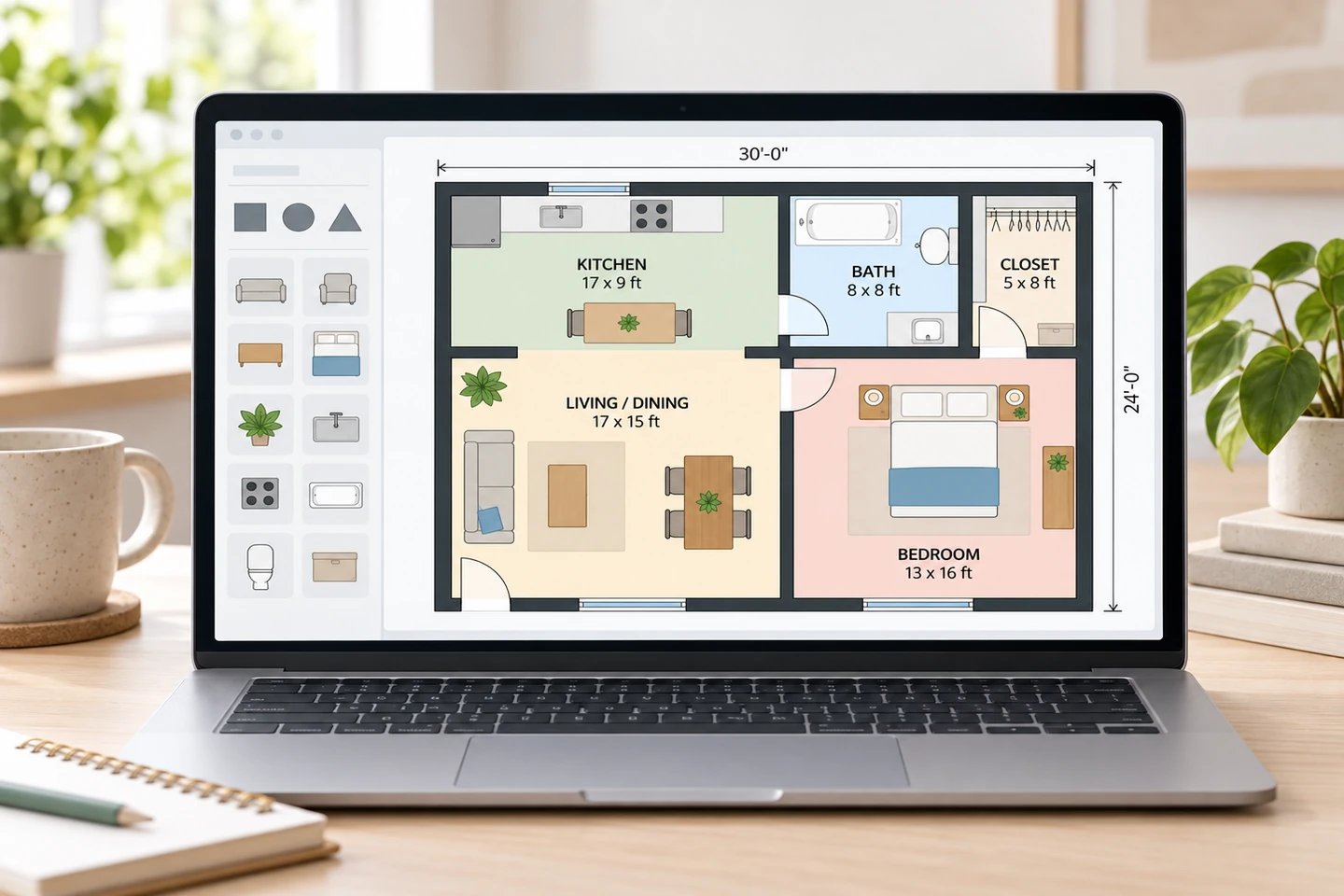
You can make a floor plan in Canva: open a floor plan template or a blank design, choose your own scale (for example, 20 pixels = 1 foot), draw the walls with rectangles, add doors, windows and furniture from the Elements panel, and label rooms and dimensions with text boxes. That is plenty for a simple room diagram, an event layout or a slide. Canva is a graphic design tool rather than a floor plan program, though: there is no wall tool, no automatic dimensioning and no built-in architectural scale, so every measurement is yours to convert and keep consistent. For a to-scale house plan, a dedicated planner or an AI floor plan maker gets you there faster.
Can You Make a Floor Plan in Canva?
Yes. Canva runs in the browser and as desktop and mobile apps, and it is built for graphics, presentations, documents and whiteboards. Search its template library for "floor plan" and you will find layouts for homes, offices and events, and the editor's shapes, lines, text and icons are all you need to draw your own. Much of this is available on the free plan; some templates and graphics are reserved for paid plans.
What people call the Canva floor plan maker or Canva floor plan creator is, at the time of writing, the regular Canva editor (or a whiteboard) with floor plan templates and elements. There is no separate drafting mode. That shapes everything below: you get excellent design control and very little floor plan logic.
Searches for a Canva AI interior styler or AI room design are usually about something else: restyling a photo of a room rather than drawing a plan. If restyling a room photo is the goal, our AI interior design tool does that job; the rest of this guide is about floor plans.
How to Make a Floor Plan in Canva, Step by Step
The example is a one-bedroom apartment of 30 x 24 feet (720 square feet): an open kitchen and living room on the left, and a bedroom, bathroom and walk-in closet on the right.
Step 1: Measure and Sketch First
Canva will not check your numbers, so get them right on paper: every wall, door and window, plus the ceiling height, written on a rough field sketch. How to draw a floor plan covers measuring in detail, and the room size calculator gives each room's area and perimeter.
Step 2: Create a Design and Choose a Scale
Create a custom-size design in pixels and decide how many pixels equal one foot. 20 px = 1 ft is easy to work with: each inch is 1⅔ px, a 40 x 30 ft home fits in 800 x 600 px, and a 1600 x 1200 px canvas leaves room for a title, dimensions and a legend.
Turn on rulers and guides (in the editor's view settings at the time of writing) and drag guides to the main wall lines. Then size every element from a conversion table like this one:
| Item | Real size | At 20 px = 1 ft |
|---|---|---|
| Exterior wall thickness | 6 in | 10 px |
| Interior wall thickness | 4½ in | 7.5 px (use 8) |
| 12 ft wall | 12 ft | 240 px |
| Interior door | 30 to 36 in | 50 to 60 px |
| Queen bed | 60 x 80 in | 100 x 133 px |
| Three-seat sofa | 84 x 36 in | 140 x 60 px |
| Round table for eight | 60 in across | 100 px |
| Main walkway | 36 in | 60 px |
Step 3: Draw the Walls
Add a square from the Shapes section of Elements, make it dark gray or black with no border, and type the exact width and height in the Position panel: a 30 ft exterior wall 6 inches thick is 600 x 10 px. Duplicate it for the other walls, resize, and let the alignment guides snap the ends together. Overlap the corners by the wall thickness so they join cleanly. When the shell is right, select the walls, group them and lock the group so it stays put while you add everything else.
Lines with a heavy stroke also work, but their ends do not meet neatly at corners. Rectangles are easier to keep consistent.
Step 4: Add Doors and Windows
For a door, open a gap the width of the door: split the wall into two rectangles, or lay a white rectangle over it. Draw the door leaf as a thin line at 90 degrees from the hinge side and the swing as a thin quarter-circle arc. Searching Elements for terms such as "door symbol" or "quarter circle" is quicker than building one; results change over time, and some are only on paid plans. Windows stay inside the wall: a white rectangle across the wall's thickness with one or two thin lines through it.
Copy the standard conventions so anyone can read your plan; our floor plan symbols guide shows the usual drawing for each door, window and fixture.
Step 5: Add Furniture and Fixtures
Search Elements for "floor plan furniture", "sofa top view" or "bed top view". Pick one style of icon and stick to it, since sets from different creators mix badly. Then resize every piece to real size using your table; icons arrive at whatever size their creator drew them. Plain rectangles with a label are a perfectly good alternative and are faster to keep accurate. Leave about 36 inches (60 px) for main walkways, and check sofa dimensions against the sofa size guide before committing to one.
Step 6: Label Rooms and Add Dimensions
Add a text box in each room with its name and size, such as BEDROOM over 13'-0" x 16'-0". For dimensions, draw a thin line outside the wall with a short tick at each end, put the length above it, and group the three pieces so they move together. Add a north arrow, the scale note and a title. Short labels such as BR, WIC and W/D are fine with a legend; floor plan abbreviations lists the common ones.
Step 7: Download or Share
Download a PDF for printing or a PNG for sharing, or send a view link. Canva will not print to an architectural scale such as 1/4 inch = 1 foot for you, so if the printed size matters, measure a known wall on the printout and adjust.
Canva Floor Plan Templates
Canva's floor plan templates give you a look: a color scheme, fonts, a title and matching furniture icons. Most are decorative layouts rather than measured drawings, so treat one as a style to borrow, not a plan to edit: delete its rooms, keep the fonts, colors and icons, and draw your own walls to your scale. Flyer and seating chart templates are where Canva is strongest, because the plan is only one part of the page.
If what you want is a layout to start from, our floor plan templates work the other way around: pick a layout close to yours, and it loads into the generator, where you adjust the brief and generate your own version.
What Canva Cannot Do for Floor Plans
- No architectural scale. You convert feet to pixels yourself and keep it consistent.
- No wall tool. Walls are separate shapes. Making a room 2 feet wider means moving one wall, stretching two others and shifting everything inside.
- No doors or windows as objects. Openings are gaps and lines you draw, and they do not move with the wall.
- No automatic dimensions or area. Every number is a text box you type and update by hand.
- Furniture is not to scale. Icons need resizing one by one.
- No 3D view, and no export to CAD formats such as DWG or DXF.
- Large plans get fiddly. A whole house can mean a hundred or more small shapes, which makes selecting and nudging slow.
None of this matters for a diagram. It matters a great deal for a plan you will keep revising.
When Canva Is the Right Floor Plan Creator
Canva shines when the plan is a graphic for other people and exact measurements come second:
- Event layouts: receptions, parties, trade show booths and seating charts, where tables and labels matter more than wall thickness.
- Real estate flyers and listing presentations that combine a plan with photos, branding and text.
- Moving-day plans that show movers which room each piece goes to.
- Slides and reports where the plan must match the deck's fonts and colors.
- Classroom and office seating charts you update every term or quarter.
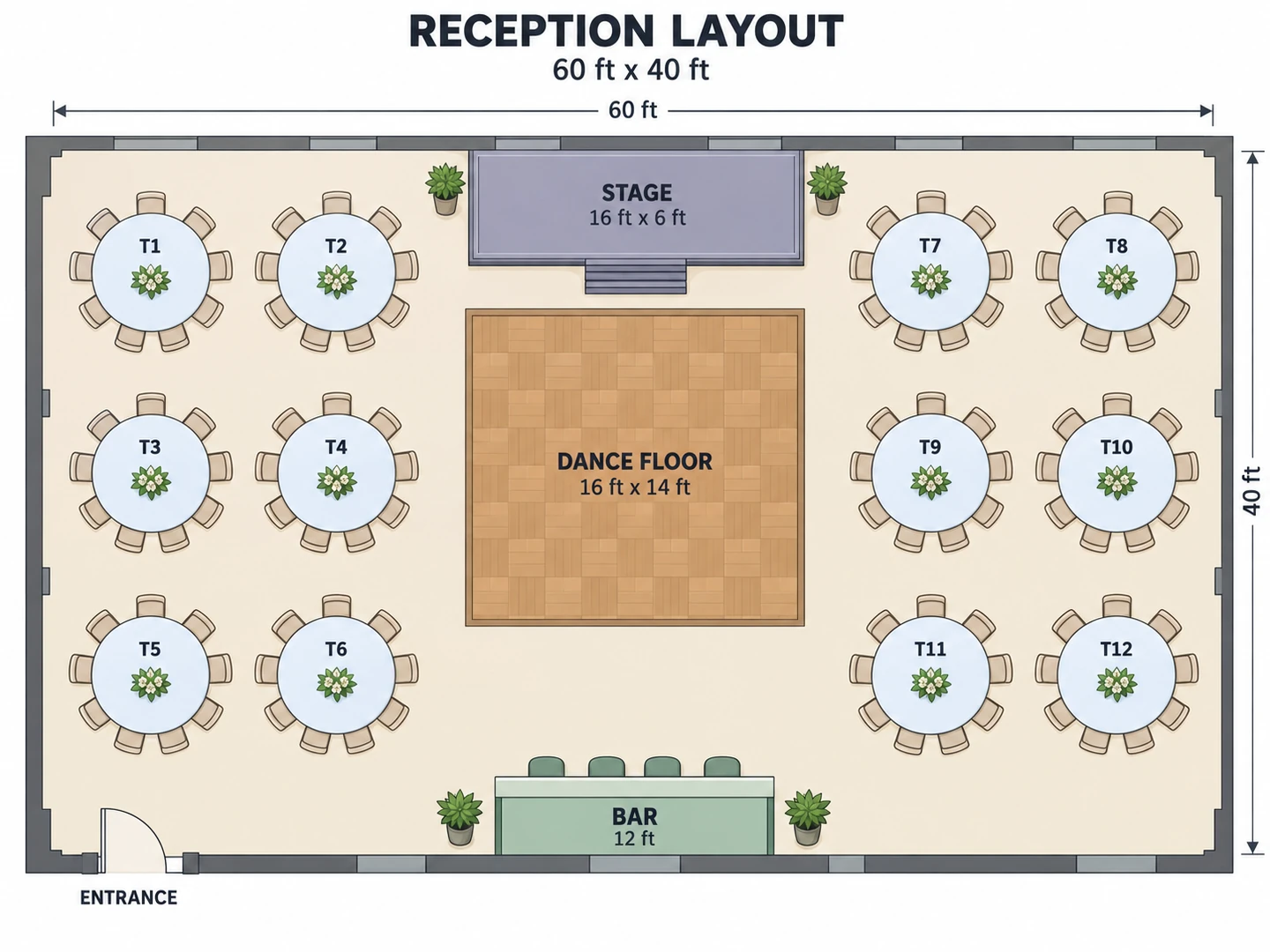
For events, a 60-inch round table seats 8 (10 snugly), and about 5 feet between table edges leaves room for chairs and a walkway. If the venue gives you a plan, upload it as an image, scale your table shapes to one of its known dimensions and lay them over the top. For a to-scale plan of an event space generated from a description, the building layout maker has an event space type.
When a Floor Plan Tool Is Faster
Switch to a floor plan tool when:
- You are drawing a whole house or apartment with many rooms.
- Dimensions must be right for furniture, flooring or a renovation.
- You expect to change the layout several times and compare options.
- You want a furnished, realistic or 3D look without placing every icon yourself.
- You do not have a plan yet and want options to react to.
Drag-and-drop floor plan software gives you walls that join and stretch, typed dimensions and furniture at real sizes; best free floor plan software compares the main options. An AI generator skips the drawing: describe the space or upload a sketch, and our 2D floor plan maker draws a finished plan in seconds in Technical 2D, Colored 2D, Furnished 2D, Blueprint or Hand-Drawn style. Here is the example apartment both ways:
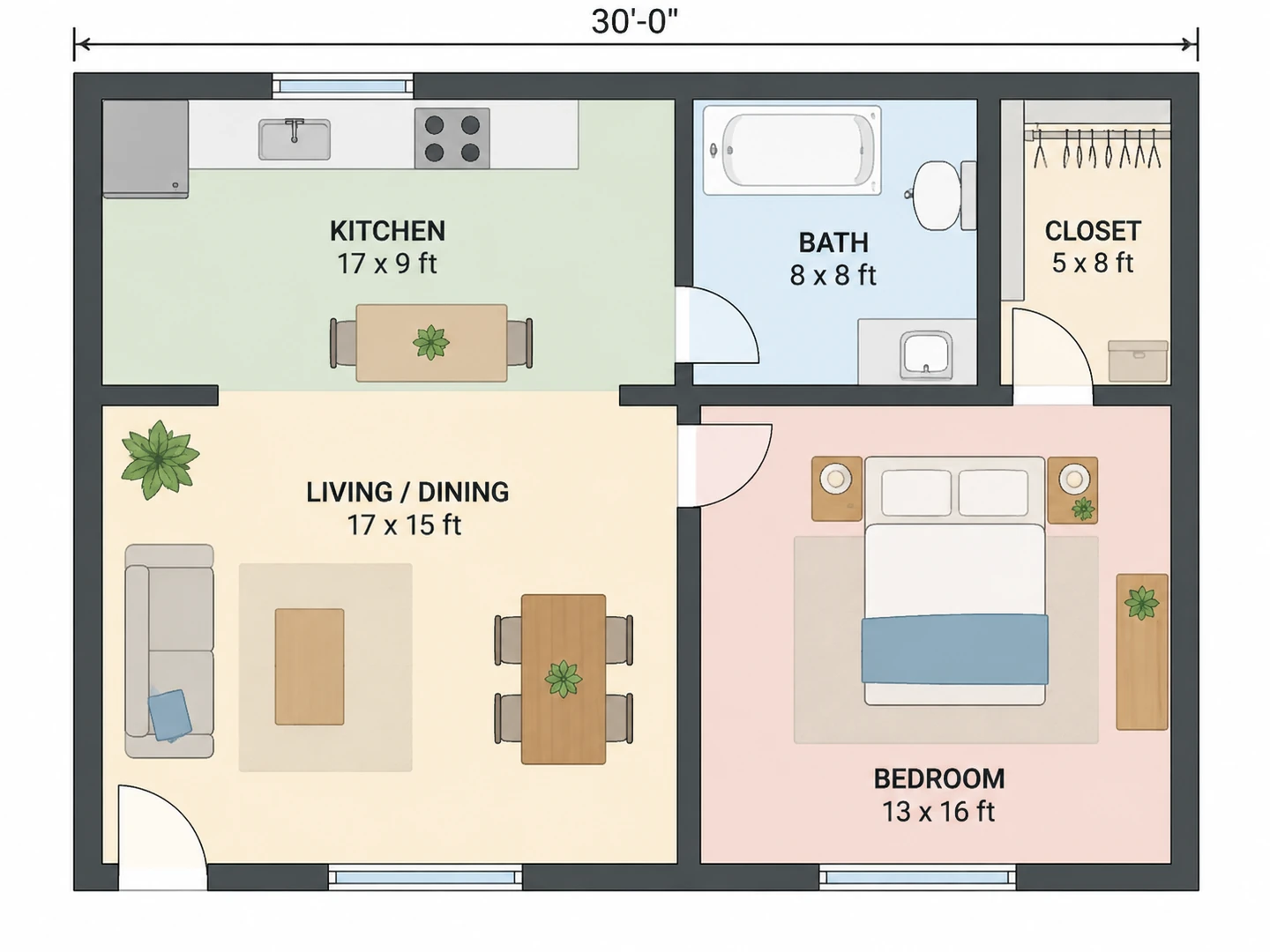
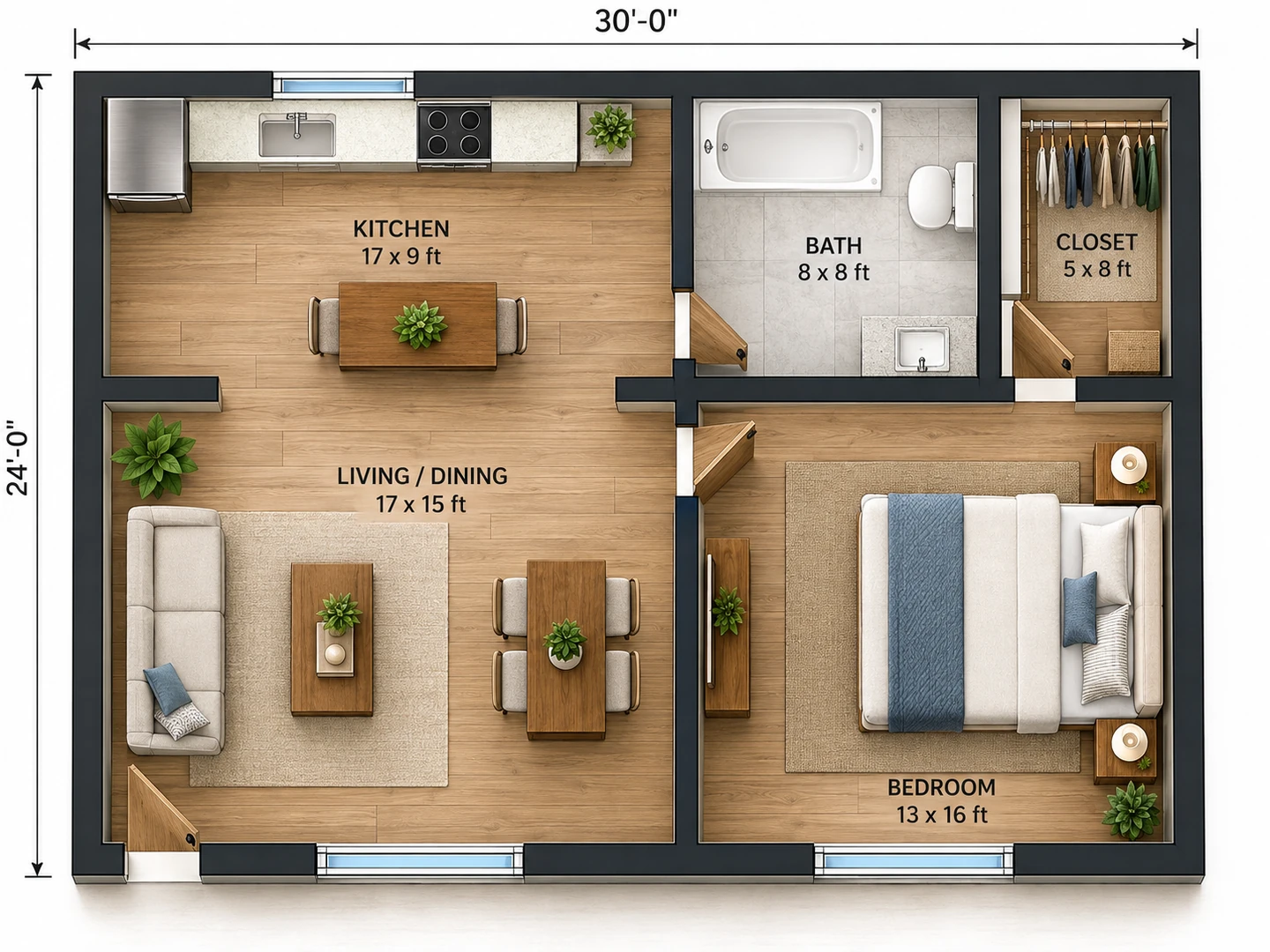 AfterBefore
One-bedroom apartment, 30 x 24 ft (720 sq ft). Entry at the front left into an open living and dining room, 17 x 15 ft, with the kitchen along the back wall behind it. 8 x 8 ft bathroom and a 5 x 8 ft walk-in closet at the back right. 13 x 16 ft bedroom at the front right with a queen bed against the right wall. Sofa and rug in the living area, dining table for four.
Canva vs Floor Plan Software vs AI
Swipe left or right to see the full table →
| Need | Canva | Floor plan software | AI floor plan maker |
|---|---|---|---|
| Working to scale | Manual: you convert feet to pixels | Built in; type exact lengths | Approximate, guided by the area you enter |
| Walls, doors, windows | Shapes you build and align | Wall and opening tools | Drawn for you |
| Changing a room size | Move several shapes by hand | Drag a wall | Edit the brief and generate again |
| Furniture | Icons you resize one by one | Catalog at real sizes | Placed for you in furnished styles |
| Design and branding | Excellent | Limited | Seven fixed styles |
| 3D view | No | Often included | 2.5D and 3D Isometric styles |
| Output | PNG, JPG, PDF and more | Images and PDF; some export CAD | PNG image |
| Best for | Event layouts, flyers, slides | Exact plans you keep editing | Fast first drafts and options |
With the AI route, you can also change one part of a result instead of starting over: the floor plan editor lets you mark an area and describe the change.
Using Canva and a Floor Plan Tool Together
The two work well in sequence. Make the plan where plans are easy, then lay out the page where design is easy:
- Make the plan in a floor plan tool and download it as a PNG.
- Upload it to Canva and place it on your flyer, slide or report. Resize it from a corner so it keeps its proportions.
- Add the design around it: branding, photos, callouts and a legend.
- Fix small label problems by covering them with a white box and typing the correct text. AI-generated images can misspell labels, so read every one.
Frequently asked questions
Yes. Start from a floor plan template or a blank custom-size design, pick a scale such as 20 pixels = 1 foot, draw walls with rectangles, add doors, windows and furniture from Elements, and label rooms and dimensions with text. It suits simple plans and diagrams.
Canva has a free plan, and you can draw a floor plan with its free shapes, lines and text. Some templates and graphics need a paid plan. Check Canva's current plans for details.
Choose a pixel scale before you draw, such as 20 px = 1 ft, and type exact widths and heights for every shape: a 12 ft wall is 240 px long and a 6 in wall is 10 px thick. Canva does not convert units for you, so keep a conversion table handy.
Yes. Search the template library for floor plan to find home, office and event layouts. Most are decorative, so use them for fonts, colors and icons, and draw your own walls to scale.
Canva's AI features and app directory change often, so check what your account offers. Tools sold as AI interior stylers or room designers restyle a photo of a room rather than draw a measured plan. For a to-scale layout, use a floor plan tool; to restyle a room photo, an AI interior design tool is the closer match.
For exact, editable plans, a drag-and-drop floor plan program; for a fast first draft from a description or sketch, an AI floor plan generator. Many people then place the finished plan in Canva for the flyer or slide.
Try these tools
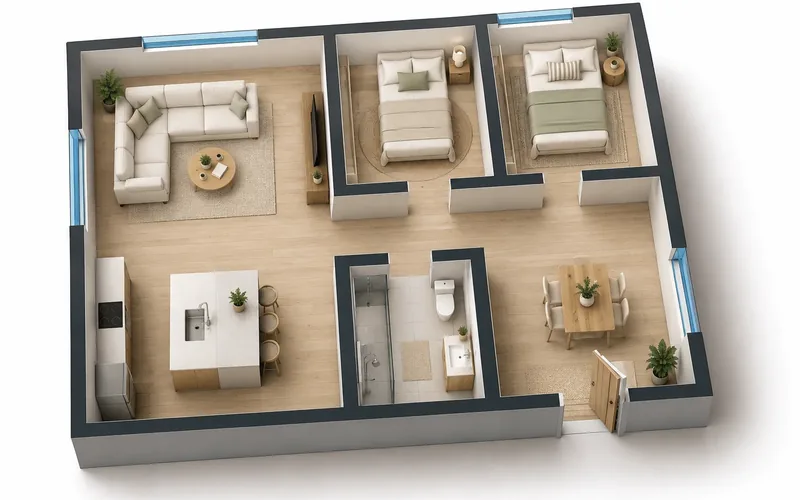 Free Floor Plan MakerGenerate 2D, 2.5D and 3D floor plans for any space with AI.
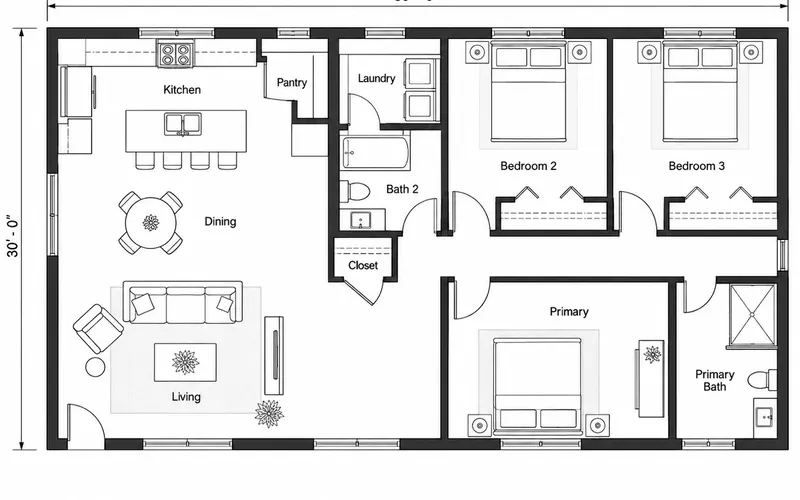 2D Floor Plan MakerFlat 2D floor plans: technical, colored, furnished or hand-drawn.
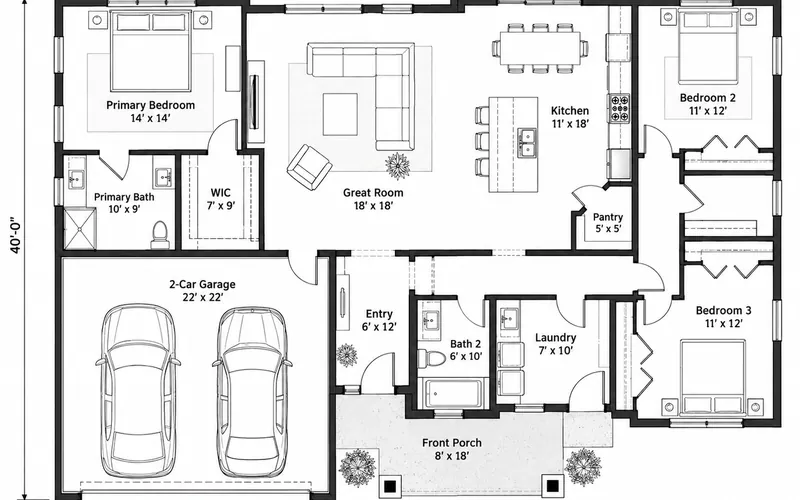 Floor Plan TemplatesStart from a real plan with dimensions and load it into the generator.
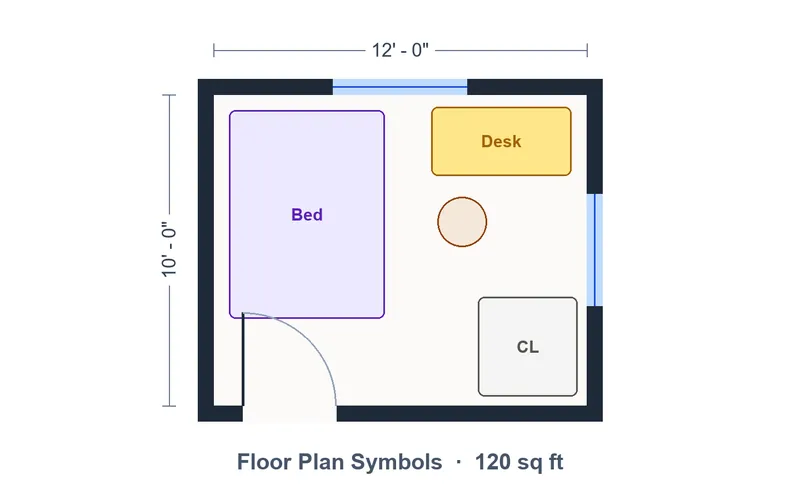 Floor Plan SymbolsEvery door, window, fixture and furniture symbol, explained.