
Sketch to Render AI
Take your sketch to render with AI, exploring materials and light while using your drawing as the guide for composition.
Render My Sketch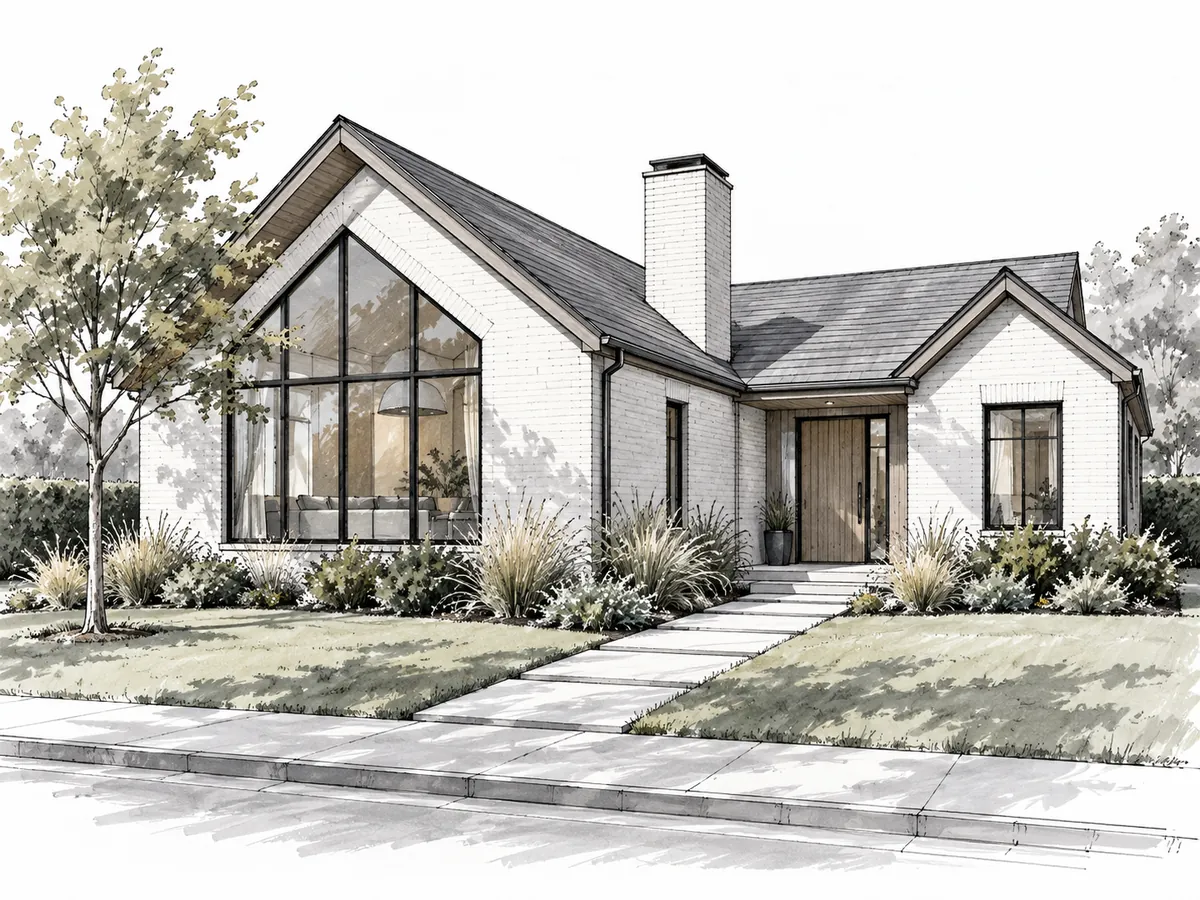
 AfterBefore
Sketch to Image AI Workspace
Upload a drawing, choose its subject and one render look, then describe the materials and lighting you want.
 AfterBefore
Daylight Living Room
Illustrative AI concept
AI Rendering Examples: Sketch to Render
Four subjects, four ways to present an idea. Every sketch and render is an AI-generated illustration; inspect the drawing and result together.
- AfterBefore
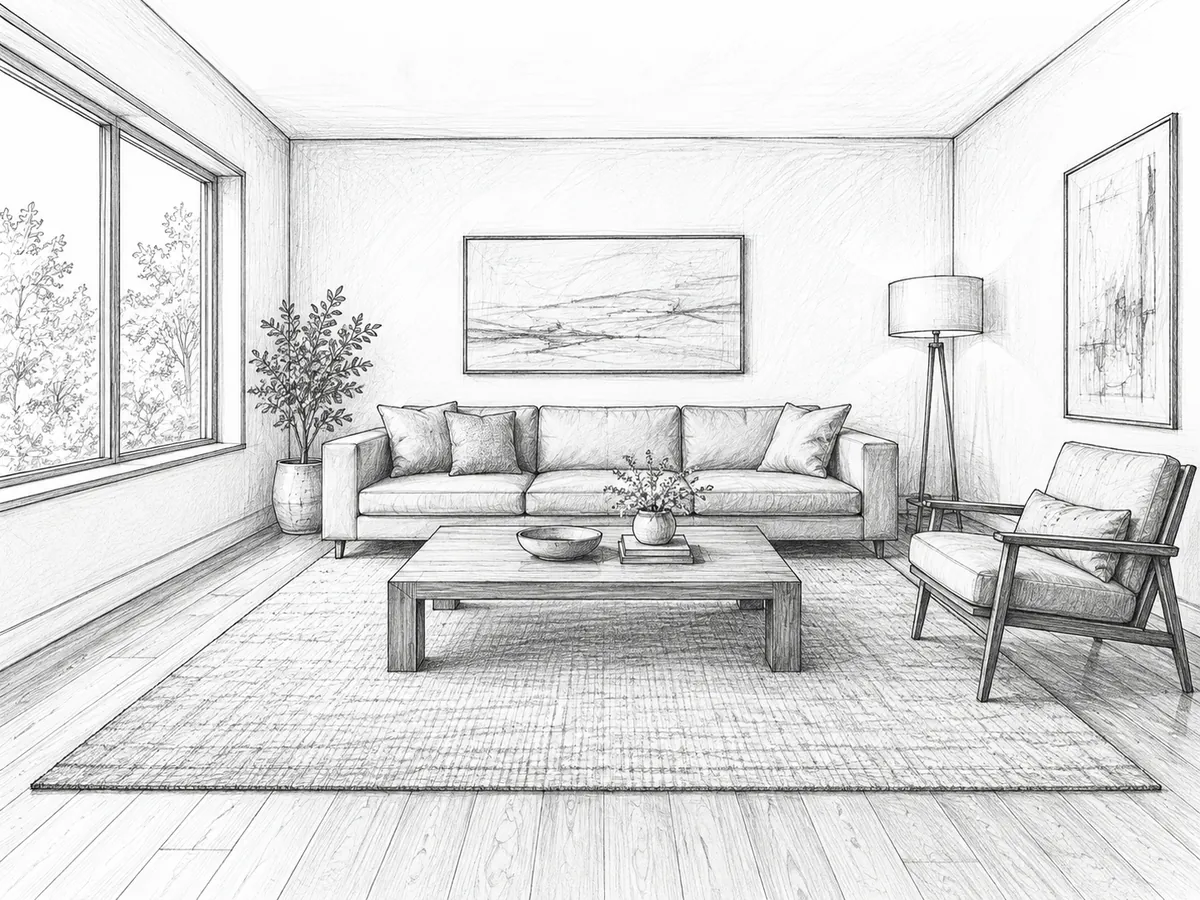
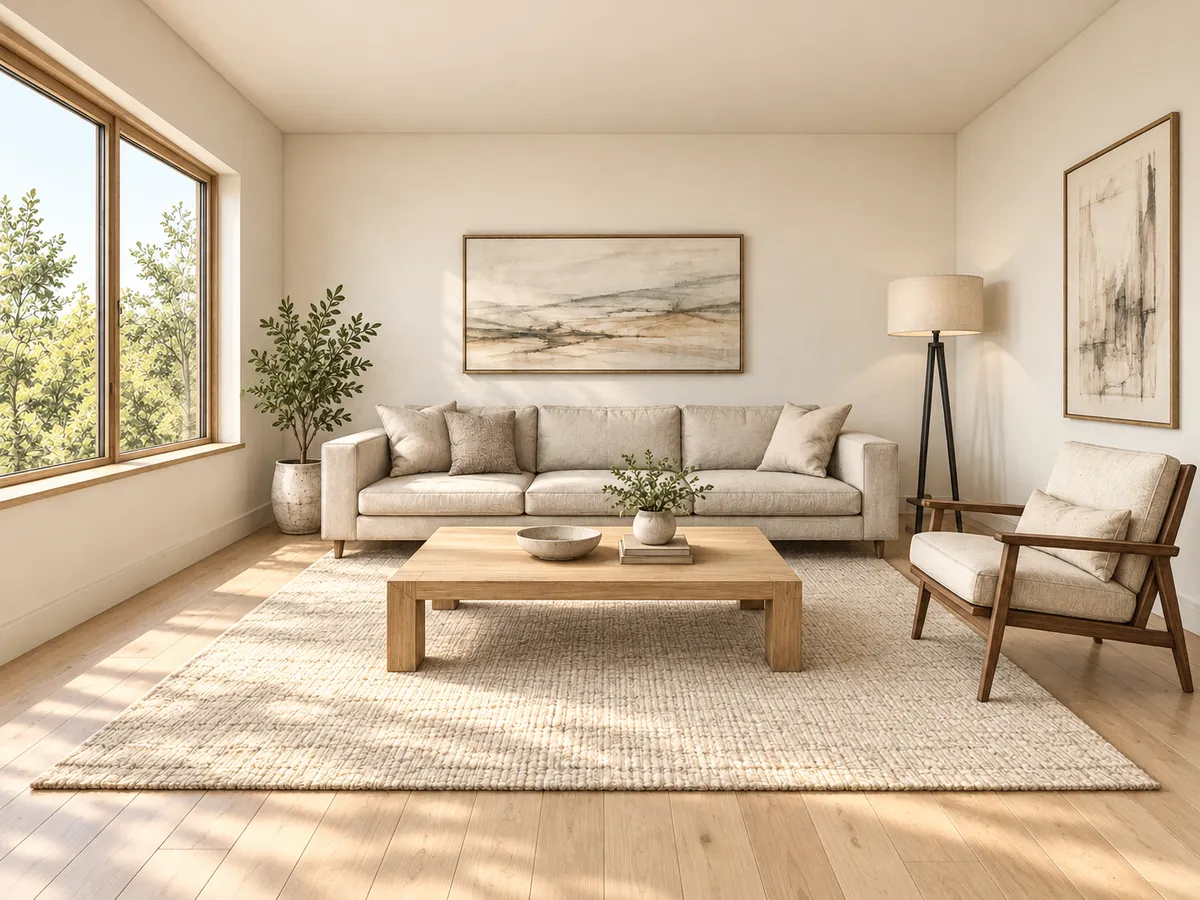
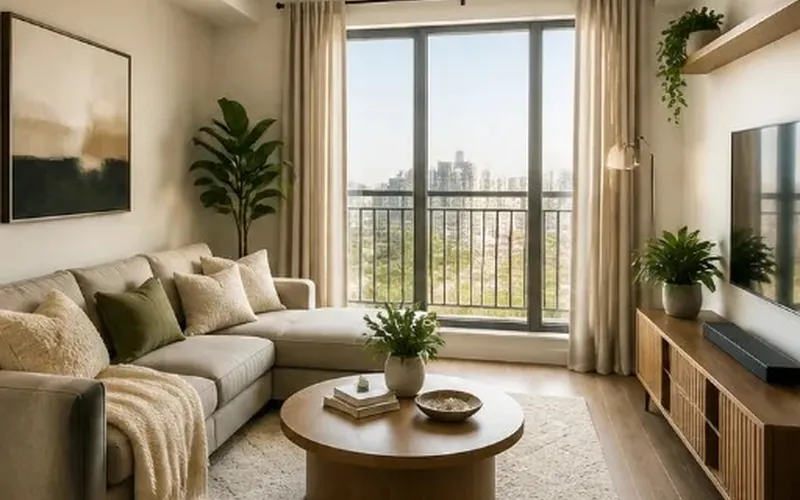
A pencil living room sketch becomes a daylight concept with beige linen seating and pale oak. Compare the furniture positions and window outlines with the drawing.
 AfterBefore
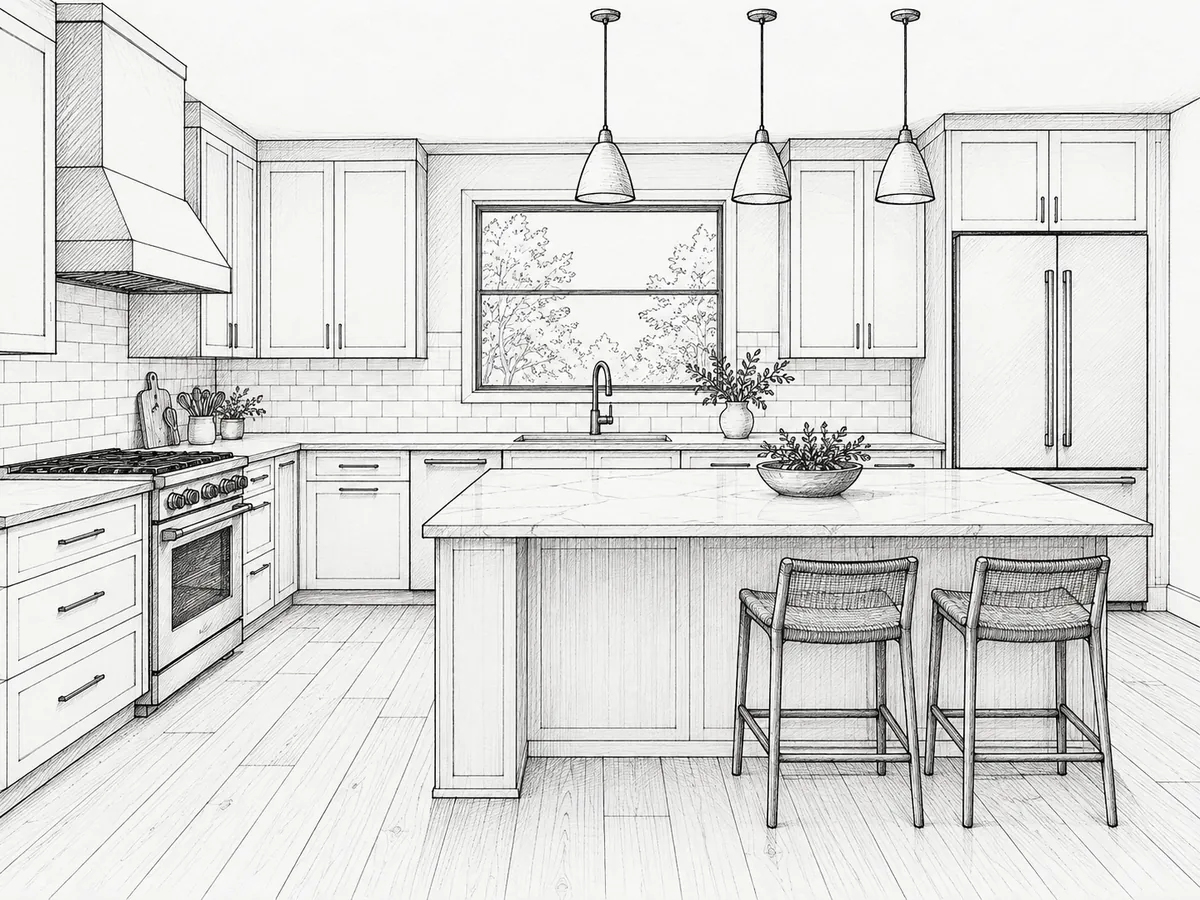
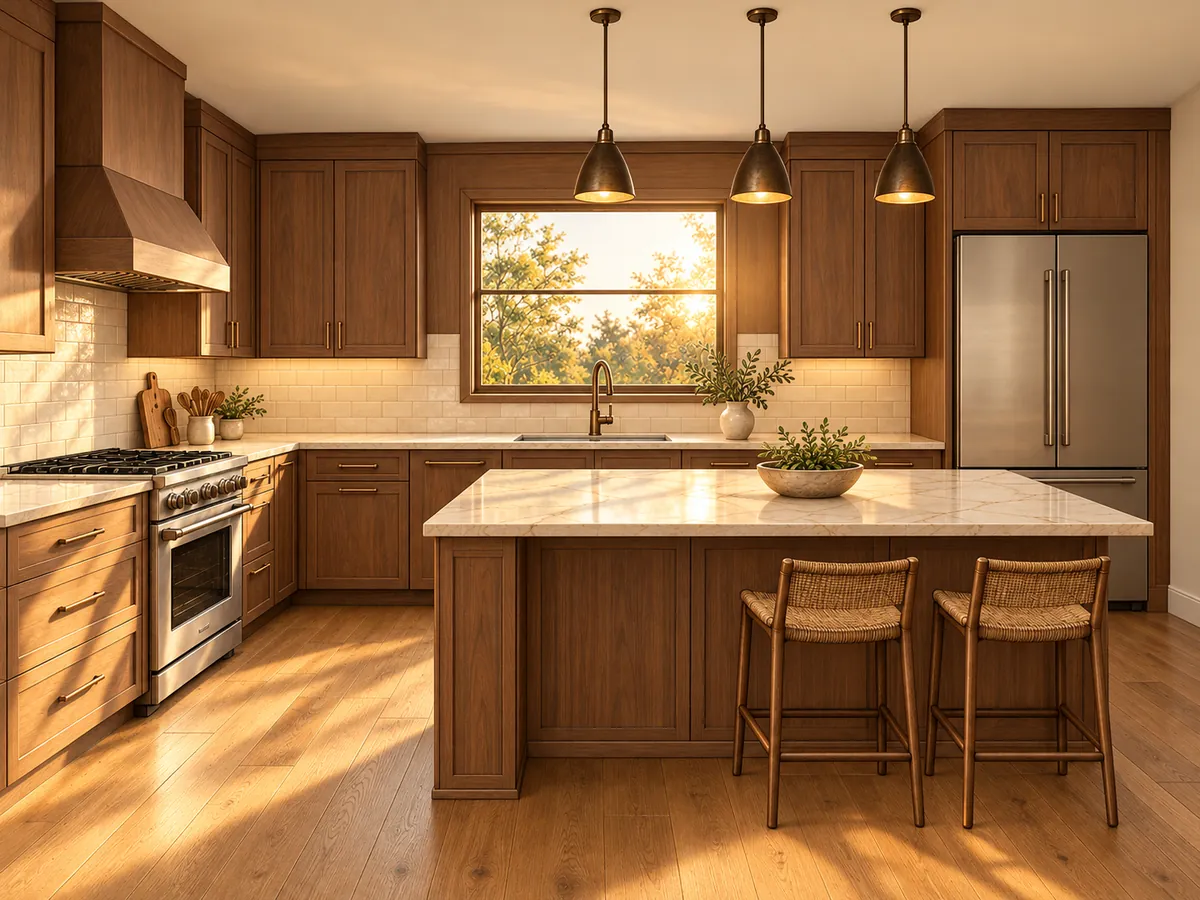
Kitchen linework gains walnut cabinetry, marble and warm evening sunlight. The sketch supplies the arrangement; the render explores the material contrast and the mood of the light.
- AfterBefore
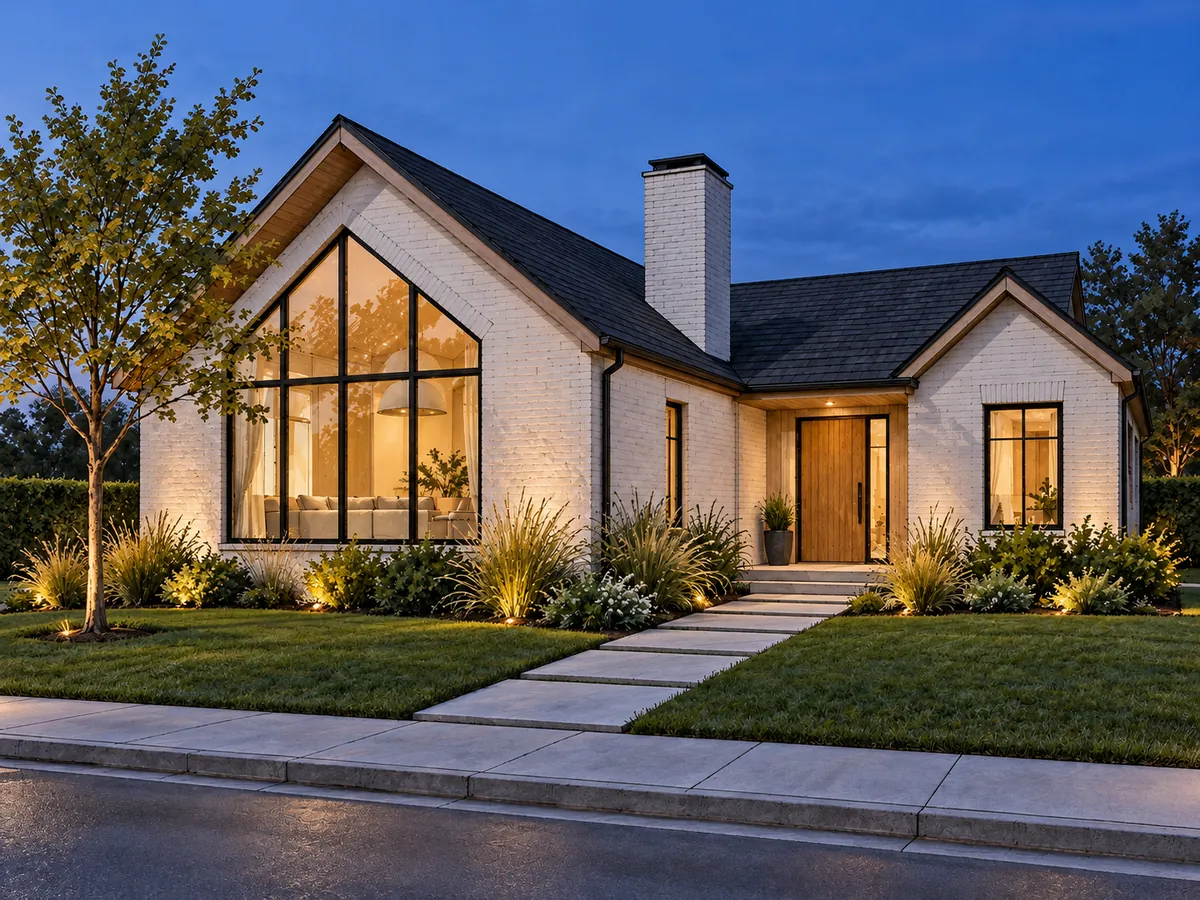
A loose marker house sketch becomes a white-brick exterior at blue hour. Warm interior light gives the facade depth while the rooflines remain the starting point.
 AfterBefore
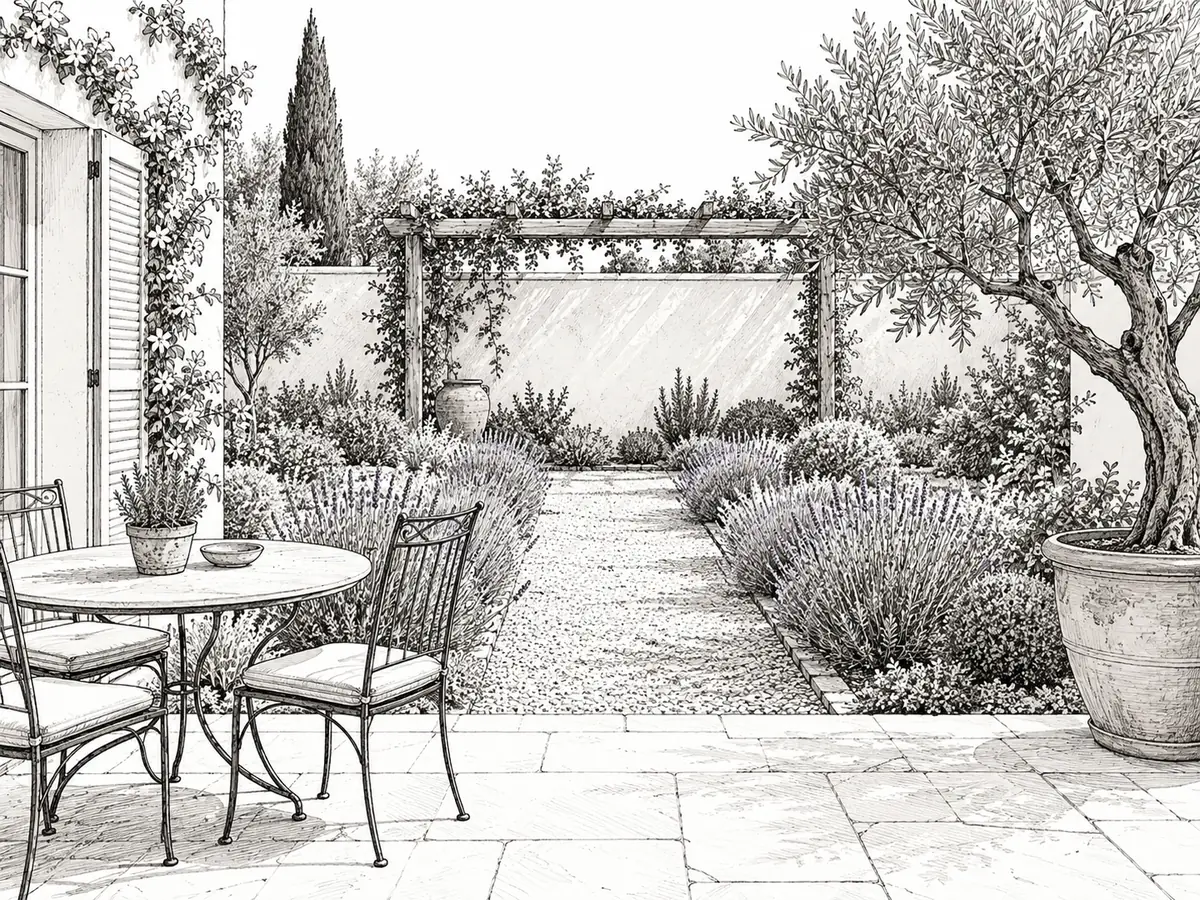
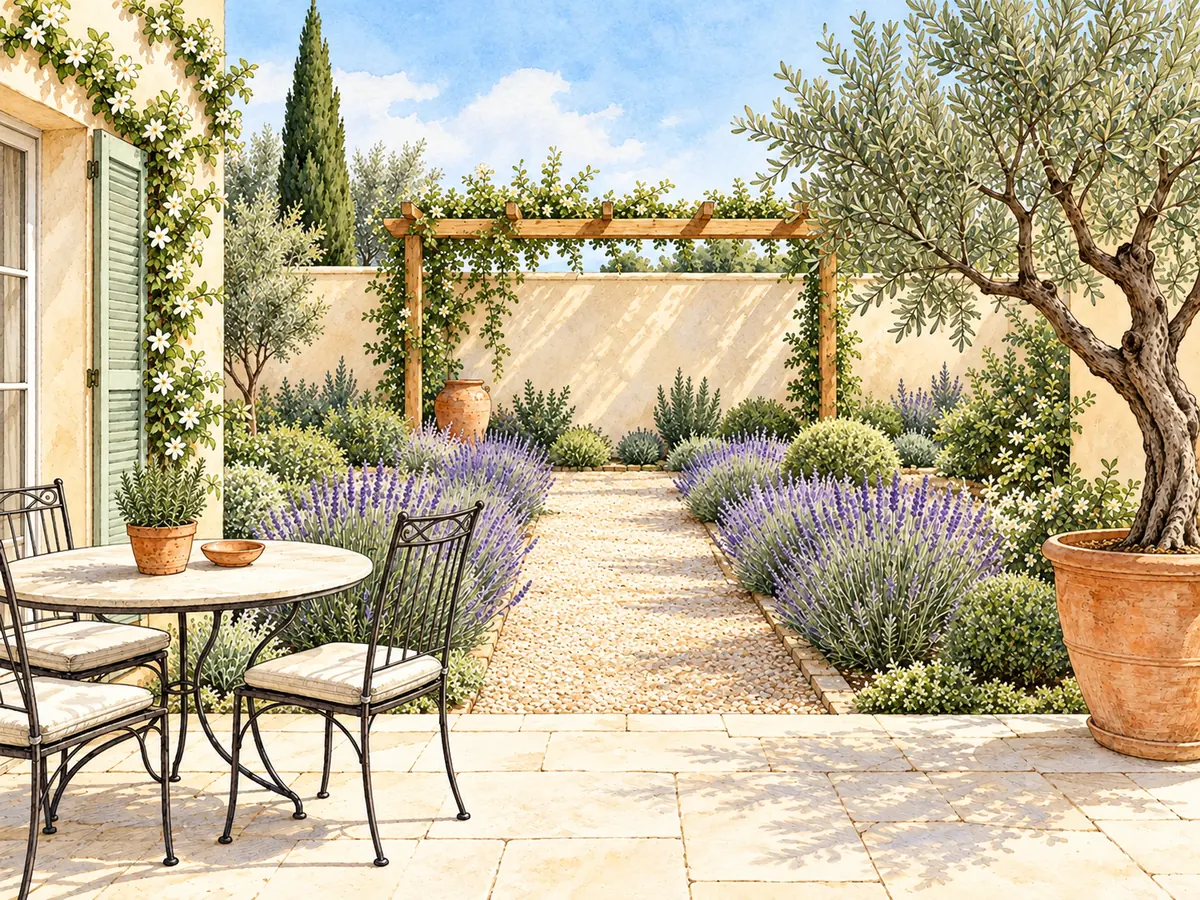
An ink courtyard drawing becomes a soft watercolor with olive foliage, lavender and terracotta. Translucent washes communicate the planting palette without suggesting a finished construction specification.
Choose a Render Look
Compare 7 treatments of the same house, then load one look into the workspace. Your uploaded drawing stays in place.
AI-generated illustrations show the difference in presentation. Materials and small details may vary; the thumbnails are not a controlled lighting simulation.
What Is Sketch to Render AI?
Sketch to Render AI turns a perspective drawing or model screenshot into a finished-looking image. The drawing supplies the composition, viewpoint and major elements; your notes and chosen look guide the materials, colors and lighting. It is useful when a line drawing communicates the arrangement but leaves the atmosphere hard to imagine.
The AI is instructed to follow the drawn walls, openings, rooflines, furniture and planting, and to interpret rough lines as built edges. It can still misread a line or change a small detail, so compare the result with the source. These AI renders are concept illustrations, not editable 3D models, measured plans or construction documents.
- 6 subjects, including rooms, kitchens, houses, buildings, gardens and furniture
- 7 render looks, from photoreal daylight to watercolor and marker
- One uploaded sketch and one look per generation
- A Custom style description or reference can guide the material mood
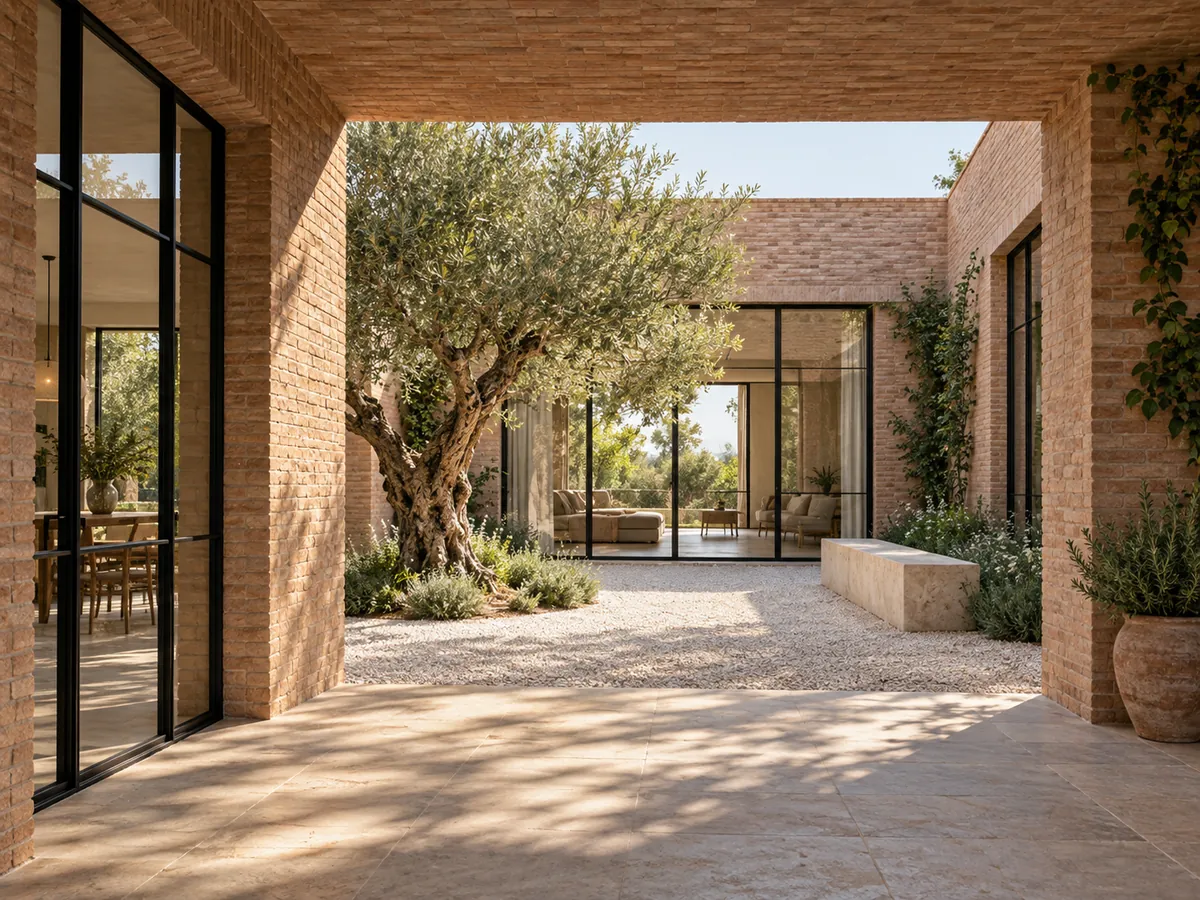
How to Turn a Sketch into an Image
Upload a clear drawing
Use a PNG, JPG or WebP up to 10MB. Crop to one view, keep the horizon level and make major edges easy to distinguish; avoid glare, skewed phone photos and dense overlapping notes.
Choose a subject and render look
Select what you drew, then choose one look. Describe surface materials and light in plain language, such as oak cabinets, limestone paving or soft north-facing daylight; the sketch should supply the arrangement.
Render and inspect the result
Sign in and generate for 10 credits per run. Compare openings, rooflines and furniture with the drawing before using the image in a presentation; try another look in a separate run.
AI Rendering for Architecture and Interiors
Use a render to make an early idea easier to discuss, while keeping the source drawing available for reference.
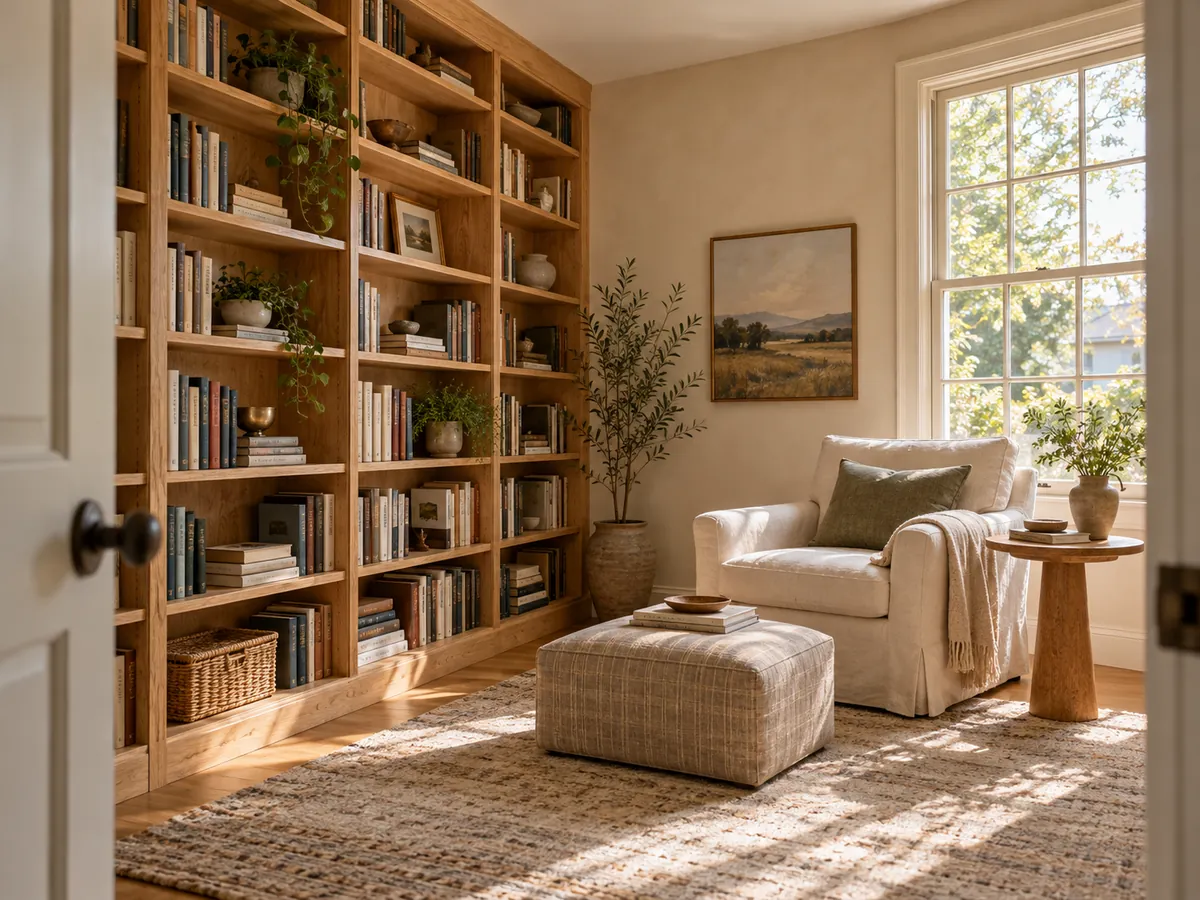
From Pencil Sketch to Photo Rendering
A pencil perspective can describe a room clearly without showing how the finishes feel together. AI sketch to image adds believable timber, fabric and light to that starting point. Name the materials you want to compare, then inspect the result for any changes to furniture or openings before presenting it.
AI interior design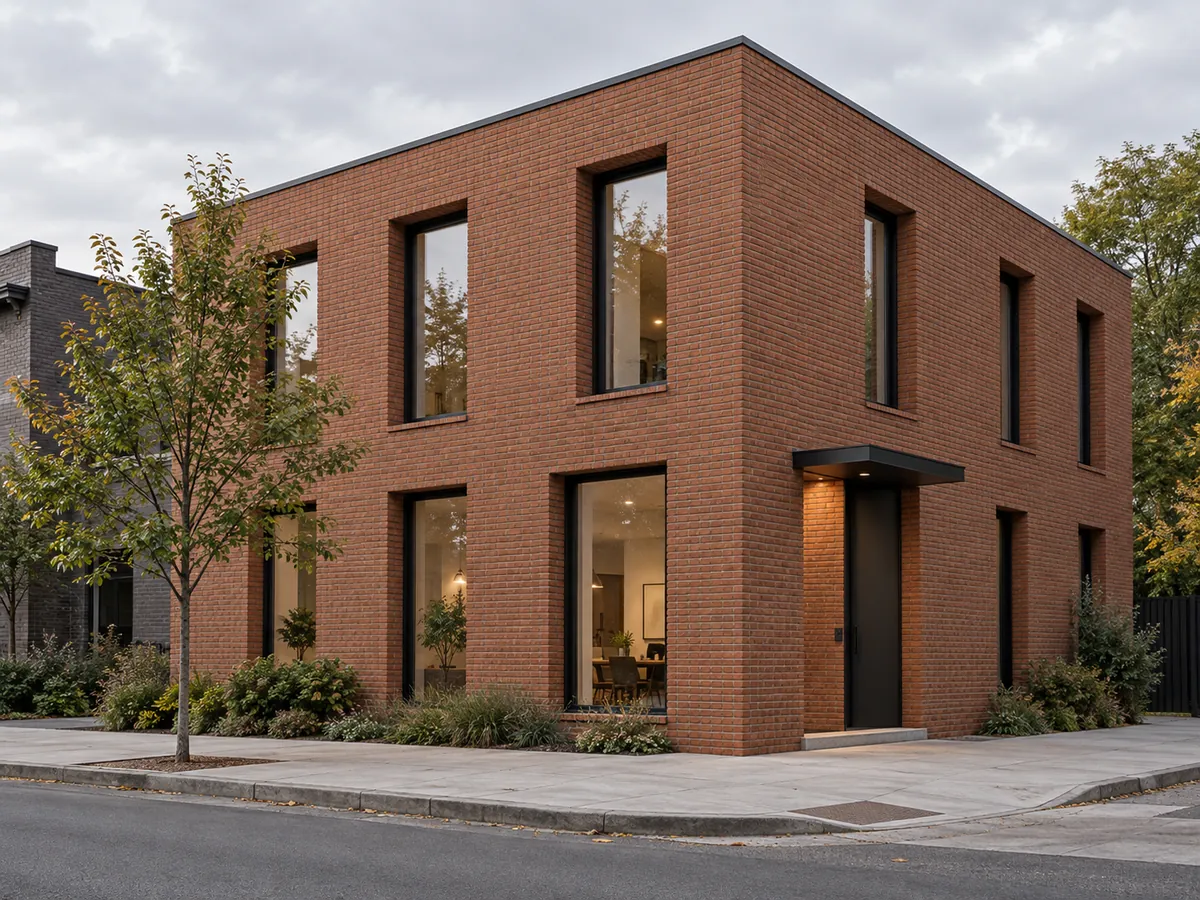
AI Architectural Rendering for Early Concepts
Explore how brick, timber or stone might read across a facade before committing to detailed visualization. Photorealistic architectural renderings can help communicate depth, shadow and atmosphere, but an AI image does not validate dimensions or structural decisions. Keep the drawing beside the render and flag details that need further design work.
AI exterior design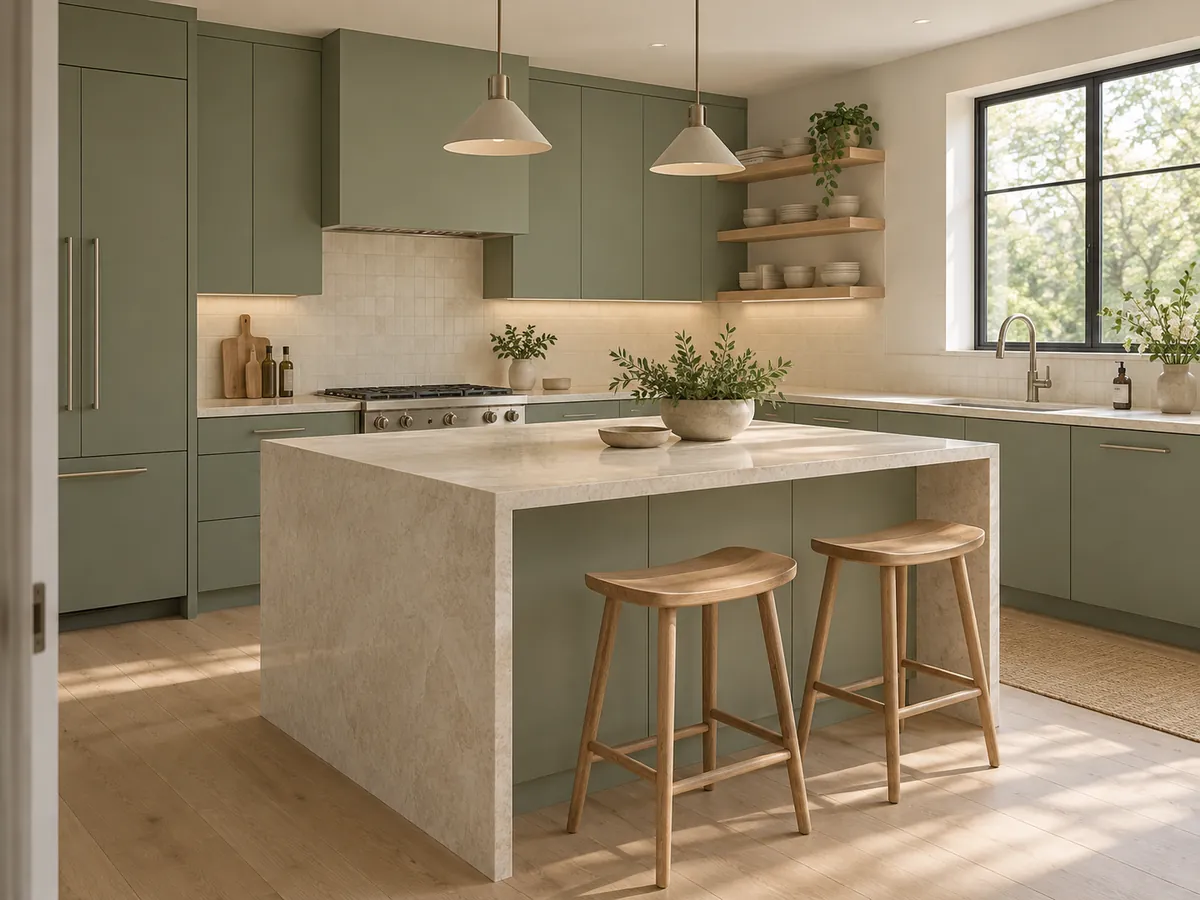
Kitchen Rendering from a Quick Drawing
Bring a kitchen perspective to life with cabinet color, worktop material and daylight. A clear island outline and readable appliance positions help establish the scene; concise notes can distinguish sage fronts from stone surfaces. The image is a material concept, so verify cabinet sizes, clearances and appliance specifications separately.
Render my kitchen sketch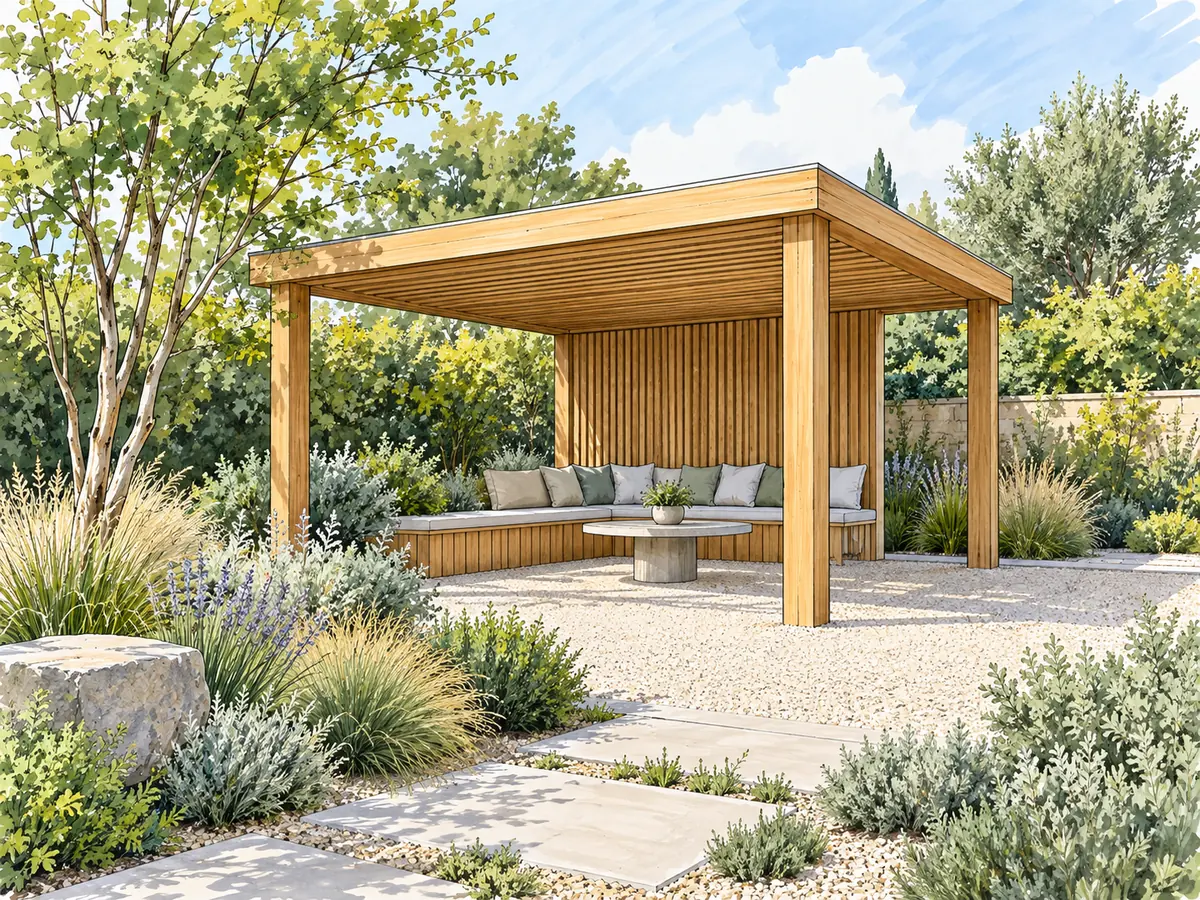
Watercolor and Marker Renders for Presentations
A soft watercolor can keep an early proposal open to discussion, while marker rendering gives forms a more graphic edge. Both looks interpret the same drawing without needing a photoreal finish. Try them for a garden pavilion or courtyard where planting, materials and atmosphere matter more than a polished final image.
Try an illustration lookA ChatGPT Render Prompt vs Sketch to Render
Both workflows benefit from a clear drawing and material brief. The difference here is how the rendering choices are organized.
Starting with a Chat Prompt
- Limitation: A ChatGPT render prompt puts the subject, material palette, lighting and preservation instructions into a written request. You decide how to describe the drawing and what a successful result should show.
- Limitation: Keep the instructions focused on one visual direction. Broad requests for a beautiful image leave more choices open than a brief that names the surfaces, light and elements to retain.
A Dedicated Sketch Workspace
- Benefit: Subject choices and render tiles provide a visible starting point. The tool automatically includes instructions to follow the drawing’s viewpoint, composition and major elements.
- Benefit: Your notes focus on materials and lighting, and the source stays available for comparison. The output remains an AI interpretation, so either workflow needs a visual accuracy check.
Make a Drawn Idea Easier to Discuss
Architects and design students
Use a sketch-based render to discuss massing, facade materials and atmosphere during an early review. Keep measured drawings separate so the concept image is not mistaken for resolved documentation.
Interior designers
Turn a room perspective into a shared material direction before developing samples and specifications. If you already have a photo of the space, the interior design tool starts from that image instead.
Homeowners and builders
Use a concept to explain the facade or garden atmosphere you have in mind. For an overhead plan rather than a perspective sketch, choose the dedicated plan-rendering workflow.
Sketch to Render Questions
New accounts receive free signup credits. Each generation costs 10 credits, and free requests may wait in a queue. Sign in before generating and check your balance before comparing another look.
This is an image-based AI rendering tool with free signup credits, rather than a full modeling or rendering package. It turns an uploaded view into a concept image. It does not provide an editable scene, material library with technical specifications or a construction model.
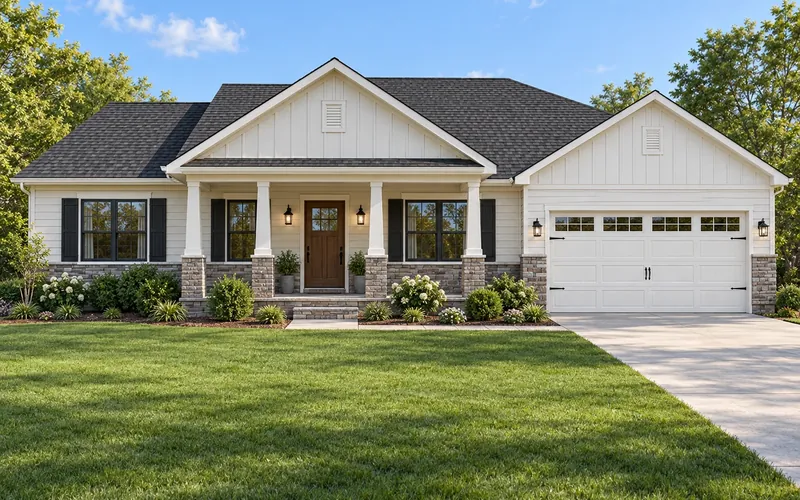
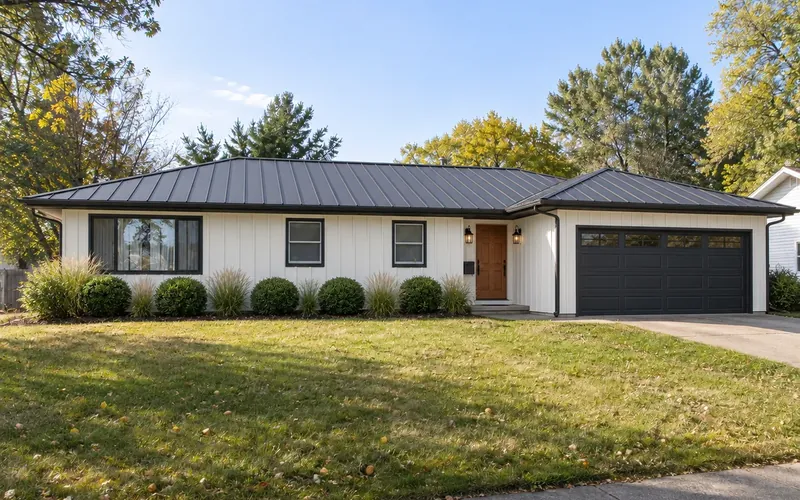
Upload a clear perspective of the house, choose House Exterior and select a render look. Describe the cladding, window frames and lighting, then compare the output with the drawing. The result can have the visual depth of a 3D rendering, but it is a flat image rather than a navigable model.
Yes. Export or capture a clean perspective image, crop away interface panels and upload it as a supported image file. The tool is instructed to use the visible geometry as its guide and add materials and light; it does not read or edit the original model file.
The AI is instructed to retain the composition, viewpoint, proportions and major drawn elements. Ambiguous lines can still be misread, and small details may change. Check openings, roof edges, furniture and planting against the original before sharing the image as a design proposal.
Use one clear perspective with readable outlines and enough contrast to separate objects. Closed shapes help distinguish a window from a wall panel, while consistent perspective reduces ambiguity. Put important material notes in the prompt because annotations and dimensions are removed from the finished image.
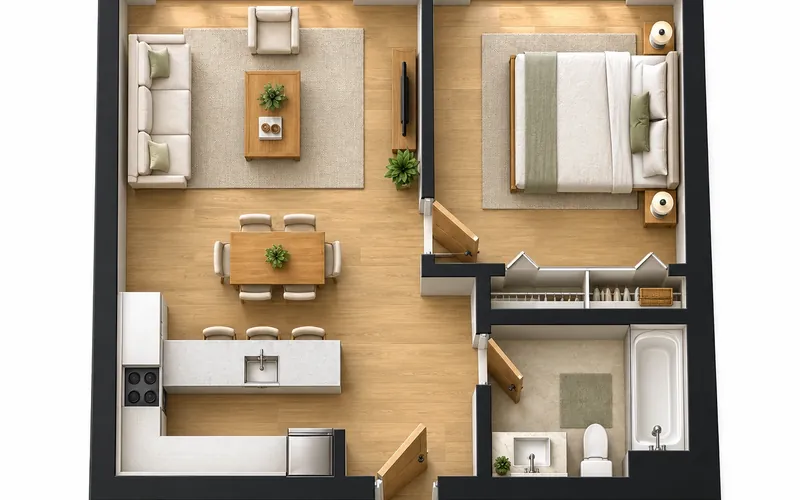
This page is designed around perspective sketches and model screenshots. Use the linked floor plan rendering tool for an overhead plan and its dedicated view choices. A perspective drawing and a measured plan communicate different information, so choose the workflow that matches your source.
Choose watercolor when you want to communicate a loose mood or keep an early proposal open for discussion. Photoreal daylight makes surface textures and lighting more tangible, while a white clay look emphasizes form. Generate each treatment separately so you can compare the effect.
It produces a single rendered image from the view you upload, not a 3D scene or editable mesh. You cannot rotate the result or extract reliable measurements from it. Use conventional modeling software when you need coordinated views, technical dimensions or a model that can be revised.
For an existing room or house photograph, use the linked interior or exterior design tools. This workflow is tuned to interpreting drawn geometry and model screenshots, including removing sketch marks and annotations. Choosing the matching tool makes the intended type of transformation clearer.
See Your Sketch in a New Light
Upload a drawing, choose a render look and describe your materials. Use the result to discuss the idea, then check it against the original.
Render My Sketch- 10 credits per generation
- PNG, JPG or WebP up to 10MB
- Free signup credits for new accounts